
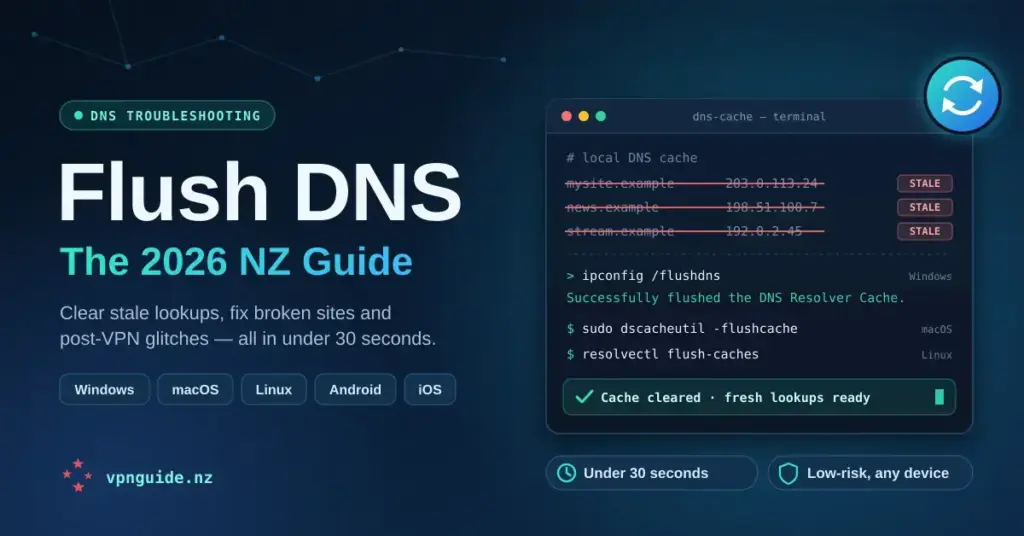
Flushing your DNS cache clears the local record your device keeps of recently visited domain names, forcing it to fetch fresh address information from your DNS resolver the next time you connect. For most New Zealand users it fixes broken websites, resolves post-VPN connection quirks, clears stale entries left behind after ISP or CDN changes — and it takes under thirty seconds on any device. This guide explains what the DNS cache is, how to flush it on every major platform, and the NZ-specific quirks worth knowing.
Key Points
- Flushing DNS clears your device’s local cache of domain-to-IP lookups, forcing fresh results from your resolver.
- It is low-risk and takes under thirty seconds on Windows, macOS, Linux, Android, iOS and inside browsers.
- Common NZ fixes: broken sites, post-VPN connection quirks, the wrong streaming geo-library, and stale entries after ISP or CDN changes.
- It will not fix upstream resolver errors, DNS leaks or connectivity faults — switch resolver or check the connection instead.
- Pair a flush with switching to an independent resolver (Cloudflare 1.1.1.1 or Quad9 9.9.9.9) for better privacy and lower NZ latency.
How DNS caching works and why it goes stale
Every time you visit a website, your operating system asks a DNS resolver to translate a domain name — say, tvnz.co.nz — into an IP address. A DNS resolver is simply the server that looks up those addresses on your behalf. Rather than repeat the lookup on every page load, your OS stores the result locally in a DNS cache. Each cached record carries a TTL (time to live) value set by the domain owner, typically anywhere from sixty seconds to twenty-four hours. Until that TTL expires, your device reuses the stored IP without checking whether it is still correct.
The problem is that IP addresses change. Content delivery networks (CDNs) — the distributed server networks that host much of the web, such as Cloudflare and Akamai — shift traffic between edge nodes constantly. When Chorus rolls out infrastructure changes or a major NZ site migrates hosting, your cached DNS entry can point to a dead or wrong address for hours. The result is a page that simply refuses to load, or one that loads an outdated version of a site.
A VPN (Virtual Private Network — a service that routes your traffic through an encrypted tunnel) adds another layer. When you connect to a VPN, your DNS queries should route through the VPN provider’s resolvers, not your ISP’s. If you disconnect the VPN without flushing, your OS may still hold cached entries that were resolved through the tunnel — entries your ISP’s routing now handles differently. This is a common cause of the “site worked on the VPN, now it is broken” complaint you see in NZ tech forums.
DNS poisoning — where a malicious or misconfigured resolver injects false records into your cache — is a less common but real concern. Flushing removes any poisoned entries and forces a clean lookup through your current resolver, ideally one you have chosen deliberately rather than the default assigned by Spark, One NZ or 2degrees.
Step-by-step flush DNS instructions for every major platform
Windows 11 and Windows 10
- Press Windows key + R, type cmd, then press Ctrl + Shift + Enter to open Command Prompt as administrator.
- Type ipconfig /flushdns and press Enter.
- You should see: Successfully flushed the DNS Resolver Cache.
- If you also have IP-level connectivity issues, follow up with ipconfig /registerdns, then ipconfig /release and ipconfig /renew.
Windows also keeps a separate NetBIOS name cache. If you are on a business network and still seeing stale name resolution, run nbtstat -R in the same elevated prompt.
macOS (Tahoe / Sequoia / Sonoma / Ventura)
- Open Terminal (Applications → Utilities → Terminal).
- Paste: sudo dscacheutil -flushcache; sudo killall -HUP mDNSResponder
- Enter your administrator password when prompted (the field stays blank as you type — that is normal).
- No confirmation message appears. Silence means it worked; the flush is immediate.
Apple has changed this command several times across macOS versions. The combined command above works on every current release from Ventura through Tahoe. On much older systems (Big Sur or earlier), the dscacheutil component alone was sufficient.
Linux (Ubuntu, Debian, Fedora)
- Open a terminal.
- On any modern distribution running systemd-resolved (the default on current Ubuntu, Debian and Fedora): sudo resolvectl flush-caches
- Verify with resolvectl statistics — the “Current Cache Size” should read zero.
- On older releases (systemd before version 239) the command was sudo systemd-resolve –flush-caches.
- On systems using nscd instead: sudo service nscd restart. On systems using dnsmasq: sudo service dnsmasq restart.
Android
Android does not expose a system-wide DNS flush command to users. The most reliable method is to toggle Aeroplane Mode on for about ten seconds and then off — this resets the network interfaces and clears most cached DNS data. Alternatively, clearing the cache for the Chrome or Firefox app clears browser-level DNS entries. If you use Android’s Private DNS feature (Settings → Network & internet → Private DNS), toggling it off and back on forces a resolver reset.
iOS and iPadOS
Like Android, iOS offers no direct flush command. Toggle Aeroplane Mode on and off. If the issue persists, go to Settings → General → Transfer or Reset iPhone → Reset → Reset Network Settings. Be aware this also removes saved Wi-Fi passwords, so note those down first. For browser-specific data, Safari’s history and website data can be cleared under Settings → Apps → Safari.
Chrome and Firefox
Modern browsers keep their own DNS cache independently of the OS. On Chrome or any Chromium-based browser (Edge, Brave, Opera), go to chrome://net-internals/#dns and click Clear host cache. On Firefox, open about:networking#dns and click Clear DNS Cache. This is useful when the OS flush has worked but one browser still shows stale results.
NZ-specific considerations
ISP-assigned resolvers and what they see
By default, Spark, One NZ and 2degrees assign their own DNS resolvers to your connection. These are fast for NZ-hosted content — they peer well with Chorus’s fibre backhaul and the Southern Cross Cable — but your queries pass through infrastructure the ISP controls. New Zealand has no blanket law forcing ISPs to retain your DNS history, and the Privacy Act 2020 governs how any personal data they do hold must be handled. However, under the Telecommunications (Interception Capability and Security) Act 2013 (TICSA), network operators must be able to intercept communications when served a lawful interception warrant — so “private from your ISP” is not the same as “private from a lawful request”.
If privacy is a concern, flushing your ISP-assigned cache and switching to an independent resolver is worth doing together. Cloudflare’s 1.1.1.1 and Google’s 8.8.8.8 are the two most common alternatives; Cloudflare publishes an annual privacy report audited by KPMG and does not sell query data. For a security-first option, Quad9 (9.9.9.9) blocks known malicious domains and follows a strong data-minimisation policy. You can confirm which resolver you are actually using, and check your public IP, before and after making a change.
Fibre speeds and DNS latency in NZ
On a Chorus Hyperfibre connection in Auckland, DNS resolution to a local resolver is typically a few milliseconds. To Cloudflare’s nearest edge (also Auckland-peered), expect single to low double-digit milliseconds. To resolvers in Sydney, expect roughly the high-twenties in round-trip time — the physics of the Tasman crossing set that floor. To resolvers reachable only in the US, the Southern Cross Cable imposes a round-trip minimum in the region of 130–140 milliseconds to the US West Coast, which is noticeable.
This matters because if you are on a VPN with US servers and your DNS resolves through a US-only resolver, every fresh lookup adds that trans-Pacific delay before your browser even begins loading a page. Flushing your cache and switching to a resolver with an Auckland or Sydney point of presence measurably improves browsing responsiveness on NZ fibre.
Methodology note: these latency figures are derived from published Southern Cross Cable and CDN infrastructure data and are consistent with what you can replicate using ping or a tool like DNSBench on a Chorus connection. Treat them as realistic floors, not guaranteed results.
VPN users and DNS leaks
If you use a VPN — and if you are researching DNS flushing, there is a fair chance you do — flushing before and after connecting is good hygiene. Flush before connecting so no stale ISP-resolver entries persist, and flush again after disconnecting so your browser stops using VPN-tunnel-resolved IPs your ISP cannot reach directly. For a broader look at which providers handle DNS-leak prevention well locally, see our best VPN guide for New Zealand.
A DNS leak — where your queries bypass the VPN tunnel and go straight to your ISP’s resolver — is a separate but related issue. Flushing does not fix a leak; that requires configuring your VPN client to force all DNS through the tunnel. But flushing does clear the evidence of a past leak from your local cache.
NZ streaming services and geo-resolution
TVNZ+, ThreeNow, Neon, Sky Sport Now and Whakaata Māori all serve NZ-only content through geo-aware infrastructure. If you have been using a VPN to reach international libraries and then disconnected, your cached entries may still point to CDN nodes that serve overseas content. Flushing your DNS and reloading forces a fresh lookup to the NZ-facing node, which often fixes playback errors on these services without further troubleshooting.
Best DNS resolvers for NZ users in 2026
DNS Resolver Comparison
| Resolver | Primary IP | NZ/AU edge | Logging policy | Malware blocking | Cost |
|---|---|---|---|---|---|
| Cloudflare 1.1.1.1 | 1.1.1.1 | Yes (Auckland) | No data selling; IP logs purged ~25h (KPMG-audited) | 1.1.1.2 variant only | Free |
| Google Public DNS | 8.8.8.8 | Yes (AU/NZ) | Aggregate data retained | No | Free |
| Quad9 | 9.9.9.9 | Yes (Auckland) | Minimal, anonymised | Yes (threat-feed blocking) | Free |
| NextDNS | Varies (profile) | Yes (AU/NZ) | Optional, user-controlled | Yes (configurable) | Free to 300k queries/mo; Pro ~NZD .30/mo |
| Spark / One NZ / 2degrees default | ISP-assigned | Yes (NZ) | Set by the ISP | Basic filtering | Included with plan |
NextDNS is worth a mention for technically confident households. It lets you build a custom profile with granular blocklists, logging you control, and modern encrypted DNS (DNS-over-HTTPS and DNS-over-TLS). The free tier — capped at 300,000 queries per month — covers most households; the Pro tier removes the cap for USD $1.99 per month (roughly NZD $3.30 at current rates). It is not a VPN, so if you want a no-cost privacy layer that also tunnels your traffic, our free VPN guide covers the safe options. Changing resolver for every device at once is easiest at the router — see our walkthrough on how to change DNS on your router.
When flushing DNS will not fix your problem
Flushing is a targeted fix for a specific class of problem. It will not help if the issue is upstream: if your ISP’s resolver itself returns wrong answers, flushing your local cache just makes your device fetch the wrong answer again. In that case, switching resolvers is the fix, not flushing.
It also will not resolve TCP/IP-level connectivity faults, Wi-Fi authentication failures, or a misconfigured VPN split tunnel. If you flush and the problem persists, the next steps are: confirm your resolver is reachable (run nslookup google.com 1.1.1.1 from a terminal), check your physical or wireless connection is stable, and check whether the site is down for everyone using a tool like downdetector.co.nz.
Browser extensions — particularly ad blockers and privacy tools — sometimes intercept DNS queries and keep their own cache. If you have flushed both the OS and the browser and still see stale results, temporarily disabling extensions is a worthwhile next step.
The bottom line
Flushing your DNS cache is one of the simplest fixes in any home or business troubleshooting toolkit, and it is especially relevant for NZ users navigating Chorus fibre, ISP-assigned resolvers, and the geo-DNS mechanics of services like TVNZ+, Neon and Sky Sport Now. The commands are quick, the risk is effectively zero, and the fix is immediate when stale cache entries are the actual cause. Pair a flush with a switch to a privacy-respecting resolver — Cloudflare 1.1.1.1 or Quad9 9.9.9.9 are the strongest picks for NZ latency and data minimisation — and you have improved both the reliability and the privacy of your DNS without spending a dollar.
Sources
- Microsoft Learn — ipconfig command reference
- systemd — resolvectl manual (flush-caches)
- Cloudflare — 1.1.1.1 Public DNS Resolver privacy
- Google Public DNS documentation
- Quad9 — secure DNS resolver
- NextDNS — pricing and free-tier limits
- Southern Cross Cables — network latency
- NZ Police — Telecommunications (Interception Capability and Security) Act 2013
- New Zealand Legislation — Privacy Act 2020
Frequently Asked Questions (FAQ)
Is flushing DNS safe?
Yes. It deletes only temporary lookup records stored on your device — it does not touch your files, browser history, passwords or network configuration. The only side effect is that your first visit to each site after a flush is marginally slower while your device performs a fresh lookup. On NZ fibre with a nearby resolver, you will not notice this in practice.
How often should I flush DNS?
There is no schedule to keep. Flush when you hit a specific symptom: a site that should load but does not, a streaming service showing the wrong geo-library, a domain that recently changed hosts, or problems after connecting or disconnecting a VPN. Flushing on a routine provides no ongoing benefit, because your OS automatically expires cached entries when their TTL runs out.
Will flushing DNS help me access TVNZ+ or Neon from overseas?
Not on its own. Geo-restricted services check your IP address, not just your DNS resolution, so you would still need a VPN or Smart DNS service with a New Zealand exit point. Flushing after you connect that service can help, though, by making your device fetch the correct NZ-facing address rather than reusing a cached overseas one.
Does New Zealand law require ISPs to log my DNS queries?
No. There is no blanket data-retention law forcing NZ ISPs to keep a record of your DNS queries. The Telecommunications (Interception Capability and Security) Act 2013 requires network operators to be capable of intercepting communications when served a lawful warrant, and the Privacy Act 2020 governs how any personal data they hold is handled. If you would rather your queries not pass through your ISP’s resolver at all, switching to a privacy-focused resolver such as Cloudflare 1.1.1.1 or Quad9 is the practical step.
What is the difference between flushing DNS and changing my DNS server?
Flushing clears the temporary cache of past lookups on your device. Changing your DNS server tells your device which resolver to use for future lookups. They are complementary: change your server without flushing and your device may keep using old cached results for hours; flush without changing your server and future lookups still go to the same resolver. For a real privacy or performance gain, do both together.