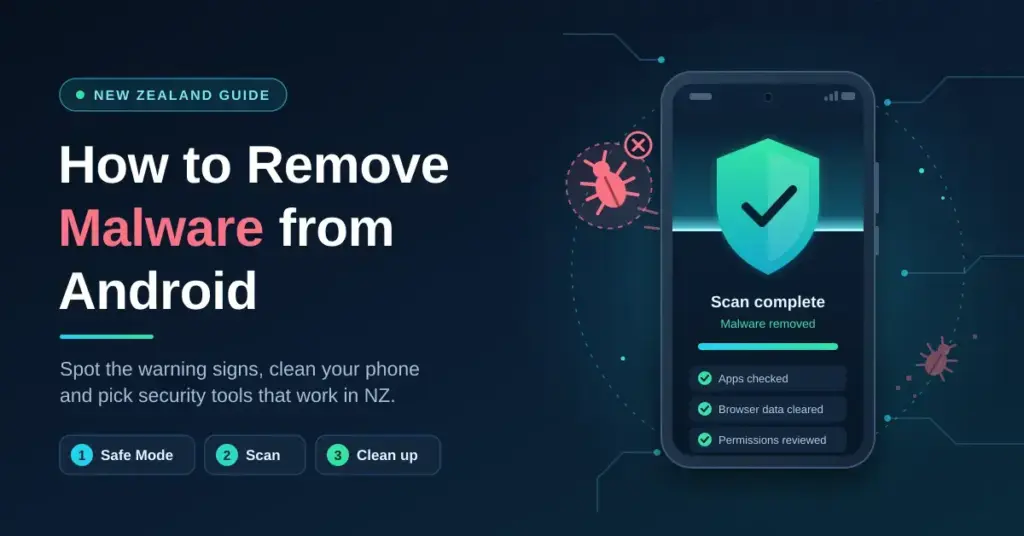
Discovering that your phone is misbehaving — draining its battery, serving pop-up ads or quietly burning through mobile data — is unsettling, but an Android infection is usually fixable at home without specialist help. This guide walks New Zealand users through spotting the warning signs, cleaning an infected device step by step, and choosing security tools that are actually available and effective here, with indicative NZD pricing and local scam context.
The quick version
To remove malware from an Android device, boot into Safe Mode to disable third-party apps, uninstall anything suspicious, run a reputable mobile security scanner, clear your browser data, and review app permissions and account access. If the infection survives all of that, a factory reset is the reliable fallback — but most infections are cleared well before that point.
Key points
- Start in Safe Mode to disable third-party apps, then uninstall anything suspicious.
- Scan with a reputable app — manual removal alone can miss secondary payloads.
- Clear browser data and reset a hijacked default search engine.
- Review permissions and Google account access, then change key passwords.
- Factory reset is the fallback, not the first move; don’t restore full app-data backups.
- Watch for NZ scams impersonating NZTA (genuine texts come only from 3651), IRD, NZ Post and banks — forward scam texts to 7726.
Why this matters for New Zealanders specifically
New Zealand sits inside the Five Eyes intelligence alliance, and while that is mainly a government signals-intelligence arrangement rather than a direct threat to your phone, it shapes the wider privacy picture. Under the Privacy Act 2020, organisations must take reasonable steps to protect your personal information — but that duty falls on them, not on attackers. If malware steals your banking logins or your IRD number, the remedies available to you afterwards are slow and limited. Prevention and prompt clean-up are the practical defences.
The threat is not abstract. New Zealand’s cyber-incident reporting is now handled by the National Cyber Security Centre (NCSC), which absorbed CERT NZ when their integration was completed in 2024; phishing and malicious apps remain among the most common incident types reported by New Zealanders. Android is the dominant mobile platform here, and because it allows sideloading — installing apps from outside the Google Play Store — its attack surface is larger than iOS.
Local campaigns use NZ branding to lift click rates: fake road-toll payment texts impersonating NZTA Waka Kotahi, spoofed Inland Revenue refund notices, bogus NZ Post delivery messages, and counterfeit banking apps mimicking ANZ, ASB, BNZ, Westpac NZ and Kiwibank. NZTA has confirmed its genuine texts come only from the number 3651 and never contain payment links — a useful tell. You can report a scam text for free by forwarding it to 7726.
There is a practical infrastructure angle too. On a fast Chorus fibre or Hyperfibre connection, a compromised device can exfiltrate large volumes of data very quickly. Spyware quietly running on a 900 Mbps symmetrical line is a far more capable leak than the same device on a congested mobile connection — speed becomes a risk multiplier once a device is compromised.
Signs your Android device may be infected
Not every slow phone is infected, but the following patterns warrant investigation — especially two or more at once:
- Unexplained mobile data use. Check Settings > Network > Data Usage. An app you rarely open consuming gigabytes in the background is a red flag, particularly on a capped Spark, One NZ or 2degrees plan.
- Battery draining faster than usual with no change in how you use the phone.
- Overheating at idle — background cryptominers or data harvesters generate heat.
- New apps you did not install, or apps that resist normal uninstallation.
- Intrusive ads outside apps, including on the home or lock screen.
- Browser redirects — a changed default search engine or pages bouncing to unfamiliar sites.
- Unexpected account activity — password-reset emails you did not request, or unfamiliar logins in your Google account.
How to remove malware from Android, step by step
Step 1 — Boot into Safe Mode
Safe Mode loads Android with only the core operating system and pre-installed apps, so third-party software — including malware — stays disabled. The method varies slightly by manufacturer:
- Press and hold the Power button until the power menu appears.
- Press and hold the on-screen Power Off option until you are asked whether to reboot into Safe Mode.
- Tap OK. The device restarts and shows “Safe Mode” in a corner of the screen.
On some Samsung models, power the phone off, then power it back on and hold Volume Down while it boots. If the symptoms vanish in Safe Mode — the ads stop, the drain slows — a third-party app is the culprit.
Step 2 — Identify and uninstall suspicious apps
Go to Settings > Apps (or Application Manager on older versions), sort by install date, and look for anything added around the time the trouble began. Warning signs include:
- Generic names like “System Service”, “Phone Manager” or “Battery Optimizer” that you do not recall installing.
- Apps with a blank name or no icon.
- Permissions wildly out of step with the app’s purpose — a torch app requesting contact or SMS access, for example.
Tap the app and choose Uninstall. If Uninstall is greyed out, the app has granted itself Device Administrator rights. Go to Settings > Security > Device admin apps (wording varies by version and manufacturer skin), deactivate it there, then return and uninstall it.
Step 3 — Run a mobile security scan
Reboot normally, then run a full scan with a reputable security app. Do not rely on manual removal alone — some malware drops secondary payloads or alters settings that a scanner will catch. See the comparison further down for options available in New Zealand with indicative NZD pricing.
Step 4 — Clear browser data
Many Android infections arrive through the browser and leave behind rogue bookmarks or cached scripts. In Chrome, open Settings > Privacy and Security > Clear browsing data, choose All time, and tick Cookies, Cached Images and Site Data. Then check Settings > Search engine and reset it if it has changed.
Step 5 — Revoke permissions and review account access
Open Settings > Privacy > Permission manager and audit which apps can reach your location, microphone, camera, contacts and SMS; revoke anything out of place. Then, from a clean device, visit your Google Account security page and remove any third-party apps with account access that you do not recognise. It is also worth using a service to check whether your details have appeared in a known breach.
Step 6 — Update Android and all apps
Many infections exploit vulnerabilities that already have patches. Install pending system updates via Settings > Software update, then update every app in the Play Store. Update commitments have improved sharply: recent Google Pixel models (Pixel 8 and later) and Samsung Galaxy flagships now receive up to seven years of security updates, while many mid-range and budget handsets sold through NZ carriers still get only two to four. If your device has stopped receiving patches, treat that as a reason to replace it.
Step 7 — Factory reset (last resort)
If the infection persists, a factory reset is the most reliable fix. Go to Settings > General management > Reset > Factory data reset. Back up photos and documents to Google Drive or a computer first — but do not restore full app-data backups, which can reintroduce the infection. Reinstall apps manually from the Play Store instead.
Key takeaway: Safe Mode plus manual uninstall resolves the majority of Android infections. Reserve the factory reset for malware embedded deeply enough to survive the earlier steps — some rootkits and banking trojans fall into that category.
Common mistakes to avoid
Installing a “cleaner” app from an ad. This is one of the most common infection routes. Searching “remove virus from Android”, clicking an ad, and installing an APK from outside the Play Store often installs more malware. Only download security software from the Play Store or the vendor’s official website.
Restoring a full cloud backup straight after a reset. If the backup contains app data from the infected period, restoring it can bring the problem back. Restore contacts and media; reinstall apps fresh.
Ignoring the router. Some attacks target both phone and home network. If you use a home router with a default password, check its admin panel for unfamiliar DNS settings or port-forwarding rules. Your ISP’s support line can help you verify the configuration.
Assuming free antivirus is always worse. Several reputable vendors offer effective free tiers for on-demand scanning. Paid tiers add real-time protection, which is more valuable — but a free scan from a trusted vendor still beats a paid scan from an unknown one.
Not changing passwords after removal. Cleaning the device does not undo credential theft that already happened. Afterwards, change passwords for your email, banking and any accounts you used while infected, and turn on two-factor authentication — ANZ, ASB, BNZ, Westpac NZ and Kiwibank all support it.
Security apps compared (indicative NZD pricing)
The table below covers the main options available to NZ users. Prices are indicative single-device annual plans as of September 2026 and change often, so treat them as ballpark figures; multi-device household plans are usually better value.
Comparison
| Product | Free tier | Approx. NZD/year (1 device) | Real-time protection | Notable for NZ users |
|---|---|---|---|---|
| Malwarebytes for Android | Yes (on-demand scan; 30-day Premium trial) | ~NZ$60–70 | Premium only | Strong adware and PUP detection; lightweight |
| Bitdefender Mobile Security | No (short trial) | ~NZ$30–40 | Yes | Very low overhead; repeat AV-TEST award winner |
| Norton 360 for Mobile | No | ~NZ$50–80 | Yes | App Advisor checks Play Store apps before install |
| ESET Mobile Security | Yes (basic) + 30-day premium trial | ~NZ$30–45 | Yes | Low false-positive rate; good for banking use |
| AVG AntiVirus for Android | Yes (capable free tier) | ~NZ$30–40 | Pro tier | Solid free on-demand scanning from a known vendor |
| Google Play Protect | Free (built-in) | Free | Yes | Baseline; weaker on sideloaded APKs and SMS phishing |
Google Play Protect is enabled by default on all certified Android devices sold in NZ and is a genuine baseline. Independent labs such as AV-TEST and AV-Comparatives now score it close to the leading paid apps for known malware — AV-Comparatives measured it at 98.9% detection in mid-2026, against 100% for the top performers — but the bigger gaps are in areas it was never designed to cover, including sideloaded APKs, SMS phishing links and scam calls. It is a floor, not a ceiling. For a broader look at options, see our guide to the best antivirus software for New Zealand.
One product to note by its absence: Kaspersky. The US Commerce Department banned Kaspersky sales from July 2024 on national-security grounds, updates to existing US installs stopped in September 2024, and Google removed the app from the US Play Store. It is not banned in New Zealand, but its regulatory status makes it a weak default choice for most users here. Be cautious, too, about VPNs bundled inside security suites — they are often limited in server choice and do not replace a dedicated service.
How to stay protected going forward
Removal is reactive; the durable fix is shrinking your attack surface so reinfection is unlikely:
- Install apps only from the Play Store, and even then check the developer name, review count and requested permissions first.
- Disable “Install unknown apps” in Settings > Security unless you have a specific, trusted reason to sideload.
- Keep Android updated, and retire any device that no longer receives security patches.
- Use a filtering DNS on your home network. Pointing your router at a malware-blocking resolver such as Cloudflare’s 1.1.1.2, or a service like NextDNS, catches many malicious domains before your device connects to them.
- Be sceptical of SMS links. NZTA, IRD, NZ Post and NZ banks will not ask you to click a link to pay or claim a refund — navigate to the official site directly instead.
- Review app permissions every few months and revoke anything that has crept in.
Disclaimer
This article is general information about device security, not legal, financial or professional security advice; your situation may differ. If you believe you have lost money or that your banking has been compromised, contact your bank immediately using the number on your card. In New Zealand you can report cyber incidents and scams to the National Cyber Security Centre (0800 114 115) and get help from Netsafe; scam texts can be forwarded free to 7726. Since 30 November 2025, banks signed up to the Code of Banking Practice have committed to stronger anti-scam measures — including payment warnings, Confirmation of Payee, 24/7 scam reporting and compensation of up to NZ$500,000 in defined cases — and unresolved disputes can go to the Banking Ombudsman.
Reference sources
- National Cyber Security Centre (NCSC) New Zealand
- NZTA Waka Kotahi — text message scams
- Netsafe New Zealand
- AV-TEST — Android security product tests
- AV-Comparatives — Mobile Security Review
- Cloudflare 1.1.1.1 / 1.1.1.2 setup documentation
- Banking Ombudsman Scheme New Zealand
- Google — Android/Pixel update and support periods
- TechRadar — Kaspersky removed from the Play Store
Frequently asked questions (FAQ)
Can Android malware survive a factory reset?
In almost all cases, no. A factory reset wipes the user-data partition and returns the device to its out-of-box state, removing virtually all malware. The rare exception is firmware-level malware living in the system partition, which is uncommon on devices bought through mainstream NZ retailers. If you suspect that, contact the manufacturer or retailer.
Is Google Play Protect enough on its own?
It is a reasonable baseline and now scores close to leading paid apps for known malware in independent testing. The weak spots are sideloaded APKs, SMS phishing and scam calls. If you use mobile banking, work email or store sensitive files on your phone, a dedicated scanner with real-time protection is worth the roughly NZ$30 to NZ$80 a year.
My phone is slow — does that mean it is infected?
Not necessarily. Slowness is more often caused by full storage, an ageing battery, too many background apps or a pending update. Run a scan to rule out malware, but also check Settings > Storage and Settings > Battery for more mundane causes first.
What should I do if I think my banking app has been compromised?
Contact your bank straight away using the number on your card or its official website — never a number from a search result or text. ANZ NZ, ASB, BNZ, Westpac NZ and Kiwibank all run around-the-clock fraud lines. Freeze your card through the official app from a separate clean device if you can, then work through the removal steps above. Prompt reporting is essential to your protections under the Code of Banking Practice.
Can I remove malware without losing my data?
Usually, yes. The Safe Mode uninstall method plus a security scan clears most infections without touching your files. A factory reset is only needed when malware is deeply embedded. Either way, back up photos, contacts and documents to Google Drive or a computer first, just in case.