Short answer: public Wi-Fi is usually safe for everyday browsing, but it is not risk-free. The free networks at cafes, airports, malls, libraries and hotels are shared and open, which gives scammers more chances to snoop or trick you than your home connection does. The good news is that most of the web is now encrypted, so with a few simple habits you can use public Wi-Fi in New Zealand with very little to worry about. This guide explains what the real dangers are, whether you should bank or shop on open networks, and the exact steps that keep your data safe.
Key Facts
| Is public Wi-Fi safe? | Usually safe for everyday browsing on HTTPS sites; riskier for banking and sensitive logins. |
|---|---|
| Biggest risks | Fake “evil twin” hotspots, snooping on unencrypted sites, and shoulder surfing. |
| Simplest protection | Stick to HTTPS (padlock) sites, use a trusted VPN, and keep devices updated with two-factor authentication on. |
| Best avoided on public Wi-Fi | Internet banking and online payments — use your mobile data instead. |
| If something goes wrong (NZ) | Change your passwords, contact your bank, and report the incident to the NCSC’s Own Your Online. |
So, is public Wi-Fi safe to use?
For normal activities — reading the news, checking maps, watching a video, browsing a shop — public Wi-Fi is generally safe today. The reason is encryption. The vast majority of websites now use HTTPS, the secure version of a web connection shown by the padlock and the https:// at the start of the address. HTTPS scrambles the data travelling between your device and the website, so even someone sitting on the same network cannot read it.
Proton, a privacy company, notes that roughly 85% of websites used HTTPS as of early 2024, and that the figure is close to 100% for sites that handle payments or sensitive logins. In other words, the biggest historic risk — a stranger quietly reading your traffic — has been largely closed off for most of what you do.
“Usually safe” is not the same as “always safe”, though. Open networks still expose you to a handful of specific tricks, and a few older or badly built sites still skip encryption. That is why it pays to know the risks rather than assume every hotspot is harmless.
The real risks of public Wi-Fi
Here are the threats that actually matter on an open network:
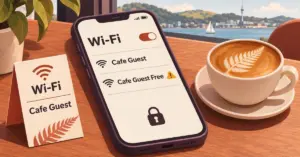
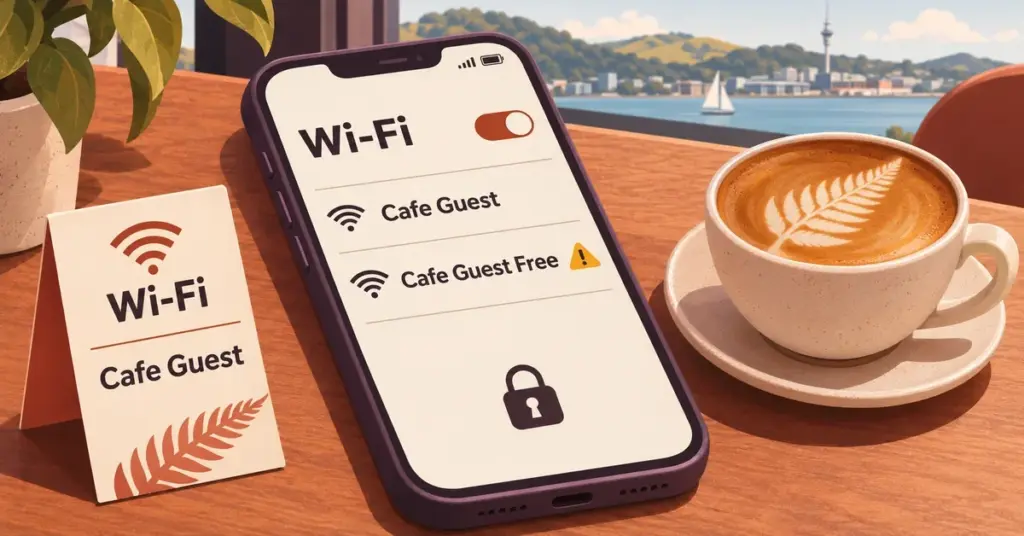
- Fake “evil twin” hotspots. Anyone can create a Wi-Fi network and name it almost anything. A scammer sets up a hotspot called something like “Free Airport WiFi” or copies a cafe’s real network name, hoping you connect to theirs by mistake. Once you do, they can see unencrypted traffic or push you towards a fake login or phishing page designed to steal your password.
- Snooping on unencrypted connections. If a website does not use HTTPS (no padlock), another person on the same network may be able to read what you send — including anything you type into that site. This is sometimes called a man-in-the-middle attack, where the attacker quietly sits between you and the site.
- Shoulder surfing. The low-tech one: someone nearby simply watches you type a password, PIN or card number, or glances at your screen. Busy cafes and airports are ideal for it.
- Exposed devices and file sharing. If file sharing or AirDrop is left on, other people on the same network may see folders or send you files. Auto-connect settings can also make your phone join an unknown hotspot without you noticing.
- Malware. A shady hotspot operator or a malicious site can try to slip harmful software onto an out-of-date device. Keeping your software patched and running good antivirus software closes most of this gap.
Encryption blunts most of these. As Proton points out, as long as HTTPS is used, attackers cannot use an evil-twin hotspot to spy on your browsing, even if you are connected to their network. The realistic risk in New Zealand is being tricked by a fake network or a fake page, rather than someone silently reading your encrypted banking session.
Is it safe to bank or shop on public Wi-Fi?
This is the question most people really want answered. New Zealand’s National Cyber Security Centre, through its public programme Own Your Online, gives direct advice: avoid doing online shopping or internet banking on free Wi-Fi or an unsecure network, and keep sensitive transactions to a minimum. Checking the news or weather is fine; moving money is best done elsewhere.
The safest option is to not use public Wi-Fi for anything sensitive at all. Instead:
- Switch to your phone’s mobile data or a personal hotspot for banking, payments and important logins — a mobile connection is private to you and far harder to tamper with.
- If you must use public Wi-Fi, do it only on HTTPS pages, turn on a VPN first (see below), and make sure two-factor authentication is switched on for your email and banking so a stolen password alone is not enough.
- Use your bank’s official app rather than typing your login into a browser, and never enter card details on a site without the padlock.
If your account is ever hit, contact your bank immediately — banks’ fraud policies generally depend on you having taken reasonable care, and recovering a drained account is a stressful process you want to avoid. Treating public Wi-Fi as “fine for browsing, not for banking” is the simple rule.
How to stay secure on public Wi-Fi
You do not need to be a security expert. Running through this short checklist each time covers almost every risk above.
Checklist
- Turn off auto-connect, and switch Wi-Fi off when you are not using it.
- Confirm the exact network name with a staff member before you join.
- Check for https:// and the padlock before entering any details.
- Avoid banking, shopping and sensitive logins — switch to mobile data for those.
- Turn on a trusted VPN before you start browsing.
- Disable file sharing and AirDrop while you are connected.
- Keep your operating system, browser and apps updated, and use two-factor authentication.
- Log out of accounts and “forget” the network when you leave.
A couple of these deserve a note. Confirming the exact network name with a staff member is the single best defence against evil twins — if there are two networks with similar names, one may be fake. And “forgetting” the network when you leave stops your device silently reconnecting to a hotspot (or an impostor using the same name) next time you walk past.
Does a VPN make public Wi-Fi safe?
A VPN (virtual private network) is a tool that wraps all your internet traffic in its own layer of encryption and routes it through the provider’s server. On public Wi-Fi this is genuinely useful: it hides your activity from the hotspot operator and anyone else on the network, and it protects the small number of sites that still do not use HTTPS. A VPN also masks your IP address from the sites you visit. If you regularly work from cafes or travel, using a VPN is one of the strongest single steps you can take.
Two honest caveats:
- A VPN protects data in transit. It does not stop you from typing your password into a fake phishing page, and it cannot save you from malware you install yourself. It is one layer, not a magic shield.
- Choose the provider carefully. A VPN sees all of your traffic, so trust matters. Check how a free VPN makes money before you trust it with your traffic on public Wi-Fi. A reputable paid service with an independently audited no-logs policy is the safer choice.
What to do if you think your details were exposed
If you logged into something sensitive on a dodgy network, or you suspect you connected to a fake hotspot, act quickly:
- Switch to a trusted connection (mobile data or home Wi-Fi) and change the password for any account you used, starting with email and banking.
- Turn on two-factor authentication anywhere it is not already active.
- Check your bank and card statements for anything you do not recognise, and phone your bank straight away if you see fraud.
- In New Zealand, report scams and cyber incidents through the NCSC’s Own Your Online service, which can point you to the right help.
A note on this guide
This article is general information about staying secure online, not security or financial advice tailored to your situation. VPN rules and the terms of service of individual websites and banks can change. If you think your accounts or money have been affected, contact your bank directly and report the incident to New Zealand’s National Cyber Security Centre through Own Your Online.
Sources
Frequently asked questions
Can someone see what I am doing on public Wi-Fi?
On encrypted (HTTPS) sites, no — other people on the network cannot read the actual content you send and receive. They may be able to see which websites you connect to, and anything you enter on a non-HTTPS site is exposed. A VPN hides even the list of sites from the network.
Is mobile data safer than public Wi-Fi?
Yes. Your 4G or 5G mobile connection is private to your device and encrypted by the mobile network, so it is not shared with strangers the way an open hotspot is. For banking, payments and sensitive logins, mobile data or a personal hotspot is the safer choice.
Is the free Wi-Fi in NZ libraries and on public transport safe?
Treat it like any other public network. Council library and public-transport Wi-Fi (such as on buses and trains) is open and shared, so the same rules apply: stick to HTTPS sites, confirm the official network name, avoid banking and sensitive logins, and switch to mobile data for anything important. If you use these networks often, a VPN adds a useful extra layer.
Is it safe to use free airport or hotel Wi-Fi?
It is fine for general browsing if you stick to HTTPS sites and avoid sensitive logins. Busy places like these are attractive targets for fake hotspots, so confirm the exact network name with staff before connecting and keep banking for your mobile data.
How can I spot a fake Wi-Fi hotspot?
Be suspicious of two networks with near-identical names, open networks that ask you to “log in” with an email and password, or a hotspot that appears where you would not expect one. When in doubt, ask a staff member which network is the official one, and turn off auto-connect so your device does not join unknown networks on its own.