A virtual private network (VPN) – software that routes your internet traffic through an encrypted “tunnel” to a server in another location – can add privacy to your streaming and help you reach apps or catalogues that are not sold here. Whether you can actually run one on your smart TV depends entirely on the operating system the TV uses. This guide explains which New Zealand smart TVs can install a VPN app, how to set one up on Android TV or Google TV, and the workarounds for Samsung and LG sets that block VPN apps outright.
Why put a VPN on your smart TV?
Three reasons come up most often for Kiwi households:
- Privacy on your home network. A VPN hides the individual sites and services your TV connects to from your internet provider, so your viewing is not tied to your household’s public IP address.
- Reaching geo-blocked content. Geo-blocking is the practice of showing different content depending on the country your connection appears to be in. A VPN server in another country can let apps you already pay for show that country’s catalogue, which is one way people compare what is on the best streaming services in New Zealand against overseas libraries.
- Reducing throttling. Some providers slow particular types of traffic at busy times; because a VPN encrypts the stream, that content is harder to single out. The trade-off is that the encryption and the extra distance to the server almost always cost you some speed.
Does your smart TV support a VPN app?
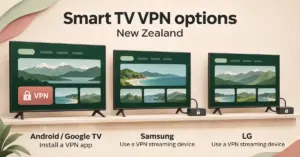
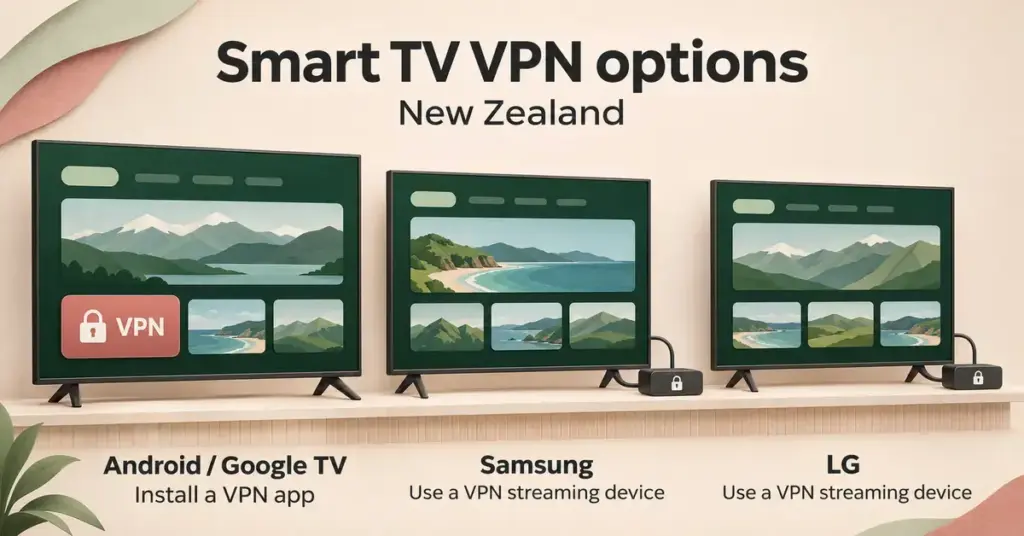
This is the first thing to check, because it decides everything else. TVs that run an app store you recognise can usually install a VPN directly; Samsung and LG sets cannot.
VPN support by TV platform
| TV platform | Native VPN app? | How to get VPN coverage |
|---|---|---|
| Android TV / Google TV (Sony, Hisense, TCL, Chromecast with Google TV) | Yes | Install the VPN app from the Google Play Store |
| Amazon Fire TV (Stick, Cube) | Yes | Install the VPN app from the Amazon Appstore |
| Apple TV (tvOS) | Yes | Install the VPN app from the App Store |
| Samsung (Tizen) | No | Router VPN, Smart DNS, or a streaming stick |
| LG (webOS) | No | Router VPN, Smart DNS, or a streaming stick |
Android TV, Google TV, Amazon Fire TV and Apple TV all run full app stores, so a VPN provider’s own app installs like any other. Samsung’s Tizen and LG’s webOS run closed app stores and do not support third-party VPN apps, so a VPN has to reach those sets another way.
How to install a VPN on Android TV or Google TV
Many Sony, Hisense and TCL models run Google TV, as does the Chromecast with Google TV streaming device. The steps are the same across them:
- From the home screen, open the Google Play Store.
- Search for your VPN provider’s app by name and select Install.
- Open the app and sign in. Most TV apps let you log in by scanning a QR code or entering a short code on your phone, so you avoid typing a password with the remote.
- Choose a server – your own country for privacy and the fastest speed, or another country to reach its catalogue – and connect.
- Turn on the kill switch if the app has one. A kill switch cuts the TV’s internet if the VPN tunnel drops, so your real location is not briefly exposed mid-stream.
The process mirrors installing a VPN app for Android phones, because Android TV is built on the same system. One free option worth knowing about is Proton VPN: its Android TV app installs on the free plan, but Proton states that streaming support is reserved for its paid plans, so the free tier is really for privacy rather than unblocking catalogues.
Samsung and LG TVs: the workarounds
Because Tizen and webOS block VPN apps, you cover these TVs at the network level, or feed them internet from a device that is already protected. Four practical options:
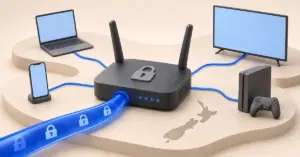
- Run the VPN on your router. Setting the VPN up once on the router protects every device on the network, the TV included. It is the most reliable fix but the most technical; our guide to setting up a VPN on your router walks through compatibility and the manual configuration.
- Use a Smart DNS feature. Some VPN providers include a Smart DNS that changes only the location signals a streaming app reads, which you enter in the TV’s network settings. It is often faster for streaming, but it does not encrypt your traffic, so it is an unblocking tool rather than a privacy one.
- Add a streaming stick. Plugging an Amazon Fire TV Stick or a Chromecast with Google TV into the HDMI port gives the TV an app store that does support VPNs, sidestepping Tizen and webOS entirely.
- Share a protected connection from a computer. A Windows or Mac machine already connected to a VPN can share that connection as a Wi-Fi hotspot that the TV joins. It works in a pinch but ties up the computer.
Choosing a VPN for your TV
Rather than a ranked “best” list, it helps to judge a VPN for TV use against a few checkable facts:
- A native TV app. On Android TV, Fire TV or Apple TV, an app built for the big screen and a remote is far easier than any workaround.
- An independently audited no-logs policy. A no-logs claim carries more weight when an outside firm has audited it, rather than the provider simply asserting it.
- Consistent speeds. Streaming in HD or 4K needs steady bandwidth, so stable speeds matter more than a headline peak figure.
- Enough simultaneous connections. One subscription usually covers several devices; Surfshark, for example, allows an unlimited number, which suits a household with a TV, phones and a laptop all connected at once.
Is it legal, and what about Netflix?
In New Zealand, using a VPN is legal. In 2026 the Government explicitly ruled out banning or restricting VPNs, and you can read more on whether VPNs are legal in NZ. The grey area is not the tool but what you do with it.
Streaming services set their own rules. Netflix’s terms say you may watch its content “primarily within the country” where you set up your account, and licences differ by country. Point a VPN at another region’s catalogue and you may hit the “You seem to be using a VPN or proxy” message (error code E106). In practice that blocks the content you are trying to watch; the realistic outcome is an error rather than your account being banned. Switching the VPN off, or trying a different server, usually clears it.
If streaming still will not unblock
A quick checklist when a VPN connects but the app still refuses:
- Switch to a different server in the same country – the first one’s IP address may be flagged.
- Clear the streaming app’s cache, or sign out and back in, so it re-reads your location.
- Confirm the TV is not leaking its real location through a separate DNS setting.
- Make sure no other device on the network is forcing a different country.
Disclaimer
This guide is general information, not legal advice. VPNs are legal to use in New Zealand, but bypassing a streaming service’s geo-blocks can breach that service’s terms of use. Check each service’s terms before relying on a VPN to unblock content, and remember that content licences differ by country.
Sources
- Proton VPN – How to use Proton VPN on Android TV
- Netflix – “You seem to be using a VPN or proxy” (error E106)
- Netflix – Terms of Use
- 1News – Luxon denies any plans to restrict VPNs in under-16 media ban
- Surfshark – How to set up VPN on my Smart TV or console
- Security.org – The Best VPNs for Samsung & LG Smart TVs (Tizen and webOS do not support VPN apps)
Frequently asked questions
Will Netflix ban my account for using a VPN?
When Netflix detects a VPN it shows a proxy error (code E106) reading “You seem to be using a VPN or proxy”, and its help page tells you to turn the VPN off and try again. In practice it blocks that content until you disconnect or switch server. Using a VPN to reach another region does breach Netflix’s terms, so the service can limit access, but the result you actually see is an error message telling you to switch the VPN off.
Can I use a free VPN on my smart TV?
Sometimes, but with limits. Proton VPN, for instance, lets you install its Android TV app on the free plan, yet reserves streaming support for paid plans. Many free VPNs also cap data or speed, which struggles with HD and 4K. A free plan is fine for basic privacy; reliable unblocking generally needs a paid subscription.
Does a VPN slow down TV streaming?
Usually a little. Encrypting your traffic and sending it to a more distant server both add overhead, so you lose some speed. A nearby server on a fast provider often leaves more than enough bandwidth for HD or 4K; a very distant or congested server is where buffering appears.
Can I put a VPN directly on a Samsung or LG smart TV?
Not as an app. Samsung’s Tizen and LG’s webOS do not support third-party VPN apps, so you cover these TVs by running the VPN on your router, using a Smart DNS, adding a streaming stick, or sharing a protected connection from a computer.
Do I need a separate VPN subscription for my TV?
No. A single VPN subscription covers several devices at once, and most providers let you install the app on a TV, phones and a laptop under the same account – the only limit is how many connections your plan allows simultaneously.