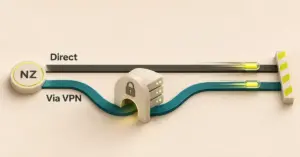

If you use a VPN, you may have noticed that routing every app and website through it can slow things down or break services that expect to see a New Zealand connection. Split tunnelling is the setting that fixes that. It lets you choose which traffic goes through the encrypted VPN and which goes straight out through your normal internet connection — so you can stream an overseas show through the VPN while your online banking and your Chromecast keep working as usual. This guide explains what split tunnelling (often spelled “split tunneling”) is, the main modes, when it is genuinely worth turning on, the risks to watch, and how to switch it on across the devices Kiwis actually use.
What is VPN split tunnelling?
A VPN (virtual private network) normally sends all of your device’s internet traffic through a single encrypted tunnel — a protected path between your device and a VPN server. Your internet provider (ISP) and the websites you visit then see the VPN server’s address instead of your own. Split tunnelling breaks that single path into two: some traffic keeps using the encrypted tunnel, while the traffic you choose skips it and goes directly through your ordinary connection.
In practice that means two things are happening at once. The apps inside the tunnel are hidden and, if the server is overseas, appear to be in that country. The apps outside the tunnel run at normal speed and use your real New Zealand IP address — which is exactly what you want for a local printer, a bank app, or a service like TVNZ+ that should see a Kiwi connection.
How split tunnelling works: the main modes
Most VPN apps let you build a list of apps or websites and then decide which way the list works. There are two directions, and providers use different names for them.
Exclude mode (standard)
Everything uses the VPN by default, except the apps or sites you add to the list — those bypass the tunnel and use your normal connection. This is the most common setup and is sometimes called standard, bypass or blacklist mode. It suits people who want the VPN on for almost everything and only need to carve out a few exceptions.
Include mode (inverse)
The default flips: nothing uses the VPN, except the apps or sites you add. Only your chosen traffic is protected and the rest runs directly. This is often called inverse, inclusive or whitelist mode, and it suits people who mostly want their normal connection and only need the VPN for one or two tasks.
Alongside the direction, apps differ in what you can filter by. Most let you choose by app (for example, exclude a game), some let you choose by website or domain (so one site bypasses the VPN in your browser), and business tools can filter by IP address or network route.
Full tunnel vs split tunnel
If you leave split tunnelling off, your VPN runs in “full tunnel” mode — every byte goes through the encrypted path. That is the simplest and most private setup, but it is also where the slowdowns and broken local devices come from. The table below shows the trade-off at a glance.
Full tunnel vs split tunnel
| Aspect | Full tunnel (split tunnelling off) | Split tunnel (on) |
|---|---|---|
| What goes through the VPN | All of your traffic | Only the traffic you choose |
| Privacy from your ISP | Everything is hidden | Only tunnelled traffic is hidden; the rest is visible |
| Speed | Every app takes the VPN detour, which can slow things | Excluded apps run at normal speed |
| Local devices (printer, Chromecast, NAS) | Often blocked while connected | Stay reachable if you exclude them |
| Best for | Maximum privacy and public Wi-Fi | Mixing protected tasks with fast or local ones |
When split tunnelling is worth using
Split tunnelling earns its place when you need protection for some tasks but not others at the same time. Common reasons include:
- Streaming and geo-blocked services. Geo-blocking locks content to certain countries. You can route the VPN to an overseas region to reach a catalogue that is not sold here, while local services such as TVNZ+, Neon or your bank still see your real New Zealand connection.
- Keeping speed up for heavy tasks. A big download, 4K streaming or online gaming can run outside the tunnel so it is not slowed by the extra encryption hop. If you have wondered whether a VPN will slow down your internet, excluding bandwidth-heavy apps is one way to avoid it.
- Reaching devices on your home network. Printers, a NAS drive, a Chromecast or smart-home gear are often hidden when the VPN is on; excluding them keeps them reachable.
- Apps that block or dislike VPNs. Some banking apps and regional services refuse to work over a VPN. Excluding them lets them see your normal connection while the rest of your traffic stays protected.
- Remote work. You can route only your work apps through a company VPN while personal browsing stays on your own connection — or the reverse, depending on your employer’s rules.
The risks and when to leave it off
Split tunnelling trades a little privacy for convenience, so it is not always the right call. Keep these points in mind:
- Excluded traffic is not protected. Anything outside the tunnel is visible to your ISP and uses your real IP address. That is fine for a printer, but not for anything you would rather keep private.
- It is easy to misconfigure. Put the wrong app on the bypass list and you can leak data you meant to protect, often without noticing.
- It can interact with your kill switch. A VPN kill switch cuts your internet if the tunnel drops; check how your app treats excluded apps so you know what stays connected if the VPN fails.
- Public Wi-Fi. On an untrusted network — a café, an airport — a full tunnel is safer. Turn split tunnelling off until you are back on a network you trust.
- Work networks. Bypassing a company VPN can sidestep security controls your employer relies on, so follow their policy rather than carving out exceptions yourself.
How to turn on split tunnelling
The exact steps vary by app, but the pattern is the same:
- Open your VPN app’s settings.
- Find the feature — it may be called Split Tunnelling, Bypasser or Per-app settings.
- Choose exclude mode (everything except your list) or include mode (only your list).
- Add the apps or websites you want to treat differently.
- Save and reconnect the VPN so the change takes effect.
Availability depends on your provider and device. Windows, macOS and Android commonly support split tunnelling, and on Android it is usually the most flexible — the per-app controls there are a good reason to run a VPN for Android if you switch between protected and unprotected apps a lot. The main exception is Apple’s iPhone and iPad: iOS and iPadOS do not let VPN apps split traffic per app, so the feature is usually missing there whichever provider you use. On Windows, some apps only filter traditional desktop (.exe) programs rather than Microsoft Store apps. And if you run the VPN on your router to protect the whole house, you generally can’t do per-app split tunnelling at all — you would exclude a whole device or set rules on the router instead, so it is worth knowing how to set up a VPN on your router before you rely on that approach.
A note on legality and safe use
Using a VPN is legal in New Zealand, and so is split tunnelling. What you do with it still matters, though. Streaming a catalogue you are not entitled to can breach a service’s terms — the realistic risk is a suspended account rather than legal action — and downloading copyrighted material without permission can fall foul of the Copyright Act 1994. If you are unsure, our guide on whether VPNs are legal in NZ covers the wider picture. This article is general information, not legal advice.
Sources
Frequently asked questions
What is split tunnelling in networking?
In networking generally, split tunnelling means letting a device use two routes at once: part of its traffic goes through a secure tunnel (such as a VPN or a corporate connection) while the rest goes straight to the internet. The VPN version on a home device is the same idea applied to individual apps and websites.
Does split tunnelling speed up my internet?
It can, but only for the traffic you exclude. Apps that skip the tunnel avoid the extra encryption and the detour to a VPN server, so they run at your normal connection speed. It does not make the apps still inside the tunnel any faster.
Is it illegal to use a VPN for gaming in New Zealand?
No. Using a VPN — including excluding your game from the tunnel to keep latency low — is legal in New Zealand. Only the activity itself can cross a line, so the VPN is not the problem; what you do while connected is.
Is split tunnelling safe to leave on all the time?
It is safe as long as you only exclude traffic you are comfortable leaving unencrypted, such as local devices or a streaming app. Because the excluded part uses your real IP and is visible to your ISP, switch to a full tunnel on public Wi-Fi or whenever you want everything protected.