A virtual private network (VPN) is an app or setting that scrambles your phone’s internet traffic and routes it through a server in another location, hiding your real IP address and keeping your data unreadable to anyone watching the same network. On an Android phone you can switch one on in a couple of minutes — either with an app from the Google Play Store or by typing the details into Android’s own settings. This guide walks through both methods for New Zealand users, shows you the kill-switch options worth turning on, and clears up what is, and isn’t, legal here.
What a VPN actually does on your Android phone
When a VPN is on, your phone builds an encrypted “tunnel” to the VPN server. Encryption simply means the data is scrambled so that your mobile carrier, your home internet provider, or a stranger on a cafe Wi-Fi network sees only gibberish instead of the sites you visit.
In plain terms, a VPN on Android:
- Hides your real IP address and shows the server’s location instead.
- Encrypts traffic from every app, not just your browser.
- Stops others on the same Wi-Fi from reading what you send.
It is not a cure-all, though. A VPN does not make you anonymous, it does not block viruses or scam links, and it will not fix a malware problem — for that you still need good security habits and, if something is already wrong, a proper clean-up to remove malware from your Android. Think of a VPN as one layer of privacy, not the whole wall.
Is it legal to use a VPN in New Zealand?
Yes. Using a VPN is legal in New Zealand, and there is no plan to change that. In July 2026, during debate over a proposed under-16 social media ban, the government publicly ruled out restricting VPNs — Prime Minister Christopher Luxon told reporters there was “no plan to ban VPNs at all.”
What stays illegal is what was already illegal: a VPN hides your traffic, but laws such as the Privacy Act and the Crimes Act still apply, so using one to commit fraud, hack, or access unlawful material is no more acceptable with a VPN than without. For the bigger picture on using a VPN in New Zealand, including choosing servers and providers, see our wider guide.
What you need before you start
- An Android phone running Android 8.0 or later (most VPN apps require this; Android’s own always-on option works from Android 7).
- A VPN service — either a paid plan or a reputable free VPN with a clear, honest data policy.
- Your Google account, so you can install from the Play Store.
Avoid obscure free apps that bombard you with ads or ask for odd permissions. A VPN can see all your traffic, so it only makes sense to use one you can trust.
Method 1 — Set up a VPN with an app (easiest)
For almost everyone, a provider’s app is the simplest route. It handles the encryption, the server list, and the kill switch for you.
- Open the Google Play Store and install your chosen VPN app.
- Open the app and sign in (or create an account).
- Tap Connect. The first time, Android shows a one-off “connection request” pop-up asking permission to set up a VPN — tap OK.
- Check the status bar: a small key or VPN icon confirms the tunnel is live.
- To change location, pick a different country or city from the app’s server list.
Most well-known apps, such as Proton VPN, use modern protocols like WireGuard or OpenVPN that the app installs for you — something Android’s built-in client cannot do on its own.
Method 2 — Add a VPN manually in Android settings
You would only do this if your workplace, school, or provider gives you manual configuration details rather than an app. Android has a basic VPN client built in.
- Open Settings.
- Go to Network & internet > VPN. On some Samsung phones this sits under Connections; if you cannot find it, search “VPN” in Settings.
- Tap Add (the + at the top right).
- Enter the details your administrator gave you: a name, the type (commonly IKEv2/IPSec), the server address, and your username and password.
- Tap Save, then tap the profile and Connect.
Two things to know: the built-in client supports only a limited set of protocols (such as IKEv2/IPSec), so it cannot run OpenVPN or WireGuard without an app, and on current Android versions some of these menu steps need Android 14 or later. For most home users, the app method is easier and more secure.
Turn on a kill switch so you never leak
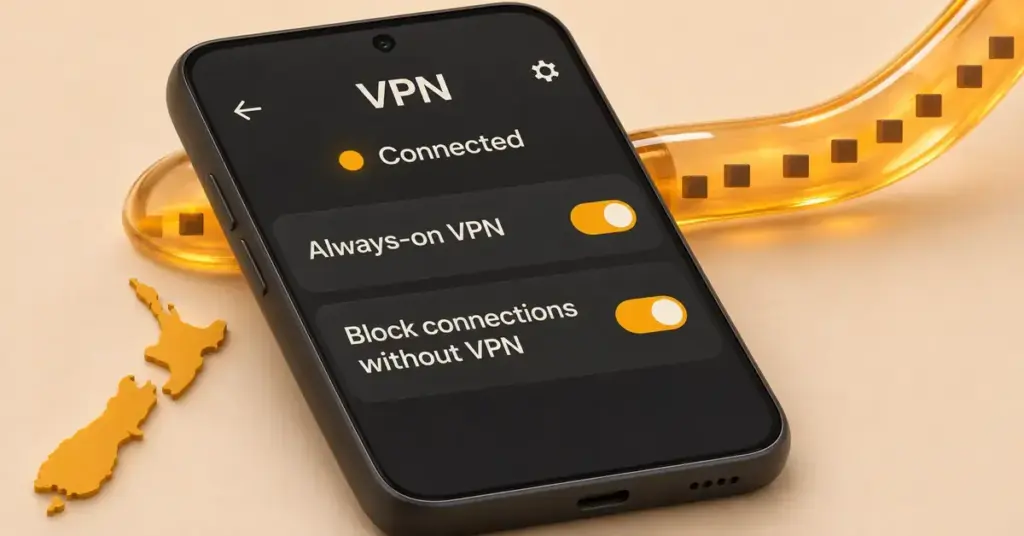
A kill switch cuts your internet the instant the VPN drops, so your traffic is never briefly exposed. Android has this built in as two linked settings, managed by the operating system rather than the VPN app.
Always-on VPN
Available from Android 7, this keeps the VPN running whenever your phone is online. To reach it, go to Settings > Network & internet > VPN, tap the gear icon next to your VPN, and switch on Always-on VPN. Note that Google only shows this toggle for a manually-added profile; if you use an app, open the app’s own kill-switch setting, which sends you to this same Android screen.
Block connections without VPN
Available from Android 8, this is the true kill switch: with it on, your phone blocks all traffic unless the VPN tunnel is up, closing the brief gap that an always-on connection can otherwise leave during a drop. You will usually need to disconnect first before changing these settings.
Setup checklist
- Pick a reputable VPN with a clear no-logs policy and nearby servers.
- Install its app from the Google Play Store, or get the manual settings from your provider.
- Sign in and allow Android’s one-time connection request.
- Connect and confirm the key or VPN icon appears in your status bar.
- Open Settings > Network & internet > VPN and turn on Always-on VPN.
- Turn on Block connections without VPN (Android 8 and later) so traffic stops if the tunnel drops.
- Test it: check your apparent location, then toggle the VPN off and on to confirm the kill switch holds.
What New Zealanders use an Android VPN for
Common, legitimate uses include:
- Public Wi-Fi safety. Free hotspots in cafes and airports are often unsecured. New Zealand’s official Own Your Online guidance already recommends limiting banking and shopping on public Wi-Fi and turning on two-factor authentication; a VPN adds a layer by encrypting whatever you do send.
- Travel and your own accounts. Connecting to a New Zealand server while overseas can help you reach the local services and streaming services in New Zealand you already pay for. Always respect each service’s terms.
- Privacy from tracking. It keeps your internet provider from logging which sites you visit.
Common mistakes to avoid
- Trusting a random free app that may log or sell your data.
- Leaving the kill switch off, so traffic leaks during a dropout.
- Assuming a VPN makes you fully anonymous — it doesn’t.
- Forgetting to update the app, which can cause silent connection drops on newer Android builds.
- Expecting a VPN to replace antivirus or safe browsing habits.
Android VPN vs iPhone and browser VPNs
The same VPN account usually works across your devices, though the menus differ — if you also have an Apple device, see our companion guide to setting up a VPN for iPhone. A browser-only VPN or extension, by contrast, protects only what happens inside that browser; a full Android VPN app covers every app on the phone, which is why it is the better choice for most people.
Reference sources
Frequently Asked Questions (FAQ)
Do I need a paid VPN, or is a free one enough?
A trustworthy free VPN is fine for light, occasional use, but free plans usually cap your data and server choice. Paid plans add faster servers, more locations, and clearer privacy policies. The key is the provider’s reputation, not the price.
Will a VPN slow down my Android phone?
Some slowdown is normal because your traffic takes a longer route and is encrypted. With a nearby server and a modern protocol the drop is usually small and often unnoticeable for browsing and video.
Does a VPN drain my battery?
Running a VPN all day uses a little extra battery because it keeps an encrypted connection active. The impact is modest on most phones; closing the app or disconnecting when you don’t need it saves power.
Can I leave the VPN on all the time?
Yes. Turning on Always-on VPN and Block connections without VPN keeps you protected continuously and stops leaks if the tunnel drops. This is the safest way to use a VPN on Android.
Does a VPN protect me from viruses and scams?
No. A VPN encrypts and reroutes your traffic, but it does not scan for malware or block scam links. Keep using antivirus protection and stay cautious with downloads and messages.