
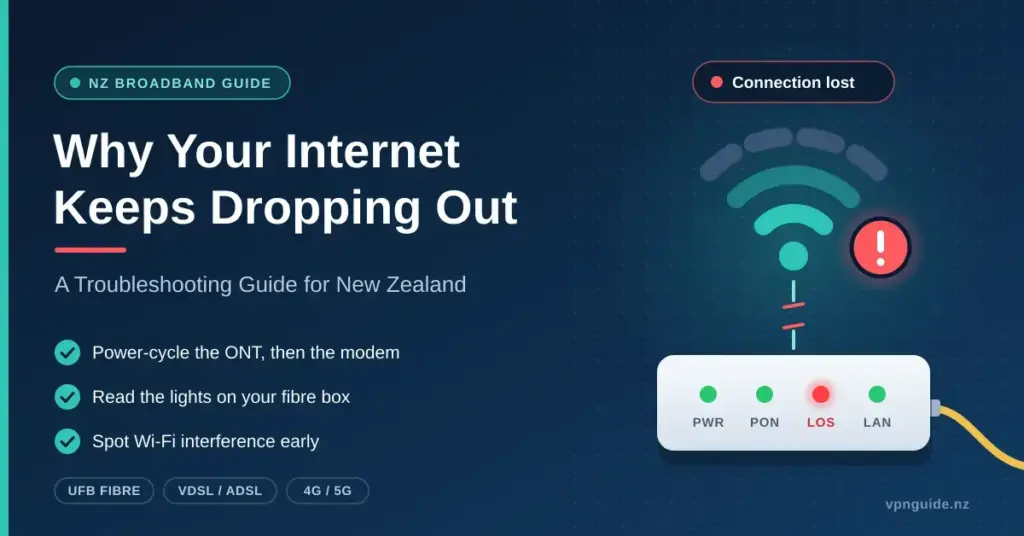
Frequent disconnections are one of the most common broadband complaints in New Zealand, and they are more disruptive than slow speeds because they interrupt video calls, online games and anything else that needs a continuous connection. This guide walks through why an internet connection keeps dropping out and how to fix it, covering the technologies Kiwi homes actually use: Ultra-Fast Broadband (UFB) fibre delivered through a Chorus or local fibre company ONT, VDSL and ADSL on the remaining copper lines, and 4G or 5G wireless broadband. It explains the power-cycle sequence that resolves most software glitches, how to read the lights on your fibre box, how to spot Wi-Fi interference, and when to escalate a fault to Spark, One NZ, 2degrees or another retail provider.
Quick troubleshooting checklist
- Power-cycle in order: switch the ONT and modem off at the wall for 30 seconds, power the ONT up first, then the modem.
- Check the ONT lights: a red LOS/ALARM light means a line fault, not something a restart will fix.
- Test with a cable: plug a laptop into the modem by Ethernet to tell a Wi-Fi problem from a line problem.
- Rule out Wi-Fi interference: move the router into the open and switch nearby devices to the 5 GHz or 6 GHz band.
- Check for a wider outage: look at the Chorus map and your provider’s status page before you call.
- Log the pattern: note when the drops happen and report a fault to your provider with your account number ready.
Initial troubleshooting: the power of the reset
The first and most effective step when your internet keeps dropping out is a controlled power cycle. Restarting clears the temporary memory of your modem and router and often resolves the firmware glitches behind intermittent drops. On a fibre connection there are two pieces of equipment: the Optical Network Terminal (ONT), the white box fixed to an interior wall that converts the incoming light signal into a network connection, and the modem or router that plugs into it. Turn both off at the wall for at least 30 seconds so the internal capacitors discharge fully, then restart them in order.
- Sequence matters: switch off both the ONT and the modem at the wall.
- Wait time: leave them unplugged for 30 seconds for a full hardware reset.
- Sequential start: power on the ONT first and wait until the POWER and PON (or OPTICAL) lights are solid green before turning on the modem.
- Monitor stability: watch the lights for the next hour; if the LOS light turns red or the modem’s Internet light starts blinking, a physical line fault is likely.
Understanding the sequential restart
A sequential restart makes sure the ONT has re-established its light-signal handshake with the network before the modem tries to authenticate your account. Doing it in the wrong order is the reason many restarts appear to “fail”: the modem comes up before the fibre box is ready and cannot log in.
| Action | Reason | Expected result |
|---|---|---|
| 30-second power off | Clears the hardware cache | Fresh start for the firmware |
| Power on the ONT first | Re-establishes the optical sync | Solid PON or OPTICAL light |
| Power on the modem second | Authenticates your connection | Stable Internet light |
Identifying environmental and Wi-Fi interference
If the connection only drops in certain rooms, the problem is almost always Wi-Fi rather than the line itself. New Zealand homes are full of materials that block radio waves, such as brick, tiles, concrete block, foil-backed insulation and metal comms cabinets. Microwaves, older cordless phones and baby monitors share the 2.4 GHz band with your router and cause the signal collisions that show up as dropouts. Placement matters more than most people expect: keep the router high up, in the open and away from other electronics.
- Placement strategy: keep the router “out, up and open”, never in a cupboard or behind the TV.
- Avoid obstacles: keep it away from mirrors, hot-water cylinders and large metal objects.
- Band selection: use 5 GHz (or 6 GHz on Wi-Fi 6E and Wi-Fi 7 gear) for nearby high-speed devices and 2.4 GHz for devices further away.
- Channel congestion: in dense areas such as Auckland apartment blocks, use a free Wi-Fi analyser app to find a less crowded channel.
The role of the 2.4 GHz, 5 GHz and 6 GHz bands
The 5 GHz band is faster but has a shorter range and struggles with walls, while 2.4 GHz travels further and is more prone to interference. New Zealand opened the lower 6 GHz band (5925–6425 MHz) for indoor Wi-Fi in 2022, so newer routers have a third, almost empty band for devices close to the router. If a single router cannot cover the house, a Wi-Fi extender or mesh system is the fix for range problems — but remember it can only spread a signal further, not repair an unstable line.
Distinguishing between local and network outages
Before you call your provider, work out whether the dropout is confined to your home or part of a wider network problem. Chorus maintains most of New Zealand’s fixed-line network and publishes a live map showing reported faults, the affected area and an estimated fix time; you can check the Chorus internet outages map in a minute. In Christchurch, the Waikato, Bay of Plenty and Northland the fibre may belong to Enable, Tuatahi First Fibre or Northpower, which run their own status pages. If the maps are clear, check your retail provider’s status page or app; most can also run a remote test on your connection.
| Step | Resource | Purpose |
|---|---|---|
| Check the Chorus map | Chorus outages map | Identify regional line faults |
| Check your provider’s status | Spark, One NZ or 2degrees app or status page | Identify provider-specific issues |
| Check the ONT lights | The fibre box on your wall | Confirm the light signal is reaching your home |
| Check local wiring | Ethernet cable between ONT and modem | Rule out a local hardware failure |
Our guide to internet outages in New Zealand lists every major provider’s status page in one place.
Interpreting the ONT status lights
A solid red LOS (loss of signal) light, or an ALARM light on older ONTs, means the box is not receiving light through the fibre. That usually points to a damaged fibre lead or a break outside the house, which needs a technician rather than another restart. The manufacturer labelling varies between boxes, so it is worth checking the official Chorus ONT fibre box support and light guides for your exact model. The table below translates the common lights into a next step.
ONT status light guide
| Light | What it shows | What to do |
|---|---|---|
| POWER (solid green) | The ONT has mains power | Normal — no action needed |
| POWER (off or orange) | No power or a failing power supply | Check the plug and try a replacement adapter of the same rating |
| PON / OPTICAL (solid green) | The fibre is synced with the network | Normal — the light signal is reaching your home |
| PON / OPTICAL (flashing) | The box is trying to sync | Wait a few minutes; if it keeps flashing, log a fault |
| LOS / ALARM (red) | Loss of signal — no light through the fibre | Check the fibre lead for kinks, then report a fault (needs a technician) |
| Internet / LAN (blinking) | Data is passing or the modem is re-authenticating | Normal when active; constant blinking with no connection points to the modem or line |
For a full explanation of the box itself, see our guide to the Chorus fibre box (ONT).
Ageing copper: why VDSL and ADSL drop out
For the households still on VDSL or ADSL, the copper network is the usual cause of instability. Copper performance falls away with distance from the exchange or roadside cabinet, and heavy rain lets moisture into old joints, creating line noise and repeated loss of sync. Chorus is retiring copper wherever fibre is available: under the industry code, copper in fibre areas is being switched off by the end of 2026, and Chorus has brought its nationwide copper switch-off forward to the end of 2028. The Telecommunications Forum guide to copper retirement explains what that means for landlines and alarms. If your VDSL keeps dropping, the practical fix is an upgrade to fibre, which is installed at no charge in most urban areas.
- Line quality: old wiring inside the house causes crosstalk and signal degradation.
- Filters: every jack point with a phone or device needs a good-quality ADSL/VDSL filter.
- Distance: beyond roughly 800 metres from the cabinet, VDSL stability drops sharply.
- Copper withdrawal: check whether your address is in a copper-withdrawal area; if it is, you will receive at least six months’ written notice and fibre will be connected first.
The impact of weather on copper
Rain temporarily raises line resistance in older copper infrastructure, and the resulting loss of sync shows up as the DSL light blinking on your modem while the connection re-trains. Fibre, by contrast, is completely unaffected by rain because it carries light rather than an electrical signal.
Hardware health: is your modem outdated?
Hardware fatigue is a common but overlooked cause of dropouts. Modems and routers are small computers running 24 hours a day, and over time components fail or firmware falls behind new network standards. Most New Zealand providers supply a modem when you sign up, and while current models such as Spark’s Smart Modem and One NZ’s TP-Link Deco units are capable, older entry-level units struggle once 15 to 20 devices are connected, including smart-home gear. Our guide to modems in NZ explains what to look for in a replacement.
- Firmware updates: check the modem’s settings page regularly and install updates.
- Device capacity: better routers handle many simultaneous connections without stalling.
- Heat: give the modem ventilation, because overheating triggers automatic restarts.
- Age: a modem more than three or four years old may lack Wi-Fi 6, which improves stability in busy homes.
Symptoms of a failing modem
If the connection drops and the modem’s POWER light flickers or turns orange, the power supply or internal board is often failing. Try a replacement power adapter of the same voltage and current rating before replacing the whole unit — a tired plug-pack is a cheap and frequent culprit.
The limitations of 4G and 5G wireless broadband
Wireless broadband is a popular alternative where fibre is unavailable or a household wants a cheaper plan, but it is inherently less stable than fibre. Because the signal travels through the air, it suffers cell-tower congestion in the evening peak and interference from weather and buildings. In the Commerce Commission’s April 2026 testing, 4G fixed wireless averaged about 66 Mbps download with latency of roughly 40–50 ms, against about 5–8 ms on fibre — you can read the full figures in the Measuring Broadband New Zealand reports. If your wireless modem keeps dropping, it is usually losing its handshake with the tower, and placement near a window facing the nearest cell site is the single biggest improvement you can make. See our 5G internet in New Zealand guide for coverage and modem advice.
| Factor | Wireless broadband impact | Solution |
|---|---|---|
| Congestion | Speeds drop during peak evening hours | Consider fibre or a 5G plan with higher priority |
| Placement | Thick walls block the signal | Move the modem near a window facing the tower |
| Weather | Heavy fog or rain can scatter the signal | Use an external antenna if the modem supports one |
| Latency | Higher ping than fibre | Avoid it for competitive online gaming |
Optimising 5G modem reception
Use your provider’s app to check signal strength in different rooms and find the sweet spot for the modem. Also note that all three networks completed their 3G switch-off in early 2026, so an old 3G-only device or backup modem will no longer connect at all; the TCF confirmation that the 3G shutdown is complete nationwide lists which devices are affected.
Cabling and physical connection faults
Wi-Fi is convenient, but it is also the most common point of failure. If the internet drops on a laptop while a tablet next to it stays connected, the problem is that device or its cable, not the line. Connecting your main computer to the modem with a good Ethernet cable (Cat 5e or Cat 6) removes Wi-Fi from the equation. On fibre, the short cable between the ONT and the modem is another frequent culprit; a cheap or damaged lead here can take the whole house offline intermittently.
- Ethernet first: always test with a wired connection to see whether the fault is the network or the Wi-Fi.
- Cable ratings: use at least Cat 5e; older Cat 5 cannot carry gigabit fibre speeds reliably.
- Check the ports: make sure cables click firmly into the WAN and LAN ports, because loose plugs cause micro-outages.
- Cable health: look for sharp bends or kinks that damage the copper pairs or, worse, the fibre lead itself.
Why Cat 6 matters
Cat 6 cable has tighter specifications for crosstalk and noise than Cat 5e, giving a cleaner signal over the longer runs found in modern New Zealand homes. Our internet cable guide covers the different types and when each is worth the extra cost.
Software and security issues causing dropouts
Malware, misbehaving apps and badly configured VPNs can all look like a flaky connection. An infected device may be part of a botnet that saturates your bandwidth in bursts, stalling the router for everyone else. A VPN with its kill switch enabled will cut the connection whenever the tunnel wobbles, which is the software doing its job but feels exactly like a dropout. Keeping antivirus software current and scanning regularly is part of basic network maintenance.
- Antivirus scans: run full scans on every computer to rule out bandwidth-hungry malware.
- Background apps: pause cloud-syncing services such as OneDrive or Dropbox if they are saturating your upload.
- VPN settings: test with the VPN switched off to see whether it is the cause.
- Browser health: bloated caches and faulty extensions slow page loads in a way that mimics a dropout.
Managing background bandwidth
On a slower VDSL or wireless connection, one device pulling a large Windows or game update can make every other device feel as though the internet has gone. Our guide on why your internet is slow explains how to find the bandwidth hog and schedule big downloads for off-peak hours.
When to call your provider: logging a fault
If you have power-cycled, ruled out Wi-Fi, checked the cables and the outage map and the connection still drops, log a formal fault with your provider. Spark, One NZ and 2degrees all have in-app diagnostics that test the line from their end before you call. When you do call, have your account number ready and a log of when the dropouts happen — for example “every evening around 7 pm” — because patterns point technicians towards congestion, a neighbour’s interference or a specific line fault. If the fault turns out to be inside your home, such as wiring, jack points or Wi-Fi coverage, our guide to finding a local internet technician explains when a private technician is worth paying for.
- Run diagnostics: use the Spark app’s connection check or One NZ’s diagnostic test first.
- Record patterns: note whether drops are weather-related or happen at set times.
- Check billing: some providers restrict service when a payment is overdue.
- Ask for a line test: request a remotely managed line test to find physical faults between the exchange and your home.
Escalation to Chorus and your rights
If your provider finds a fault on the network side, it logs a ticket with Chorus (or the local fibre company), which may send a technician to inspect the ONT and the external fibre. Chorus does not take fault calls directly from households, so your retail provider is always the first port of call. If the problem drags on unresolved, Consumer Protection’s advice on the steps to making a complaint about phone or internet services sets out your options, and the free Telecommunications Dispute Resolution scheme can step in once you have given your provider a reasonable chance to fix it.
Upgrading your plan for better stability
Sometimes the internet keeps dropping simply because the household has outgrown its plan. Several people working from home, 4K streaming and gaming at once can overwhelm a basic connection, and on wireless broadband that congestion looks exactly like a dropout. Since the June 2025 Chorus “Big Fibre Boost”, most providers sell Fibre 100 (100/20 Mbps), Fibre 500 (500/100) and Fibre Max (around 900/500), with Hyperfibre above that. Moving up a tier adds headroom so one person’s heavy use does not knock everyone else offline. Run our NZ internet speed test at a quiet time and again in the evening peak to see whether congestion is your problem.
| User type | Recommended plan | Stability benefit |
|---|---|---|
| Single user or couple | Fibre 100 or wireless broadband | Cost-effective and stable for basic use |
| Family of four or more | Fibre 500 | Removes congestion-induced dropouts |
| Gamer or work-from-home household | Fibre 500 or Fibre Max | Lowest latency and most headroom |
| Rural resident | Starlink or 4G/5G wireless | Far more stable than old copper ADSL |
The value of Fibre 500 and Fibre Max
Fibre 100 is enough for many homes, but Fibre 500 measured about 508 Mbps download in the Commerce Commission’s April 2026 tests and Fibre Max about 872 Mbps, so even in the evening peak there is bandwidth to spare for video calls and high-definition streaming. Rural homes without fibre should look at Starlink, which has become New Zealand’s largest rural broadband provider and is far steadier than the copper ADSL it usually replaces.
Common causes of internet dropouts in New Zealand
Most intermittent disconnections trace back to a handful of culprits. Faulty or loose cables between the ONT and router cause momentary drops; ageing copper on VDSL and corrosion at the demarcation point introduce random faults; power problems at the ONT or router trigger unexpected reboots. Microwaves, cordless phones and baby monitors interfere with Wi-Fi, as do concrete walls and metal surfaces. Severe weather, network maintenance and peak-time congestion create short-lived outages, and outdated firmware or drivers can freeze equipment. Knowing the triggers helps you target the right fix rather than guessing.
- Faulty cables or connectors: check the ONT-to-router cable and replace it if worn.
- Power supply or multi-board issues: plug the ONT and router into a quality surge protector.
- Wi-Fi interference: move the router to a central position away from appliances and use the 5 GHz or 6 GHz band.
- Physical obstructions: avoid placing the router behind walls or near metal, and consider mesh Wi-Fi for larger homes.
- Congestion and capacity: schedule heavy downloads outside peak times or upgrade to a faster fibre plan.
- Firmware and drivers: update the router firmware and network drivers regularly.
- Environmental and maintenance events: check the Chorus and provider outage maps and maintenance schedules.
Backup connectivity: a second connection or cellular failover
For anyone who cannot afford downtime, a second connection from a different provider or technology is the answer. A dual-WAN router fails over automatically to a backup fibre, wireless or satellite service when the primary drops, so remote work and streaming carry on uninterrupted. A cheaper option is cellular failover with a 4G or 5G modem and a data-only SIM, or simply tethering to a phone hotspot while the main line is down. For a detailed plan when the connection is completely down rather than intermittent, see our internet not working troubleshooting guide.
Reference sources
- Commerce Commission — Measuring Broadband New Zealand reports
- Chorus — ONT fibre box support and light guides
- Chorus — internet outages map
- Chorus — the Big Fibre Boost (June 2025 speed upgrades)
- Telecommunications Forum — copper retirement
- Telecommunications Forum — 3G shutdown complete nationwide
- Radio Spectrum Management — WLAN use in the 6 GHz band
- Consumer Protection — steps to making a complaint about phone or internet services
Frequently asked questions
Why does my internet drop out every night at the same time?
Evening drops are usually peak-hour congestion, particularly on wireless broadband and VDSL, as the whole neighbourhood comes online. Interference from an appliance that switches on at that time, such as a heater or outdoor lighting on a timer, is the other common cause.
Does rain affect a New Zealand fibre connection?
No. Fibre carries light and is unaffected by water. Rain can, however, badly affect older copper VDSL and ADSL lines and can weaken 4G and 5G wireless signals.
How do I know if my modem is causing the dropouts?
Connect a laptop to the modem with an Ethernet cable. If the connection is stable on the cable but drops on Wi-Fi, the modem’s wireless side or its placement is the problem; if it drops on the cable too, the fault is in the modem, the ONT or the line.
What does a red light on my Chorus ONT mean?
A red LOS light, or an ALARM light on older boxes, means a loss of signal: the box is not receiving light through the fibre, usually because the lead is damaged or the fibre is broken outside the house. Check the fibre lead for kinks, then log a fault with your provider.
Why is my internet dropping out on only one laptop?
That points to the device rather than the network: a failing Wi-Fi card, outdated drivers, a misconfigured VPN or malware. Update the drivers, test with the VPN off and run an antivirus scan.
Should I contact Chorus directly about an outage?
No. Always contact your retail provider first; if the fault is on the physical network they log it with Chorus on your behalf, and Chorus technicians are dispatched through that ticket.
How often should I restart my modem to prevent drops?
There is no fixed rule, but a monthly restart clears the hardware’s memory and keeps performance consistent. If you need to restart daily to stay connected, the modem or the line has a fault worth reporting.


