
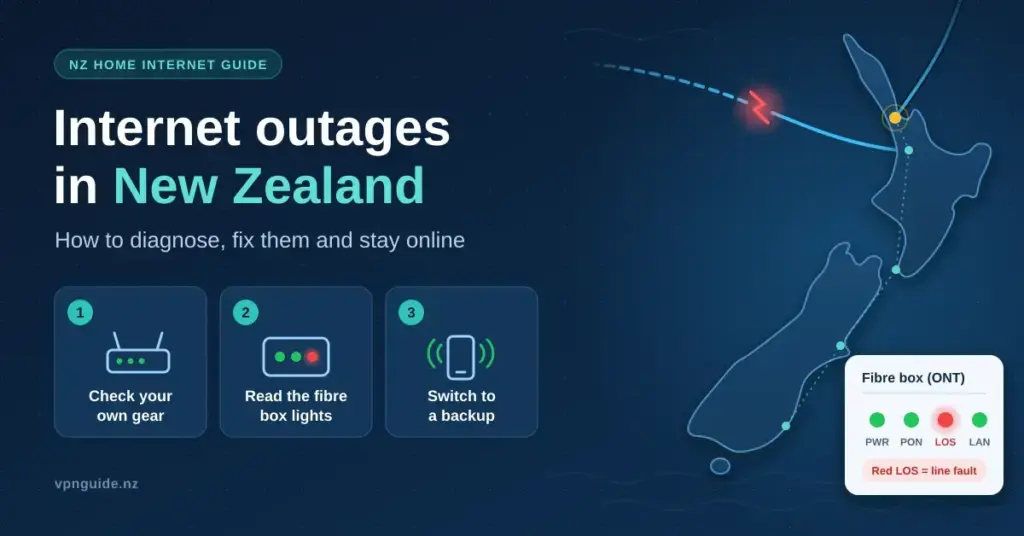
When the internet drops in New Zealand, the first few minutes are usually pure confusion: is it your router, your street, your provider, or something far out under the ocean? A single outage can stall remote work, freeze online banking, knock out a Wi-Fi security camera and end movie night all at once. This guide explains, in plain language, how connections actually fail in Aotearoa — from the fibre box on your wall to the undersea cables that carry our overseas traffic — and gives you a calm, ordered way to find the fault, stay online with a backup, and know exactly when to call for help.
Key Points
- Rule out your own gear first: if one device is down but others work over Wi-Fi, the connection itself is fine.
- Your fibre box (ONT) lights are the fastest diagnostic — a red LOS light means a line or exchange fault only your provider can fix.
- Check the Chorus outage map and your ISP’s status page on mobile data before you call for help.
- Keep a backup ready: a phone hotspot for short drops, or mobile broadband or Starlink for longer ones.
- In a power cut, fibre phones (VoIP) and 111 calls can fail without battery backup — the 111 Contact Code covers vulnerable consumers.
- Most local faults clear within hours; undersea cable faults are rare and mainly slow international traffic rather than cut you off.
Is It You, Your Provider, or the Network?
When your connection fails, the hardest part is working out where the fault sits. Most New Zealand homes are on fibre delivered over a wholesale network run by a Local Fibre Company (LFC) — Chorus covers most of the country, while Enable (Christchurch), Northpower (Whangārei) and Tuatahi First Fibre (Waikato and central North Island) run the rest. Your retail provider, or ISP — Spark, One NZ, 2degrees, Contact and dozens of smaller brands — sells you the plan and support, but the physical line usually belongs to the LFC. An outage can begin at any point along that chain.
It helps to picture the problem as four layers, from closest to you outward:
- Your own gear: a frozen router, an overheating box, a loose fibre patch lead, or a single device with a Wi-Fi problem.
- The local line: a cut fibre in your street from digging or storm damage, or a powered roadside cabinet that has lost mains power.
- Your ISP’s network: an authentication or core-network fault that takes one provider’s customers offline while everyone else stays connected.
- International links: a fault on the undersea cables or overseas capacity that only affects traffic leaving the country.
A quick test settles the first layer immediately. If one device is offline but your phone still browses on Wi-Fi, the connection is fine and the fault is on that device. If everything is down, work outward. Our companion guide on what to check when your internet simply is not working runs through these first steps in order.
Reading the Lights on Your Fibre Box (ONT)
The Optical Network Terminal, or ONT, is the small box on the wall where the fibre enters your home; your router plugs into it. Its status lights are the fastest free diagnostic you have. If the Power and Optical (sometimes labelled PON) lights are steady green, the fibre link to the exchange is healthy and the problem is likely in your router or your ISP. A red or flashing LOS (Loss of Signal) light means the physical fibre is broken or the exchange has a fault — something only your provider and the LFC can fix. Knowing this before you call lets you skip the scripted ‘have you restarted it’ questions. Because the fibre box and the router do different jobs, it helps to understand the difference between the modem and the router on a fibre connection.
Local Outages vs International Outages
New Zealand sits a long way from the rest of the internet, so it matters whether a fault is local or offshore. If NZ-hosted sites and your banking app work but Netflix, YouTube or overseas game servers crawl or fail, the trouble is usually international, not on your street. If nothing loads at all, the fault is almost always closer to home. The table below shows the common outage types Kiwi households meet and who is responsible for each.
| Outage type | Typical cause | Who fixes it | Usual duration | Who is affected |
|---|---|---|---|---|
| Soft fault (router/ONT) | Firmware glitch, IP conflict, loose cable | You, with a power cycle | Minutes | Your home only |
| Local fibre or cabinet fault | Cut cable, roadworks, cabinet power loss | LFC (e.g. Chorus) via your ISP | 2–24 hours | A street or suburb |
| ISP network fault | Authentication or core-network issue | Your ISP | 30 minutes to a few hours | That ISP’s customers |
| International / undersea | Cable break or overseas capacity loss | Cable operators | Days to weeks | Overseas traffic only |
Why Undersea Cable Faults Are Different
New Zealand’s overseas traffic rides on a handful of undersea internet cables, including the Southern Cross and Southern Cross NEXT systems, the Hawaiki cable and the Tasman Global Access link to Australia. Repairs need a specialised cable-laying ship and calm seas, so a serious break can take weeks. In practice these systems have built-in redundancy, so a single fault rarely causes a full blackout; instead traffic reroutes over longer paths and you notice higher latency and slower international speeds. If overseas sites feel sluggish rather than dead, it can be worth learning how to test and optimise your connection speed before assuming your own line is at fault.
How to Confirm an Outage: Status Pages and Live Maps
The single most useful habit is to keep a second connection handy — mobile data on your phone — so you can look things up while the main line is down. From there, a few official and community tools will tell you within minutes whether the fault is known and how wide it is.
- Chorus outage map: the primary source for fixed-line fibre and copper faults. Enter your address to see whether a known fault or planned maintenance covers your area.
- ISP status pages: Spark, One NZ, 2degrees and Contact all publish network-status pages for provider-specific problems.
- Downdetector: a crowdsourced site that plots spikes in user reports, often before a provider formally confirms an issue.
- Geekzone: a long-running New Zealand tech forum where users post outage reports in real time.
- Social media: a provider’s official account on X or Facebook often carries the earliest updates.
Using Crowdsourced Reports Wisely
Crowdsourced tools are powerful because they reveal patterns. A cluster of reports from your own city — say Hamilton or Dunedin — is strong evidence the fault is not your router, which saves you from needless factory resets that only create new configuration headaches. Treat a single report as noise and a sudden spike as signal, and always cross-check a ‘personal’ outage against these public datasets before touching your hardware. A localised event such as an outage in Tauranga will usually show up as a clear regional spike.
Step by Step: What to Do When the Internet Drops
Working through the problem in a fixed order is far faster than randomly unplugging things. A simple power cycle — switching the gear off, waiting, and back on — resolves a large share of soft faults caused by memory leaks or IP conflicts. Use the checklist below as your default routine.
Internet Outage Checklist
- Check a second device on mobile data to confirm the whole connection is down, not just one device.
- Look at the ONT lights for a red LOS or alarm warning.
- Power-cycle the ONT and router: off for about 30 seconds, ONT back on first, then the router once its lights settle.
- Check the Chorus outage map and your ISP’s status page for your address.
- If there is no known fault and your own gear is fine, call your ISP with your account number and the ONT light pattern ready.
One detail people often miss: when you power-cycle, turn off both the ONT and the router, leave them off for around 30 seconds, then power the ONT first and wait for its lights to settle before switching the router back on. This lets the fibre link re-establish cleanly.
When and How to Contact Your Provider
Call your ISP only once you have ruled out your own gear and checked that there is no known fault on the status pages. Have your account number ready and be able to describe the exact light pattern on your ONT — that ‘Level 1’ detail helps the agent skip the basics and lodge a fault with the LFC faster. Note that if a technician is sent out and the problem turns out to be your own equipment or wiring, some providers charge a call-out or ‘no fault found’ fee, so check your internal cables first. If a complaint about a prolonged outage or billing cannot be resolved with your provider, the free, independent Telecommunications Dispute Resolution (TDR) scheme can step in.
Mobile Failover and Backup Connections
Every household should have at least one way back online when the main line fails. For most people the simplest is a phone hotspot, which shares your 4G or 5G mobile data with a laptop over Wi-Fi or a USB cable. It is quick and free if your plan has the data, but watch two things: your data allowance, and tower congestion during a wide power cut when everyone switches to cellular at once.
- Know your data cap before you start a video call over the hotspot.
- Position for signal: a phone near a window usually gets a stronger 5G hotspot.
- Use USB tethering instead of Wi-Fi to save battery and steady the link.
- Keep a charged power bank so your phone survives an outage caused by a power cut.
For longer or more frequent outages, a dedicated backup connection is worth considering. The table compares the common options.
| Backup option | How it works | Best for | Watch out for |
|---|---|---|---|
| Phone hotspot (4G/5G) | Shares your phone’s mobile data over Wi-Fi or USB | Short, occasional outages | Data caps and tower congestion |
| Mobile broadband modem | A dedicated router with its own SIM | Regular or automatic failover | Monthly cost and local coverage |
| Starlink satellite | Low-earth-orbit satellites, needs a clear sky view | Rural areas and long outages | Upfront hardware cost |
| Second ISP line | An independent fibre or wireless connection | Businesses that cannot go down | Cost and a Dual-WAN router |
Router-Level Failover and Wireless Backup
If you cannot afford any downtime, some routers support Dual-WAN or a USB 4G/5G dongle and switch to mobile automatically the moment the fibre drops. A router built for modern home networking often includes this feature. Spark and One NZ also offer wireless-backup modems on some plans, with a built-in SIM that stays dormant until the fibre line fails and then takes over with barely a hiccup.
Power Cuts, Fibre Phones and Calling 111
A crucial safety point that surprises many New Zealanders: during a mains power cut, the fibre in the ground usually still works, but the powered equipment in your home does not. If your home phone runs over the internet (VoIP on fibre or fixed wireless), it will stop working in a blackout unless the gear has battery backup — and that includes calling 111.
To address this, the Commerce Commission’s 111 Contact Code requires providers to give vulnerable consumers a way to reach emergency services during a power cut at no charge. If someone in your household depends on a landline for health, safety or disability reasons and has no other way to call 111, you can ask your provider to register you; the usual solution is a mobile phone or a battery backup that keeps the line running for a minimum of eight hours. Even if you are not eligible, keeping a charged mobile — ideally on a different network — is a sensible fallback for any household.
Rural and Regional Outages
Rural connectivity carries its own risks. While the Rural Broadband Initiative has lifted speeds, many rural homes still rely on long-range fixed-wireless links or ageing copper, both of which are vulnerable to wind, heavy rain and the ‘rain fade’ that weakens a wireless signal. For these users an outage can last days rather than hours, which is why satellite has become so popular in the countryside.
Starlink and Satellite as a Backup
Starlink, which uses a large fleet of low-earth-orbit satellites, has reshaped rural connectivity in New Zealand. Unlike fixed wireless it needs only a clear view of the sky, not line of sight to a tower. As of 2026 its standard residential plan sits around NZ$159 a month with hardware roughly NZ$799, making it a realistic primary link or a robust backup to a flaky wireless connection. During Cyclone Gabrielle in 2023, satellite kit was the only working communication in several cut-off regions — a reminder of its role in emergency preparedness.
What an Outage Costs Your Work, Money and Home
For anyone working from home, an outage is lost billable time; for a shop it can mean no card payments through a cloud point-of-sale system; for a café it can freeze the VoIP phone line. Many Kiwi businesses now run ‘high availability’ setups with two providers or a fibre-plus-wireless mix so they never go fully dark. Households feel it too — no online banking, no security-camera feed and no streaming until service returns.
Not every ‘internet outage’ begins with a cut cable, either. A faulty software update can knock services offline worldwide, as the 2024 CrowdStrike-related IT outages showed, when a single update grounded flights and froze checkouts far beyond New Zealand. That is a useful reminder that when your own line checks out fine, the fault may lie with a distant service you will never see.
Building a Simple Internet Outage Plan
A little preparation turns an outage from a crisis into a minor inconvenience. An ‘internet emergency kit’ is less a physical box than a set of small, deliberate habits.
- Mobile data reserve: keep enough headroom on your plan to tether for a few hours.
- Offline essentials: save key work files, and download a few shows, games or offline maps for the household.
- Written details: keep your ISP’s support number and your Wi-Fi and account logins somewhere you can reach without the internet.
- Power backup: a small UPS can keep your ONT and router alive through a short power cut.
A UPS for Your ONT and Router
Because the fibre network itself often keeps running in a blackout, a small Uninterruptible Power Supply (UPS) — a battery unit sold at electronics retailers such as PB Tech — can keep your ONT and router powered for a few hours. That can be the difference between staying in touch during a storm and going completely offline. As New Zealand rolls out higher-capacity Hyperfibre (now up to 8 Gbps) and denser 5G, total outages are becoming rarer, but the systems are also more complex, so a personal backup plan remains the most reliable safeguard you actually control.
Sources
Frequently Asked Questions (FAQ)
How do I check if there is an internet outage in my area of New Zealand?
The fastest way is to use a second connection, such as your mobile data, to check the Chorus outage map with your address entered, then look at your ISP’s status page (Spark, One NZ, 2degrees or Contact). A crowdsourced site like Downdetector can flag a wider issue before your provider confirms it.
What does a red LOS light on my fibre box (ONT) mean?
A red or flashing LOS (Loss of Signal) light means the box has lost the fibre signal, usually because the physical line is broken or there is a fault at the exchange. This is not something you can fix at home — note the light pattern and report it to your provider.
Can I use my mobile phone as a modem during an outage?
Yes. Turn on the Personal Hotspot (iPhone) or Mobile Hotspot (Android) feature to share your phone’s mobile data with other devices over Wi-Fi or a USB cable. Watch your data allowance, and expect slower speeds if a wide power cut has many people on cellular at once.
Will my home phone and 111 work during a power cut?
If your home phone runs over fibre or fixed wireless (VoIP), it will not work in a power cut unless the equipment has battery backup, and that includes calling 111. Under the Commerce Commission’s 111 Contact Code, providers must give registered vulnerable consumers a free backup way to reach emergency services; keeping a charged mobile is a sensible fallback for everyone else.
How long do internet outages usually last in New Zealand?
Soft faults and ISP network problems are often fixed within minutes to a few hours, and local fibre or cabinet faults typically clear within 2 to 24 hours. Undersea cable faults are rare and can take days to weeks, but they usually slow international traffic rather than cutting you off completely.


