
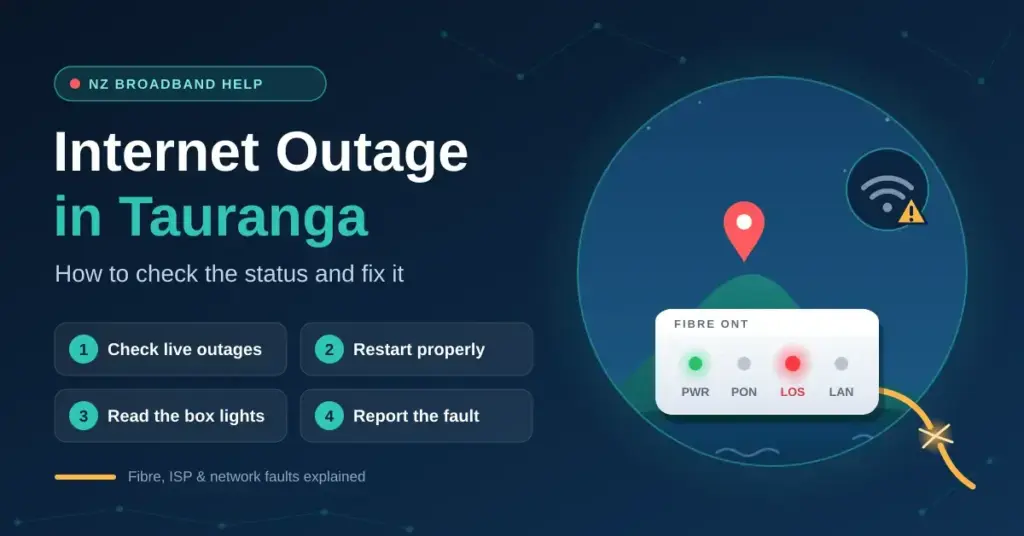
If your internet has just dropped in Tauranga, the first useful thing to know is that the problem is usually one of two things: a fault on the wider network (a cut fibre line, a cabinet without power, or planned maintenance), or a small software glitch in the box on your own wall. Telling those two apart takes about five minutes, and it saves you from restarting hardware for an hour when the real issue is a street away. This guide shows you exactly where to check whether Tauranga has a live outage, how to run the restart that actually works, how to read the warning lights on your fibre box, and how to report a fault so it gets fixed quickly.
Key Facts
- Fibre owner in Tauranga: Tuatahi First Fibre (formerly Ultrafast Fibre)
- Other network / backbone: Chorus (national links and some local lines)
- Retail providers: Spark, One NZ, 2degrees and smaller ISPs
- Electricity network: Powerco (western Bay of Plenty)
- Who to phone for a fault: your ISP only — not Tuatahi or Chorus
- First thing to check: the Tuatahi status page, using your address
- Fastest self-fix: a full 60-second cold restart, ONT on before the router
How Tauranga’s internet is actually connected
Understanding who runs what makes an outage far less confusing, because it tells you which map to look at and who to phone. In New Zealand your connection passes through three separate companies before it reaches your device, plus the local power network that keeps the roadside equipment running.
- The fibre owner (infrastructure). Most of Tauranga is wired by Tuatahi First Fibre, the wholesaler formerly known as Ultrafast Fibre. It owns the physical fibre, the roadside cabinets and the connection into your home, and it is the most accurate source for a localised line break or cabinet fault in the Bay of Plenty.
- The national backbone (Chorus). Chorus owns the bulk of New Zealand’s fibre and copper elsewhere and runs core national links. In and around Tauranga you may still be on a Chorus line in some pockets, and Chorus also runs the older copper network that is being retired, so its outage map is worth a look if Tuatahi shows nothing.
- Your retail provider (ISP). This is who you pay each month — Spark, One NZ, 2degrees, or a smaller provider. They sell you the plan, supply your router, manage your account, and are the only party you are allowed to phone about a home fault. You cannot call Tuatahi or Chorus directly as a residential customer.
- The power network (Powerco). Roadside fibre cabinets need electricity. When Powerco, the lines company for Tauranga and the western Bay of Plenty, has a power cut, nearby cabinets can go dark and take your internet with them even though nothing is wrong with the fibre itself.
Because these layers are separate, a fault in one suburb rarely touches another. An outage in Papamoa often has no effect in Bethlehem or Otumoetai, which is why checking a location-based map beats assuming the whole city is down. If you want the national picture as well, our overview of internet outages across New Zealand explains how these events are tracked country-wide, and neighbouring Hamilton runs on the same Tuatahi network, so the same checks apply there.
How to check for a live outage in Tauranga
Before you touch any hardware, confirm whether the fault is outside your home. Each network layer publishes its own status tool, and most let you type in your address to see whether your street is affected and when a fix is expected. Start with the fibre owner, then widen out.
- Tuatahi First Fibre status page. As the fibre owner for most of Tauranga, this is your first stop for line breaks, cabinet faults and planned maintenance in the Bay of Plenty.
- Chorus outages map. An address-searchable map, updated roughly every ten minutes, that shows reported faults and estimated resolution times on the Chorus network.
- Your ISP’s status page. Spark, One NZ and 2degrees each run their own network-status and broadband-troubleshooting pages that flag issues affecting their own customers, including mobile sites in the Bay of Plenty.
- Powerco outages. If your suburb also has no power — or your neighbours do — a local electricity fault may be the real cause. Check the Powerco outage map for your street.
- Crowd reports. Sites such as Downdetector show spikes in user complaints. They do not prove there is an official fault, but a sudden surge from Tauranga is a strong hint that the problem is not just you.
Two quick habits make this faster next time. First, ask a neighbour or check a local community page: if the whole street is offline, the fault is on the network and there is nothing to fix at your end but wait. If it is only your house, the problem is your equipment or account. Second, bookmark your ISP’s status page and the Tuatahi status page on your phone now, while you still have data, so you are not hunting for them on a mobile connection during an outage. The table below sums up which tool answers which question.
Where to Check for an Outage
| Layer | What it tells you | Where to check |
|---|---|---|
| Tuatahi First Fibre | Fibre line breaks, cabinet faults and planned work in Tauranga | ultrafastfibre.statuspage.io |
| Chorus | Faults on the Chorus fibre and copper network, address-searchable | Chorus outages map |
| Your ISP | Issues affecting your provider’s own broadband and mobile customers | One NZ / Spark |
| Powerco | Power cuts that can knock out roadside fibre cabinets | Powerco outages |
| Crowd reports | Spikes in user complaints (a hint, not proof, of a fault) | Downdetector NZ |
The restart that actually fixes it
If the maps show no active fault in your suburb, the problem is almost always a temporary software ‘hang’ in your own equipment, and a proper cold restart clears most of them. The order and the wait matter: powering the fibre box and the router back on in the wrong sequence, or too quickly, is why a rushed restart often fails.
| Step | What to do | Why it works |
|---|---|---|
| 1 | Switch off both the ONT (the small fibre box on the wall) and your router at the wall. | Clears the hardware’s temporary memory and any stuck errors. |
| 2 | Wait a full 60 seconds. | Lets the internal power drain completely so the devices do a true ‘cold’ start rather than a warm reset. |
| 3 | Turn the ONT on first and wait about two minutes. | Re-establishes the light signal between your home and the Tuatahi exchange before anything else tries to connect. |
| 4 | Turn the router on last and give it two to three minutes. | Lets the router re-authenticate your account with your ISP once the fibre link is already healthy. |
Do not repeatedly power-cycle the gear every few minutes — some networks briefly lock a line that keeps reconnecting, which makes things worse. One clean restart, then wait. If the connection is up but slow or unstable rather than fully down, a restart may not be the answer; skip to the section on slow versus dropped connections below.
Reading your ONT lights
The Optical Network Terminal (ONT) — the small white box on your wall where the fibre enters — is your best free diagnostic tool. Its status lights tell you whether the fault is outside your home or inside it.
- LOS or Alarm light glowing red: the light signal from the exchange has been lost. This nearly always means a physical break or fault on the line outside your home, and you will need to log a fault with your ISP.
- PON or Optical light steady green: the fibre connection itself is healthy. If you still have no internet, the problem is more likely your router, your cabling or your account.
- LAN or Ethernet light off: the cable running from the ONT to your router is loose, damaged or plugged into the wrong port. Reseat it at both ends.
- All lights off: the ONT has no power. Check the plug and the wall switch — and check Powerco in case the area has lost electricity.
Light names and colours vary slightly by hardware, so if you are unsure, photograph the panel before you phone your provider; describing exactly which light is red speeds up the diagnosis.
Common causes of internet outages in Tauranga
Tauranga’s fast suburban growth and coastal setting create a handful of recurring causes that a status map does not always catch straight away.
- Third-party cable strikes. Roadworks, trenching and new housing developments in growth areas such as Tauriko, Papamoa East and Omokoroa regularly lead to accidental fibre cuts by excavators. These are ‘unplanned’ events and can take longer to fix if the cable has to be dug up and re-spliced.
- Power cuts to cabinets. A Powerco outage that takes out a roadside cabinet will drop internet for the homes it serves, even though the fibre is intact. When power returns, the connection usually comes back on its own.
- The 3G shutdown. New Zealand’s mobile networks have now retired 3G — 2degrees switched off in early 2026, and Spark and One NZ completed their shutdowns on 31 March 2026. If you rely on an older cellular-backup modem or a very old phone as a failover, it may no longer connect; you now need a 4G or 5G capable device.
- Ageing hardware. In the warm, humid Bay of Plenty climate, routers and ONTs more than four or five years old can overheat, and their power supplies can fail. Persistent, unexplained dropouts on old gear are often a hardware problem rather than a network one.
- Planned maintenance. Sometimes the ‘outage’ is scheduled work. This is exactly what the status pages above are designed to warn you about in advance.
Slow or dropping is not the same as an outage
A true outage means no connection at all. A connection that works but feels slow, buffers, or drops every few minutes is usually a different problem — and restarting the ONT rarely fixes it. Before assuming Tauranga has an outage, rule these out:
- Test the actual speed. A quick broadband speed test tells you whether you are getting the plan you pay for or something far lower, which points to congestion or a line fault rather than a full outage.
- Rule out Wi-Fi. Weak Wi-Fi in a far room looks like an internet problem but is not. Plug a laptop straight into the router with an Ethernet cable to see whether the wired connection is fine.
- Clear stale DNS. If some sites load and others fail, the fault can be in how your device looks up addresses. Learning to flush your DNS often clears these odd, partial failures.
- Check one device versus all. If only one phone or laptop is offline, the fault is that device, not your Tauranga connection.
If you are a Spark customer, our Spark home Wi-Fi guide walks through the modem settings that most often cause slow or unstable connections.
How to report a fault that will not clear
If you have run one clean restart, the status maps show no known outage, and your ONT still shows a red LOS light or no connection, it is time to log a fault. In New Zealand you always report to your retail provider, who then coordinates with Tuatahi or Chorus on your behalf.
- Call your ISP. Spark: 0800 800 123. One NZ: dial 777 from a One NZ mobile, or 0800 800 020 for broadband. 2degrees: 0800 022 022. Have your account number and address ready.
- Ask for a line test. Your provider can remotely check whether your ONT is ‘talking’ to the exchange. This is the quickest way to confirm whether the fault is on the line or in your home.
- Lodge a fault ticket. If the line test fails, your ISP will arrange for a Tuatahi or Chorus technician to visit. This is normally free unless the damage turns out to be inside your home — for example, your own internal wiring or a chewed cable.
- Keep a record. Note the fault reference number and the estimated time to fix. If an outage causes you a significant loss, some providers offer goodwill credits when you ask.
- Use phone over chat in a big outage. When a cable strike takes out a whole neighbourhood, automated chat tools and online forms tend to overload first; a phone call is usually the more reliable way to get your address onto the fault list.
Staying online while you wait for a fix
A confirmed outage can last from a couple of hours for a technical fault to a day or more if a cable has to be physically repaired. A few backups keep you working in the meantime:
- Use your phone as a hotspot. Turn on Personal Hotspot (iPhone) or Mobile Hotspot (Android) and connect your laptop over 4G or 5G. Watch your data cap — video calls and large downloads burn through it quickly.
- Ask about outage data. During a confirmed fault, some providers will add temporary mobile data to help you stay connected. It never hurts to ask when you log the fault.
- Have a plan for the future. If you work from home and cannot afford downtime, a backup connection on a different network is worth considering — for example a Starlink satellite service or a dual-SIM mobile router that fails over automatically when the fibre drops.
Whatever you use as a fallback, treat public and mobile connections with the same care as your home line — keep your devices patched and your logins protected while you are on an unfamiliar network.
Sources
Frequently Asked Questions
Is there an internet outage in Tauranga right now?
The fastest way to know is to check the Tuatahi First Fibre status page and the Chorus outages map with your own address, then your ISP’s network-status page. Because faults in Tauranga are usually street-level rather than city-wide, a location search gives you a far more accurate answer than any general claim.
Why is my fibre box (ONT) flashing red?
A red LOS or Alarm light means the light signal from the exchange has been lost, which almost always points to a physical fault on the line outside your home. Run one clean restart, and if the light stays red, log a fault with your retail provider.
How long do internet repairs in Tauranga usually take?
Most technical faults are resolved within a few hours to about half a day. A physical cable cut caused by construction or roadworks can take longer — up to a couple of days if the ground has to be excavated and the fibre re-spliced.
Who do I call if my Tauranga internet is down?
Always call your retail provider — Spark, One NZ, 2degrees or whoever you pay each month. Residential customers cannot contact the network owners Tuatahi First Fibre or Chorus directly; your ISP coordinates the repair for you.
Will an old 3G phone still work as a hotspot?
No. New Zealand’s 3G networks were retired in early 2026, with Spark and One NZ completing their shutdowns on 31 March 2026. You now need a 4G or 5G capable device to use mobile data as a backup during an outage.


