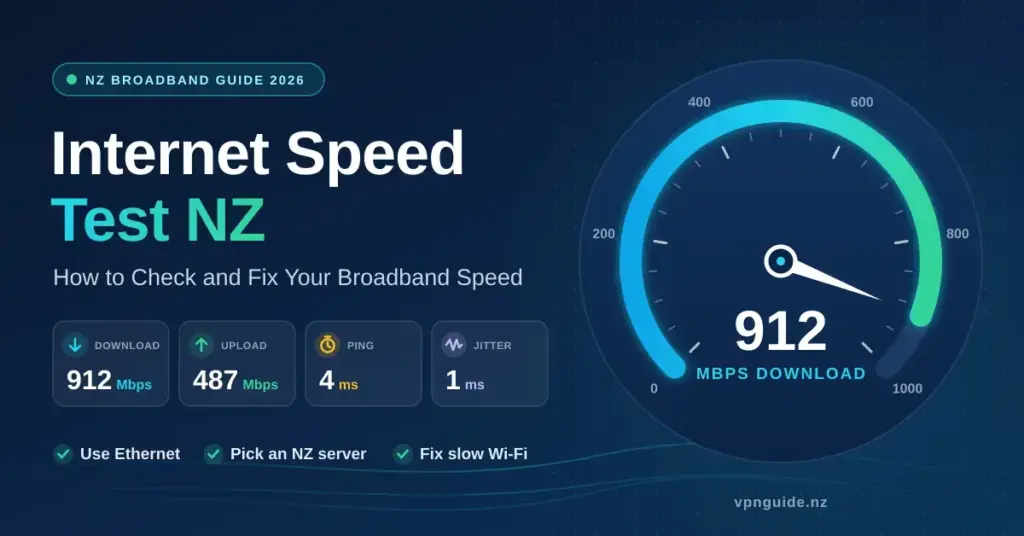

Running an internet speed test is the quickest way for a New Zealander to find out whether the broadband they pay for each month is actually reaching their devices. A speed test measures four things in real time — download speed, upload speed, latency (usually called ping) and jitter — by exchanging small chunks of data with a nearby test server and timing the round trip. In a country where the Ultra-Fast Broadband (UFB) rollout now reaches roughly nine in ten homes, these numbers let you confirm the speed on your plan, decide whether a slowdown is your Wi-Fi, your hardware or your provider, and compare connections before you switch. This guide explains what each metric means, how to test accurately, what speeds to expect on New Zealand fibre in 2026, and how to fix a result that comes back low.
Quick Facts
- What it measures: download speed, upload speed, ping (latency) and jitter.
- Most accurate method: a computer connected to the router by an Ethernet cable, tested against a New Zealand server.
- Ideal local ping on fibre: under 10 ms; NZ to Sydney typically 30–45 ms.
- Gigabit reality: about 940 Mbps is the usable ceiling of a 1 Gbps Ethernet port after overhead.
- Mainstream NZ fibre plan (2026): 500 Mbps down / 100 Mbps up after the June 2025 Chorus speed boost.
- Turn off your VPN before testing to measure your line’s raw performance.
Why a speed test matters in New Zealand
For most households the internet is now a core utility rather than a luxury, but paying for a fast fibre plan does not guarantee that every device reaches those headline numbers. A speed test sends data to a server — ideally one in Auckland, Wellington or Christchurch — and reports how much throughput your connection can sustain right now. That snapshot is the difference between guessing and knowing. Without it, a slow-loading page could be a tired router, a congested exchange, a Wi-Fi dead spot, or a fault on the international links, and you would have no way to tell them apart.
- Verification: confirms whether you are getting the download and upload speeds your UFB plan promises.
- Troubleshooting: helps isolate whether a problem affects one device or the whole household.
- Hardware auditing: reveals when an ageing router or cable is bottlenecking a modern fibre line.
- Provider comparison: gives you objective data before switching to another Kiwi internet provider.
Download versus upload: what each one governs
Download speed is the figure most people recognise: it dictates how quickly you can pull data in, whether that is streaming a film, loading a website or downloading a game update. Upload speed governs data going the other way — the quality of your outbound video in a Teams or Zoom call, cloud photo backups, and uploading large files for work. Many New Zealand fibre plans are still asymmetrical (far more download than upload), but the gap has narrowed. Since the 2025 wholesale upgrades the mainstream plan runs at 500 Mbps down and 100 Mbps up, while premium Hyperfibre plans are fully symmetrical, offering the same speed in both directions for creators and tech-heavy homes.
The four numbers a speed test reports
A complete test returns four values. The “megabits per second” (Mbps) figure usually gets the attention, but responsiveness — measured by ping — is what makes a connection feel snappy. A 1,000 Mbps line with a 200 ms ping will feel more sluggish to browse or game on than a 100 Mbps line with a 10 ms ping.
| Metric | Measured in | Why it matters for NZ users |
|---|---|---|
| Download speed | Mbps / Gbps | Streaming, browsing and large downloads. |
| Upload speed | Mbps / Gbps | Video calls, cloud backups and sending large files. |
| Ping (latency) | Milliseconds (ms) | Online gaming and real-time voice; lower is better. |
| Jitter | Milliseconds (ms) | Stability; high jitter causes stuttering in calls and video. |
Reading latency and jitter
Latency, or ping, is the reaction time of your connection — how long a packet takes to reach the server and come back. On a fibre connection, a local ping to a server in the same city should sit under 10 ms. Jitter measures how consistent that ping is: if it jumps from 10 ms to 100 ms and back, the connection is unstable. That instability matters most for Kiwi gamers connecting to Australian servers in Sydney, where a steady 30–45 ms round trip is the realistic gold standard (the raw cable path from Auckland to Sydney is only about 23–24 ms). High jitter is usually a sign of Wi-Fi interference or congestion rather than a fault on the line itself.
How to run an accurate speed test at home
To measure your line rather than your Wi-Fi, remove as many variables as you can. Testing on a phone in a back bedroom mostly measures the wireless signal reaching that room, not the speed arriving at the house. For a true baseline, use a laptop or desktop plugged straight into the router with an Ethernet cable. That bypasses the interference and signal loss that come with wireless and gives you a clean look at what your provider is delivering.
- Restart first: reboot the router and the test device to clear temporary slowdowns.
- Go wired: use a Cat6 Ethernet cable instead of Wi-Fi for the most reliable reading.
- Close background apps: make sure nothing else is streaming 4K or downloading updates during the test.
- Pick a local server: choose an Auckland, Wellington or Christchurch server to keep distance-based latency out of the result.
- Repeat the test: run it two or three times and take the best result to rule out a one-off blip.
Test at different times of day

A single test is only a point-in-time snapshot. To understand your real network health, run tests at several times, especially during peak hours (roughly 7:00 pm to 11:00 pm in New Zealand, when streaming demand is highest). If you see 900 Mbps at midday but 100 Mbps at 9:00 pm, that points to congestion — either on your provider’s network or on the international links — rather than a fault in your home. For a rigorous view, the Commerce Commission’s Measuring Broadband New Zealand programme, run by the independent firm SamKnows, places a small “Whitebox” in volunteer homes and reports actual in-home performance by plan and technology throughout the day.
Which speed test tool should you use?
No single tool is definitive; each uses different servers and methods, so it is worth trying two. Speedtest by Ookla is the most widely used and lets you pick a New Zealand server manually. Fast.com, run by Netflix, is a stripped-back test focused on streaming throughput. Google’s built-in test (search “internet speed test”) is convenient for a quick check. Several providers also offer their own tools that use the same SamKnows engine as the official programme — Spark’s RealSpeed and One NZ’s speed test are examples — which are useful because they can test right up to the ONT rather than only to a public server. The comparison below summarises the main options.
Comparison
| Tool | Run by | Best for | NZ server choice |
|---|---|---|---|
| Speedtest by Ookla | Ookla | General-purpose testing; download, upload, ping and jitter | Yes — pick an Auckland/Wellington/Christchurch server |
| Fast.com | Netflix | Quick check of streaming download throughput | Automatic |
| Google / M-Lab test | Measurement Lab | Fast one-tap check from Google Search | Automatic |
| Spark RealSpeed | Spark (SamKnows engine) | Testing to the ONT, not just a public server | NZ only |
| One NZ speed test | One NZ | Line check for One NZ customers | NZ only |
| Measuring Broadband NZ | Commerce Commission / SamKnows | Independent, ongoing performance data by plan | NZ nationwide |
What speeds to expect on each NZ connection type
New Zealanders can connect over several technologies, each with its own realistic ceiling. Fibre-to-the-premises (FTTP) is the gold standard for speed and reliability. Fixed wireless (delivered over 4G/5G) is a common option where fibre has not yet been installed, and satellite — principally Starlink — has become the go-to for many rural homes. Knowing what is normal for your technology stops unnecessary calls to support. Note that wholesale speed upgrades from Chorus in June 2025 lifted the entry and mainstream plans at no extra cost, so older articles quoting a 300/100 “standard” plan are out of date.
- Entry fibre (formerly Fibre 50): boosted to 100 Mbps down / 20 Mbps up in June 2025.
- Standard fibre (formerly Fibre 300): now 500 Mbps down / 100 Mbps up — the mainstream plan for most homes.
- Fibre Max: around 900 Mbps down, with uploads now commonly up to about 500 Mbps depending on the retailer.
- Hyperfibre: symmetrical plans at 2, 4 or 8 Gbps for power users, delivered via a special ONT.
- Fixed wireless: highly variable, typically 20–300+ Mbps depending on tower load and signal.
- Starlink satellite: usually around 100–200 Mbps down in New Zealand, with higher latency than fibre.
As a national reference point, Ookla put New Zealand’s average fixed-broadband download speed at roughly 200 Mbps in early 2026, while the Measuring Broadband New Zealand July 2026 report recorded Fibre Max averaging about 929 Mbps down and the mainstream plan around 514 Mbps down — close to their advertised figures.
From copper to fibre
The shift from the old copper ADSL and VDSL networks to fibre removed the “distance from the exchange” penalty that used to plague Kiwi connections. On copper, speed dropped the further you lived from the cabinet; with fibre, light signals travel long distances with almost no loss, so a rural fibre user can get the same throughput as someone in central Auckland. It is a small chapter in the broader history of the internet, but it is why a slow fibre result today is almost always a hardware, Wi-Fi or routing issue rather than a distance problem.
Why your result is lower than you expected
In the average New Zealand home, the most common cause of a disappointing speed test is the Wi-Fi itself. Thick concrete or brick walls, mirrors and large appliances all degrade the signal, and the older 2.4 GHz band is easily disrupted by microwaves, cordless phones and baby monitors. Upgrading to a modern Wi-Fi 6 router or a mesh Wi-Fi system often fixes “speed” complaints without any change to the underlying plan.
| Factor | Impact | Recommended fix |
|---|---|---|
| Router placement | High | Move it to a central, elevated, open spot — not a cupboard. |
| Wi-Fi interference | Moderate | Use the 5 GHz band or add a mesh system. |
| Old hardware | High | Replace routers or devices more than about five years old. |
| Network congestion | Moderate | Test at off-peak times to confirm provider capacity. |
Hardware bottlenecks
Your connection is only as fast as its weakest link. If you pay for a Fibre Max plan (around 900 Mbps) but plug in an old Cat5 cable, your speed is physically capped near 100 Mbps. Older phones may lack the antennas to handle high-speed data over Wi-Fi, and a router’s own processor can become the limit at Hyperfibre speeds. When a result looks low, check the specifications of your router, your cables and the device you are testing on to make sure each is rated for the speed you are chasing.
The gigabit “ceiling” and protocol overhead
A frequent frustration on Gigabit (1,000 Mbps) plans is never quite seeing 1,000 Mbps on a test. This is protocol overhead. Just as a parcel carries packaging and a shipping label, every data packet carries headers and error-checking information that consume a slice of the bandwidth. On a standard Gigabit Ethernet port the usable ceiling after overhead is about 940–950 Mbps — so a result in that range means your connection is performing perfectly at its physical limit, not underperforming.
- ~940 Mbps: the functional ceiling of a 1 Gbps Ethernet port.
- 2.5 Gbps ports: needed if you want to see results above 1,000 Mbps on Hyperfibre.
- Overhead: typically accounts for roughly 5–10% of raw capacity.
- Browser limits: some browsers struggle to render a web-based test at very high speeds.
Why your phone shows slower numbers
Even the latest iPhone or Samsung Galaxy may not reach full Gigabit speeds over Wi-Fi. Mobile devices are tuned for battery efficiency, and their Wi-Fi chips usually have fewer antennas than a high-end desktop. If your phone shows 400 Mbps while a wired PC shows 940 Mbps, your internet is fine — you have simply hit the wireless limit of the phone, which is a device ceiling, not a line fault.
International routing and New Zealand’s undersea links
Your local connection can be fast while overseas destinations feel slow, because New Zealand’s traffic must travel through undersea cables to reach most of the world. A test to an Auckland server can be lightning quick, but a test to London will always show high latency and often lower speeds. This is why some providers suit gamers and international workers better than others — they invest more in “peering” and international transit capacity so the pipe to the rest of the world stays open at peak times. Providers such as Spark, One NZ and 2degrees all route across the Southern Cross cable network.
| Destination | Typical round-trip ping from NZ | What it means |
|---|---|---|
| Auckland (local) | 2–10 ms | Extremely responsive; feels instant. |
| Sydney | 30–45 ms | Great for gaming on Australian servers. |
| Los Angeles | 130–150 ms | Noticeable delay in interactive tasks. |
| London | 250–290 ms | Significant lag; best for non-interactive content. |
Congestion during big events
During major events — a Rugby World Cup final, or the release of a huge game patch — New Zealand’s international links can load up heavily. At those times your results to overseas servers may dip even while local NZ speeds stay high. That is rarely a fault in your home; it reflects the total data demand of the whole country hitting the same cables at once.
How a VPN affects your reading

Many Kiwis run a VPN for privacy or to reach overseas content, and it is worth knowing that a VPN will always slow a raw speed test to some degree. Encryption adds overhead to every packet, and routing your traffic through a distant server adds latency. If you are testing your line’s health, turn the VPN off first so you are measuring your provider’s raw performance. If you want to understand the trade-offs before choosing one, our plain-English guide to what a VPN does in New Zealand covers the detail. A good modern VPN on a nearby server typically costs you only a small fraction of your speed; a large drop usually points to a distant server or an overloaded free service.
Fixing slow speeds: a practical checklist
If your tests keep coming back below the mark, work through the simple fixes before escalating to your provider. Start at the ONT (the box on your wall): if its optical light is red or flashing, there is a physical line fault to report. If the lights are green but speeds are low, the problem is almost always inside your home network.
- Centralise the router: keep it in the open on a shelf, not on the floor or behind a TV.
- Check the cables: use Cat6 or Cat6a for wired connections; retire any old Cat5.
- Update the firmware: check your router’s admin page monthly for updates that improve stability.
- Prioritise devices: use Quality of Service (QoS) settings so a work laptop takes priority over background downloads.
- Test wired, then wireless: if wired is fast but Wi-Fi is slow, the fix is your wireless setup, not your plan.
When to upgrade your hardware

A router more than about five years old probably predates the Wi-Fi 6 and 6E standards, which handle the dozens of smart devices in a modern Kiwi home far better than older gear. If a test standing next to the router is much slower than a wired test, your wireless hardware is the bottleneck. In larger homes a single router in the hallway is rarely enough; a mesh system with several nodes keeps full fibre speeds reaching the back bedrooms and the home office.
Sources
- interest.co.nz — Chorus boosts its most popular fibre broadband plans (June 2025)
- TelcoNews — Chorus announces free speed upgrade for NZ fibre users
- Chorus — Hyperfibre plans (2/4/8 Gbps)
- Commerce Commission — Measuring Broadband New Zealand
- Chorus — The facts on broadband speed and performance
- Submarine Networks — Southern Cross NEXT cable (Sydney–Auckland–Los Angeles)
- Speedtest by Ookla
Frequently Asked Questions (FAQ)
What is a good download speed for a typical NZ household?
For a family of four, the mainstream 500 Mbps fibre plan comfortably handles several 4K streams and simultaneous gaming. Lighter households do fine on the 100 Mbps entry plan, while heavy uploaders and large homes may prefer Fibre Max or Hyperfibre.
Is it better to test my speed on a laptop or a phone?
A laptop connected by an Ethernet cable is far more accurate because it removes Wi-Fi interference from the result. A phone test mostly tells you how good the wireless signal is in that particular spot, not what your line can actually deliver.
What counts as a bad ping for New Zealanders?
For local NZ servers, anything much over 30 ms is high on fibre. For Australian servers, up to about 45 ms is normal and expected; beyond roughly 60 ms you may start to feel lag in fast-paced online games.
Why is my speed test lower when I use a VPN?
A VPN encrypts your traffic and routes it through a remote server, which adds overhead and distance. Both reduce raw throughput and increase latency, so always turn the VPN off when you are measuring your line’s true speed.
What is the difference between Mbps and MB/s?
Providers sell speed in megabits per second (Mbps), but files download in megabytes per second (MB/s). There are 8 bits in a byte, so a 100 Mbps connection downloads at about 12.5 MB/s — the numbers are not a mistake, just different units.