
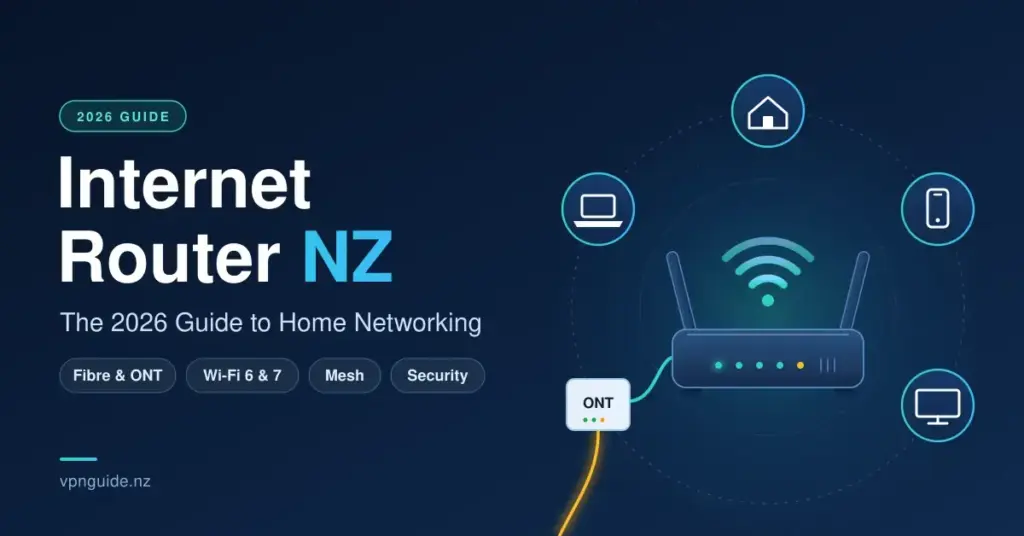
Your router is the single device that turns a New Zealand fibre connection into usable Wi-Fi for every phone, laptop, TV and smart-home gadget in the house. Choose well and you unlock the full speed of your plan with strong coverage and sensible security; choose poorly and you get dead spots, evening slow-downs and needless risk. This guide explains, in plain language, how a router fits into a typical NZ fibre setup, what the Wi-Fi 6 and Wi-Fi 7 labels actually mean in 2026, when a mesh system is worth it, how to match hardware to gigabit or Hyperfibre plans, and the security basics that matter most. It starts with the most common point of confusion: the difference between a modem and a router.
How a Router Fits Into a New Zealand Fibre Setup
On a standard NZ fibre connection there is no traditional “modem” at all. The box screwed to your wall by a Local Fibre Company such as Chorus or Enable is an Optical Network Terminal (ONT). It converts the light signals travelling down the fibre into ordinary network data. Your router then takes that data and shares it around your home.
- The ONT (the “fibre box”): Fixed to your wall and owned by the fibre company. It translates the optical signal into Ethernet data. You do not buy or replace it. Our guide to understanding the internet box explains it in more detail.
- The router: Connects to the ONT with a short Ethernet cable and distributes the connection to your devices over Wi-Fi and wired ports. This is the part you can upgrade.
- A modem-router (gateway): A single combo unit still used on older copper ADSL or VDSL lines. On fibre you only need a standalone router, so a plain fibre-capable router is all most homes require.
Key Points
- On NZ fibre the wall box is an ONT, not a modem; your router is the part you upgrade.
- Wi-Fi 6 suits most homes; Wi-Fi 7 adds value for Hyperfibre, gaming and future-proofing.
- Hyperfibre (2/4/8 Gbps) needs multi-gig (2.5G, 5G or 10G) ports; a gigabit router caps it near 940 Mbps.
- Mesh Wi-Fi is worth it mainly for large or multi-level homes with dead zones.
- Secure it: change the admin password, use WPA3, disable WPS, add a guest network and keep firmware updated.
What “Fibre Ready” Actually Means
When a router is described as “fibre ready” or “fibre capable”, it simply means it has a dedicated WAN (wide area network) port to plug into your ONT, rather than a built-in phone-line modem. Many modern units, such as the TP-Link Deco and eero mesh ranges, use auto-sensing ports that work out for themselves whether a socket is being used for the incoming ONT connection or for a wired device, which removes a common setup mistake for non-technical users.
Wi-Fi Standards Explained: Wi-Fi 6, 6E and 7
By 2026 the sensible baseline for a new router in New Zealand is Wi-Fi 6, with Wi-Fi 7 now widely available at the higher end. Older Wi-Fi 5 (802.11ac) hardware still works, but it struggles in busy suburbs where dozens of neighbouring networks compete for the same airwaves. The table below summarises the practical differences.
| Standard | Max theoretical speed | Main practical benefit | Best suited to |
|---|---|---|---|
| Wi-Fi 6 (802.11ax) | Up to 9.6 Gbps | Handles many devices at once far better than Wi-Fi 5 | Most homes and remote work |
| Wi-Fi 6E | Up to 9.6 Gbps | Adds the clean, less-crowded 6 GHz band | Apartments and dense areas |
| Wi-Fi 7 (802.11be) | Up to 46 Gbps | Multi-Link Operation and wider channels for lower lag | Hyperfibre, gaming, future-proofing |
The headline speeds are laboratory ceilings that assume ideal conditions, multiple antennas and the widest channels. No home device reaches them. They are still useful as a comparison of how much total capacity each generation can move, which is what matters when many devices are active together.
Multi-Link Operation (MLO) in Wi-Fi 7
The most useful Wi-Fi 7 feature for everyday use is Multi-Link Operation. It lets a compatible device use two frequency bands at the same time, for example 5 GHz and 6 GHz together. If one band is congested by a neighbour’s network or a nearby appliance, traffic keeps flowing on the other, which tends to steady a connection during video calls and online gaming rather than dramatically raising peak download numbers.
Why Real-World Speeds Are Lower
Wi-Fi speed drops with distance, walls and interference, so the figure your device shows is almost always below the speed of a wired connection. Protocol overhead alone means a “gigabit” (1000 Mbps) connection typically delivers around 900-940 Mbps even over a good cable. This is normal, not a fault. If you want to confirm what you are actually getting, run a wired test after tidying your router settings before blaming the hardware.
The Frequency Bands, Explained Simply
Modern routers broadcast on two or three radio bands, and understanding them removes a lot of confusion about why one corner of the house feels slow. Your device picks a band automatically, but knowing the trade-offs helps you place hardware well.
- 2.4 GHz: The slowest band, but it travels furthest and passes through walls best. Good for the garage, a distant bedroom or simple smart-home sensors.
- 5 GHz: Much faster, with shorter range. This is the everyday workhorse for streaming, video calls and browsing within a room or two of the router.
- 6 GHz (Wi-Fi 6E and 7): The fastest and least crowded band, with the shortest range. Ideal for a nearby high-demand device such as a gaming PC or a 4K TV.
A dual-band router uses 2.4 and 5 GHz; a tri-band router adds either a second 5 GHz channel or the 6 GHz band. Most homes are well served by dual-band; tri-band mainly benefits busy households with many simultaneous high-speed devices.
Matching a Router to Your Broadband Plan
The right router depends heavily on the plan you pay for. Buying more capability than your connection can supply wastes money; buying too little quietly caps your speed.
Gigabit and Standard Fibre
For the common 300 Mbps or 1 Gbps fibre plans, a good Wi-Fi 6 router with a gigabit WAN port is plenty. Coverage and the number of connected devices matter more here than raw speed ratings. If your provider supplied a router you are happy with, there is no urgent need to replace it; our Spark Wi-Fi guide shows how ISP-supplied hardware and bridge mode fit together.
Hyperfibre and Multi-Gig Ports
Chorus Hyperfibre offers plans with peak-time average speeds of roughly 2 Gbps, 4 Gbps and 8 Gbps. To use anything above about 940 Mbps you need a router whose WAN and LAN ports are multi-gig, meaning 2.5G, 5G or 10G rather than plain gigabit. A standard gigabit router physically caps a Hyperfibre line, so units such as the ASUS RT-BE88U or a mesh with 5GbE/10GbE ports are the ones to look for. If fibre is not available where you live, fixed-wireless and satellite options such as Starlink use their own supplied hardware; our Starlink broadband overview covers how that differs from a fibre router.
Mesh Wi-Fi: Covering Larger and Multi-Level NZ Homes
In older brick-and-tile houses, multi-storey homes or properties with a sleepout, a single router often cannot reach every room. A mesh system uses two or more units (nodes) that share one network name, so your device moves between them automatically as you walk around the house.
- Seamless roaming: One Wi-Fi name for the whole property, with devices handing off to the nearest node without dropping the connection.
- ISP partnerships: Several Kiwi providers bundle mesh hardware; Mercury, for example, supplies eero 6+ units with its fibre plans as “Total Home WiFi”.
- Scalable coverage: Extra nodes can be added for larger homes or to reach a garage or sleepout.
- Self-healing: If one node loses power, the others reroute traffic to keep the rest of the home online.
Mesh is not automatically better than a single strong router. In a small flat, one well-placed router usually outperforms a cheap mesh kit. Mesh earns its cost mainly when floor area or thick walls create genuine dead zones.
Routers Compared for the New Zealand Market
The 2026 NZ router market is led by TP-Link, ASUS and Amazon’s eero brand, widely stocked at PB Tech, JB Hi-Fi and Noel Leeming. The table below lists representative models with verified approximate street prices in New Zealand dollars as at September 2026; prices move often, so treat them as a guide rather than a quote.
Router Comparison
| Model | Class | Key specs | Best for | Approx. NZ price (Sep 2026) |
|---|---|---|---|---|
| TP-Link Archer BE230 | Dual-band Wi-Fi 7 (BE3600) | 2 x 2.5G ports, USB 3.0 | Budget Wi-Fi 7 upgrade | ~$250 |
| TP-Link Archer AXE75 | Tri-band Wi-Fi 6E (AXE5400) | Adds the 6 GHz band, gigabit ports | Value all-rounder | ~$349 |
| eero 6+ | Dual-band Wi-Fi 6 mesh | App-simple setup, Mercury bundle | Easy whole-home coverage | ~$240-300 |
| ASUS ROG Rapture GT6 | Tri-band Wi-Fi 6 gaming mesh | Gaming prioritisation, low latency | Gamers with a larger home | ~$550-650 (2-pack) |
| ASUS RT-BE88U | Dual-band Wi-Fi 7 | Dual 10G plus 2.5G ports | Hyperfibre and wired speed | ~$700-800 |
| eero Pro 7 | Tri-band Wi-Fi 7 mesh (BE9300) | Two 5GbE ports, MLO | High-end mesh coverage | ~$1,299 (3-pack RRP) |
Note that a bigger number in the model name does not always mean you will notice a difference. A budget dual-band Wi-Fi 7 unit is a sensible upgrade for most gigabit homes, while the tri-band and 10G models make sense mainly for Hyperfibre, large properties or competitive gaming.
Securing Your Home Router
Your router is the front door to everything on your home network, so a few minutes of setup matters. New Zealand’s official Own Your Online service stresses that leaving factory defaults in place is one of the easiest ways to be compromised.
- Change the admin login: Replace the default administrator username and password (often something like admin / password) with a strong, unique one. This is separate from your Wi-Fi password.
- Use WPA3 encryption: Select WPA3 if your router and devices support it; fall back to WPA2 only where they do not. Avoid the old WEP and open networks entirely.
- Turn off WPS: The push-button Wi-Fi Protected Setup feature can be abused by someone in range, so disable it once your devices are connected.
- Add a guest network: Put visitors and smart-home gadgets such as bulbs and cameras on a separate guest Wi-Fi, keeping them away from your main computers and phones.
Pair these with device-level protection. A router hardens the network, but you still want reputable antivirus and safe habits on the machines themselves; see our malware protection guide for the layered approach.
Keeping Firmware Up to Date
Firmware is the router’s internal software. Manufacturers such as ASUS, TP-Link and eero release updates that patch security flaws and fix bugs. Most 2026 routers can install these automatically through their companion app; enabling auto-update is the single most effective ongoing step you can take to keep the device safe.
Setting Up a Router on NZ Fibre, Step by Step
Installation is largely automated, but doing the physical steps in the right order helps the connection establish cleanly with your provider.
- Power it near the ONT: Place and plug in the router close to the fibre box on your wall.
- Connect to the ONT: Run an Ethernet cable (Cat6 or better for multi-gig) from the router’s WAN port to the correct port on the ONT — usually GE1/LAN1 for standard fibre, or the dedicated 10G port for Hyperfibre.
- Run the app: Most current routers are set up through an app such as eero, Deco or ASUS Router; download it and follow the prompts.
- Enter any BYO settings: On a bring-your-own router you may need to enable VLAN tagging with VLAN ID 10, which nearly all NZ fibre providers use.
- Check placement: Put the router in an open, elevated spot away from thick walls, mirrors and large metal appliances like fridges.
Advanced Settings Through the Web Interface
Power users who want finer control can still reach most routers through a web dashboard by typing an address such as 192.168.1.1 into a browser. From there you can adjust wireless channels, set up port forwarding or a firewall, or configure a router-level VPN connection so every device in the house is covered at once.
Common Mistakes to Avoid
- Pairing Hyperfibre with a gigabit router: Without multi-gig ports you will never see the speed you are paying for.
- Hiding the router in a cabinet: Enclosed or floor-level placement kills range; keep it out in the open.
- Buying mesh for a small home: One good router usually beats a budget mesh kit in a flat or small house.
- Never touching security settings: Default passwords and old WPA2-only encryption leave the network exposed.
- Judging by 2.4 GHz alone: Devices near the router should use the faster 5 GHz or 6 GHz bands; the 2.4 GHz band is for range, not speed.
Who Should Upgrade, and Who Can Wait
If you are on a gigabit plan in a small or medium home and your current router is a recent Wi-Fi 6 model with no dead zones, there is little reason to change. Consider an upgrade if you have moved to Hyperfibre and lack multi-gig ports, if coverage fails in parts of a larger home (where mesh helps), or if your existing hardware is Wi-Fi 5 or older and cannot support WPA3. For most Kiwi households the best value in 2026 is a solid Wi-Fi 6 or entry Wi-Fi 7 router set up securely, with a mesh system reserved for genuinely large or awkward layouts.
Sources
Frequently Asked Questions (FAQ)
What is the difference between an ONT and a router in New Zealand?
The ONT is the fibre box fixed to your wall by the fibre company; it converts the optical signal into network data. The router connects to the ONT and shares that connection with your devices over Wi-Fi and Ethernet. You cannot replace the ONT, but you can upgrade the router.
Can I use my own router with a New Zealand fibre plan?
Usually yes. Most providers allow a bring-your-own router on fibre as long as it is fibre capable, has a WAN port, and supports VLAN tagging, which is VLAN ID 10 on almost all NZ networks. Some plans work with no extra settings at all.
Do I need a new router for Hyperfibre?
To get more than about 940 Mbps you need a router with multi-gig WAN and LAN ports rated at 2.5G, 5G or 10G. A plain gigabit router will physically cap a 2, 4 or 8 Gbps Hyperfibre plan, so an upgrade is required to use the full speed.
Do I really need mesh Wi-Fi?
Only if a single router cannot cover your home. Mesh systems shine in multi-storey houses, older brick homes and properties with a sleepout by creating one seamless network. In a small flat, a single well-placed router is usually cheaper and just as fast.
How do I make my home Wi-Fi more secure?
Change the default admin password straight away, switch encryption to WPA3 where supported, turn off WPS, set up a separate guest network for visitors and smart devices, and enable automatic firmware updates so security patches install themselves.


