
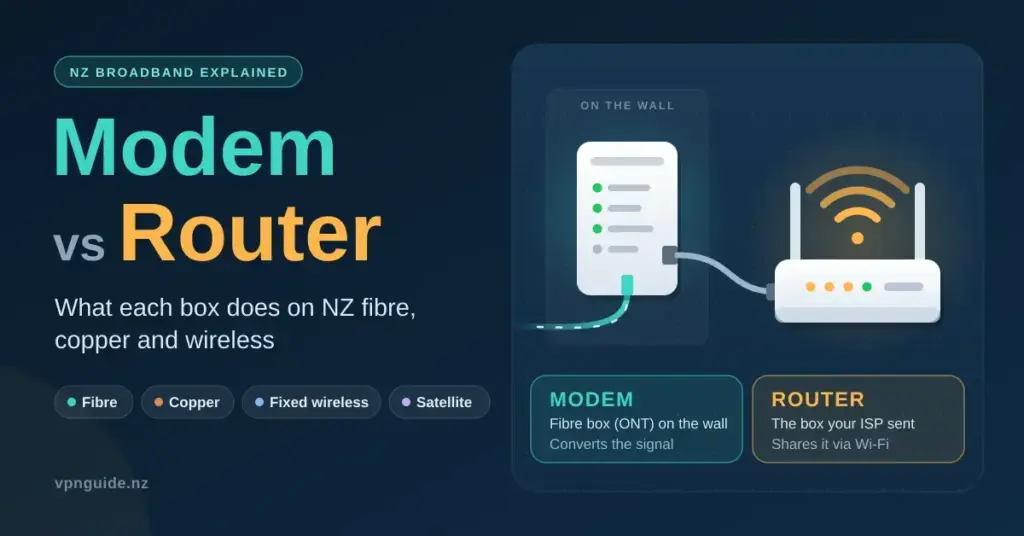
Almost every New Zealand household calls the box the internet company posted out “the modem.” On a fibre connection that name is not quite right. The modem’s job is done by the small white box a technician screwed to your wall, and the device your provider sent is really a router. The two words describe two different jobs, and knowing which box handles which makes faults much faster to pin down — it also makes it easier to decide whether your own equipment would do a better job. This guide explains the difference in plain English and shows how it plays out across fibre, copper, fixed wireless and satellite connections here in New Zealand.
Key points
- On NZ fibre, the white fibre box (ONT) on your wall is the modem; the box your provider sent is really a router.
- A modem converts your line’s signal into internet; a router shares it, runs Wi-Fi and firewalls your home.
- Copper connections use one combined modem-router — but copper is being retired (fibre areas by end of 2026, nationwide by end of 2028).
- Fixed wireless (4G/5G) is one all-in-one box; Starlink is a dish (modem) plus a router.
- A red LOS light on the fibre box means a network fault outside your house; call your provider.
- You can bring your own router on fibre (usually a VLAN 10 setting) — best for mesh coverage, very fast plans, or advanced features.
What a modem does and what a router does
A modem is a translator. Its one job is to convert the signal arriving on your line — light down a fibre strand, electrical tones on a copper phone line, or a radio signal from a cell tower or satellite — into the standard internet data that computers understand, and to convert your data back the other way. A modem talks to the outside world and gives you a single connection to the internet.
A router is a traffic controller. It takes that one connection and shares it among all the devices in your home. It runs the Wi-Fi, hands each phone, laptop and smart TV its own private address, and acts as a firewall between your home and the wider internet. Where the modem faces outward, the router faces inward toward your devices.
On many connections these two jobs live in the same plastic box, which is why the names get blurred. But they remain two separate jobs, and the table below shows how they split.
Why bundle them at all? For copper and fixed-wireless connections it is simply cheaper and tidier to put both functions in one unit — there is only ever one box to post out, plug in and support. Fibre broke that habit apart, because the network company has to install its own light-handling equipment (the fibre box) on the wall, leaving the retail provider to supply only the router half. That is the single biggest reason New Zealanders end up with two boxes on fibre and one box on everything else.
| Modem | Router | |
|---|---|---|
| Main job | Converts the signal on your line (fibre light, copper tones or radio) into a standard internet connection | Shares that connection between your devices, runs the Wi-Fi and protects the home network |
| Faces | The outside world: fibre, phone line, cell tower or satellite | The modem on one side, all your devices on the other |
| Hands out | One public internet address | A private address to every device, plus firewall and Wi-Fi |
| On NZ fibre | The Chorus (or local fibre company) fibre box on the wall does this | The “modem” your provider sent is actually this |
The word modem is short for modulator-demodulator. It goes back to the dial-up era, when the box turned computer data into audible tones so it could travel down an ordinary telephone line — you could actually hear it screech as it connected. Fibre needs nothing of that kind, but the word stuck, which is a large part of why the naming is so confusing today.
What you actually have depends on your connection
Whether your setup is one box or two comes down to how the internet reaches your house. Here is what each of the main New Zealand connection types uses.
A quick way to tell which type you have: if there is a small box fixed permanently to a wall (often near the front door, in a hallway or in the garage) with a thin fibre cable running into it, you are on fibre and that box is the modem. If your only box plugs into a wall phone jack, you are on copper. If it has an aerial or takes a SIM card, it is fixed wireless. And if the signal comes from a dish outside, it is satellite.
Fibre: a fibre box plus a router
On a fibre connection there are two separate devices. The first is the ONT — Optical Network Terminal, usually just called the fibre box — which the network company (most often Chorus, or a local fibre company such as Enable, Northpower or Tuatahi First Fibre) installs on an inside wall. That box is the modem: it turns the light signal in the fibre into a normal internet connection. Your provider’s “modem” then plugs into the fibre box and does the router’s job. On the common ONT 500, the router connects to the first data port, labelled GE1. Fibre is now the most widespread home connection in the country, so this two-box arrangement is what most readers will have.
Copper VDSL and ADSL: a combined modem-router
Older copper broadband runs over the same wires as a traditional landline, and uses a single box that is both modem and router — it has a DSL port for the phone line built in. This kind of connection is on its way out. Chorus is retiring copper in areas where fibre is available by the end of 2026, and switching off the copper network nationwide by the end of 2028, moving the date forward from its earlier plan of 2030. If you are still on copper, your provider will help you move to fibre or fixed wireless; the Telecommunications Forum keeps plain-language copper retirement information for households working out their options.
Fixed wireless (4G and 5G): one all-in-one box
Fixed wireless broadband delivers the internet over the mobile network. It uses a single box with a SIM card inside that acts as both modem and router — it receives the radio signal and shares it over Wi-Fi from the one unit. It is a popular option where fibre has not reached, or as a lower-cost plan. Our wireless broadband guide covers how these units work and where they suit.
Satellite (Starlink): a dish plus a router
Satellite internet from Starlink works much like fibre in structure. The dish is the modem — it talks to the satellites and produces an internet connection — and Starlink supplies a router to share it around the house. The exception is the smaller Starlink Mini, which has the router built into the dish unit itself. Our Starlink broadband guide explains the plans and hardware for rural and remote homes.
The provider “modem” is really a router
Because the fibre box already handles the modem’s job, the device your retail provider ships is doing router work even though the marketing calls it a modem. The good news is that the current hardware from the major New Zealand providers is genuinely capable. Spark’s current default is the Spark Futura Modem, a Wi-Fi 6 unit that works on both fibre and 4G wireless (older households may still have the Huawei-based Spark Smart Modem 3). One NZ supplies a TP-Link Deco BE28 mesh unit on Wi-Fi 7, alongside other Deco models for wireless and phone-service plans — the details sit on One NZ’s supplied-modem page. 2degrees and Contact issue TP-Link routers on Wi-Fi 7 and Wi-Fi 6 respectively.
The table below shows examples of the routers the largest providers currently supply. Exact models change over time and depend on your plan, so treat it as a snapshot rather than a fixed list.
Provider router comparison
| Provider | Example supplied router | Wi-Fi standard | Works with | Official page |
|---|---|---|---|---|
| Spark | Spark Futura Modem (older: Smart Modem 3) | Wi-Fi 6 | Fibre and 4G wireless | spark.co.nz |
| One NZ | TP-Link Deco BE28 (mesh) | Wi-Fi 7 | Fibre and SuperWiFi | one.nz |
| 2degrees | TP-Link HB410 | Wi-Fi 7 | Fibre and DSL | 2degrees.nz |
| Contact | TP-Link HX510 | Wi-Fi 6 | Fibre | contact.co.nz |
Models and plan bundling change over time; confirm the current hardware with your provider before choosing.
Why the distinction matters when something breaks
The most practical reason to keep modem and router straight is fault-finding. A problem on the modem side is the network’s responsibility; a problem on the router side is usually yours to fix. On fibre, the fibre box tells you which side is at fault through its status lights.
- Solid green POWER and PON lights, with the LOS light off, mean the fibre connection into the house is healthy. If the internet is still down, the fault is on the router or Wi-Fi side — your problem to work through.
- A red or flashing LOS (Loss of Signal) light means the fibre signal is not reaching the house. That is a network fault, and your provider has to log it; restarting your own gear will not fix it.
Chorus documents what each light means on its ONT fibre box support pages, and our own guide to the fibre box lights walks through the same signals in more detail. When you have narrowed the fault to your side of the line, the internet-not-working troubleshooting guide sets out the steps to take in order.
Before you assume a fault, it is also worth a quick physical check. Make sure the Ethernet cable between the fibre box and the router is firmly seated in the right port (GE1 on the ONT 500), that the fibre box has power, and that no cable has been knocked loose by furniture or cleaning. A surprising share of “outages” turn out to be a nudged cable or a switched-off wall socket rather than anything on the network.
When you do restart the equipment, the order matters. Turn the router off first, then the fibre box, wait about 30 seconds, switch the fibre box back on and let its lights settle, and only then power the router back up. Bringing them back in that sequence lets the router pick up a clean connection from a fully ready fibre box. If the connection still fails after a proper restart and the fibre box shows healthy lights, the next call is to your provider — but note whether the LOS light is on, as that single detail tells them immediately whether the fault is inside or outside your home.
Bringing your own router on fibre
On fibre you are free to replace your provider’s router with one of your own — a mesh system for a large or multi-storey home, or a newer Wi-Fi 6 or Wi-Fi 7 router. Most New Zealand providers publish the settings you need to bring your own equipment. On Chorus fibre this usually means setting the router’s WAN (internet) connection to use a VLAN tag — VLAN 10 is the common value — together with the connection type your provider specifies. Chorus’s ONT 500 guide shows which port to use, and you should always check your provider’s own bring-your-own-modem page for the exact values before you start. Keep the old router until the new one is fully working, so you can fall back if something is off.
Whether it is worth the effort depends on what you want. The table below weighs the two choices.
| Reasons to bring your own router | Reasons to keep the provider’s |
|---|---|
| Better Wi-Fi coverage or a whole-home mesh system | Provider support can only troubleshoot their own equipment |
| Wi-Fi 7 and the 6 GHz band for very fast plans like Fibre Max or Hyperfibre | Home phone (VoIP) service sometimes depends on the provider’s router |
| Advanced features: a VPN on the router, stronger parental controls, VLANs and guest networks | No extra cost, and the current supplied routers are already Wi-Fi 6 or Wi-Fi 7 |
A new router will not lift your speed above what your plan delivers, but on the fastest tiers it can help you actually reach those speeds over Wi-Fi. Chorus Hyperfibre plans run to 2 Gbps, 4 Gbps and even 8 Gbps, and squeezing that through Wi-Fi realistically needs modern hardware with the 6 GHz band and multi-gigabit Ethernet ports. On a standard 300 Mbps or Fibre Max (roughly 900 Mbps) plan, most current routers cope well and the gains from upgrading are smaller. If you are choosing a new unit, our home router buying guide covers what to look for. If the real issue is coverage rather than the router itself — dead spots at the far end of the house or upstairs — a mesh Wi-Fi setup is usually the better fix than a single more powerful router, because several units spread the signal rather than trying to push it further from one spot.
Router settings worth checking either way
Whether you keep the supplied router or bring your own, a few settings are worth reviewing once. They cost nothing and close off the most common weaknesses in a home network.
- Change the admin password from the default printed on the sticker, and change the Wi-Fi password too if it is a short factory one.
- Use WPA3 security if your devices support it, or WPA2 for older gear, with a long passphrase.
- Turn off WPS, UPnP and remote administration unless you specifically need them.
- Leave automatic firmware updates on, so security fixes install themselves.
- Set up a separate guest network for visitors and smart-home gadgets, keeping them off your main network.
- Consider changing the DNS on the router — our guide on how to change your router’s DNS shows the steps and why it can help with speed and safety.
The government-backed Own Your Online (NCSC) home-network guide covers the same ground in more depth and is a good reference if you want to go further.
Which setup suits you
For most households the honest answer is that the provider’s supplied router is fine. Modern supplied units are Wi-Fi 6 or Wi-Fi 7, and keeping the provider’s equipment means their support team can help end to end if something goes wrong. Bringing your own router pays off mainly in three situations: a large or awkwardly shaped home where a mesh system would help, a very fast plan where you want to be sure the Wi-Fi keeps up, or a wish for features the supplied router lacks, such as a router-level VPN or fine-grained parental controls. If you are switching plans or providers at the same time, it is worth reading up on the market first — our overview of New Zealand broadband providers lays out the main options and what each includes.
Disclaimer: This article is general information only, not technical advice for a specific setup. Bring-your-own-router settings differ between providers and can change; always follow your provider’s own published settings, and keep the supplied router until your own equipment is confirmed working.
Sources
- Chorus — ONT 500 fibre box guide
- Chorus — Moving off copper
- RNZ — Copper network retirement: what you need to know
- Spark — Futura Modem support
- One NZ — About the modems we supply
- 2degrees — BYO modem help
- Contact — Modem options for fibre and wireless
- Chorus — Hyperfibre plans
- Own Your Online (NCSC) — Secure your home network
- Telecommunications Forum — Copper retirement
Frequently asked questions
What is the difference between a modem and a router?
A modem converts the signal on your line — fibre light, copper tones or a radio signal — into a standard internet connection. A router then shares that one connection between your devices, runs the Wi-Fi and acts as a firewall for the home network. On a fibre connection the fibre box on the wall is the modem, and the box your provider sent is really the router.
Do I need a modem for fibre in New Zealand?
Not a separate one. On fibre, the ONT (fibre box) installed on your wall already does the modem’s job, so you only need a router to share the connection — even though providers usually call that router a modem.
Can I use my own router on fibre?
Yes. Most providers publish bring-your-own settings, which on Chorus fibre usually means setting a VLAN tag (commonly VLAN 10) on the router’s WAN port. Check your provider’s exact settings first, and keep the supplied router on hand until your own one is working.
Is a modem-router combo a good idea?
On copper and fixed-wireless broadband a combined box is the normal and sensible setup. On fibre the “combo” your provider sends is just a router, and a better router or a mesh system can noticeably improve Wi-Fi coverage and reliability.
Which light shows the problem is outside my house?
A red or flashing LOS (Loss of Signal) light on the fibre box. It means the fibre signal is not reaching the house, which is a network fault — contact your provider, as restarting your own gear will not fix it.
Does a new router make my internet faster?
It can make your Wi-Fi faster and more reliable around the house, especially on very fast plans. It cannot make the connection itself faster than the speed of the plan you are paying for.


