
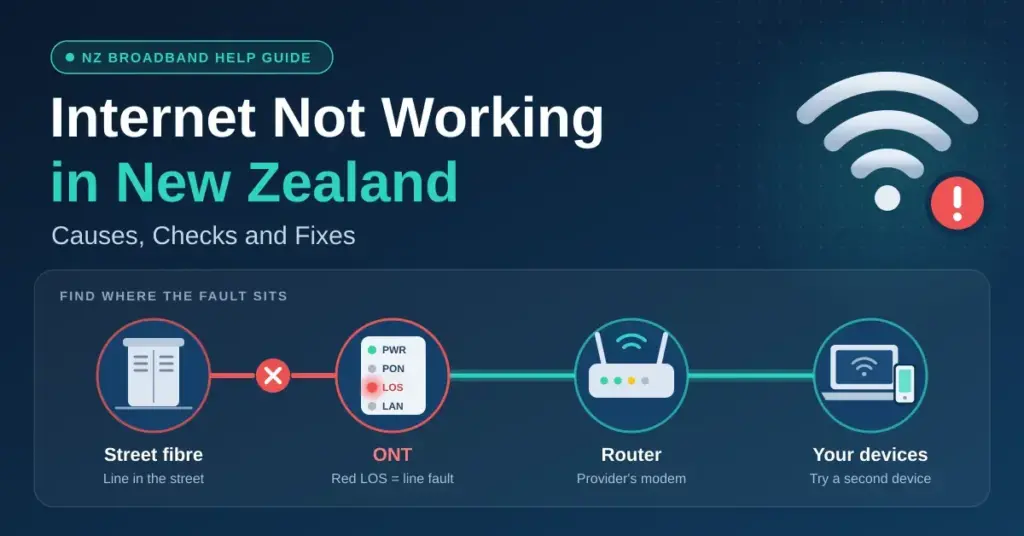
When your internet stops working in New Zealand, the quickest way back online is a calm, step-by-step check that pinpoints where the fault actually sits. Most Kiwi homes now connect through Ultra-Fast Broadband (UFB) fibre, which runs as a chain: the fibre line in the street, an Optical Network Terminal (ONT) — the fibre box on your wall — your provider’s modem or router, and finally your device. A break anywhere along that chain can take you offline. This guide walks through how to read the hardware, run the fixes that resolve most outages, check the right status maps, and recognise the moment a problem is no longer yours to solve — so you don’t waste time on settings when the fault is out in the street.
Key Points
- Find the fault first: use the “Rule of Two” — check a second device to tell a single-device glitch from a whole-house network failure.
- Red LOS/Optical light on the ONT: a line fault outside your home. Call your provider; don’t waste time on settings.
- A full power cycle (ONT and router off ~60 seconds, ONT back on first) clears most temporary dropouts.
- Check the outage map — Chorus, Enable, Northpower or Tuatahi, plus your ISP’s status page — before phoning support.
- Still stuck? The free, independent Telecommunications Dispute Resolution (TDR) service can step in once your provider has had a fair chance to fix it.
Start by working out where the fault is
Before touching any settings, find out whether the problem is inside your home or out on the network. The simplest test is the “Rule of Two”: check at least two devices. If your laptop has no internet but your phone works fine on the same Wi-Fi, the fault is specific to that one device. If every device in the house is offline, you are looking at a hardware or network-level failure that affects the whole connection.
- Check the hardware lights: look for any red or unusual flashing lights on the ONT and the router.
- Check your account: an unpaid bill or a security hold can suspend service — your provider’s app usually shows this.
- Ask a neighbour: if people nearby are also down, it points to a local line or network fault, not your gear.
- Check the cables: make sure the Ethernet lead between the ONT and the router is clicked firmly into both ends.
The ONT versus the modem-router
These two boxes do different jobs, and telling them apart saves a lot of guesswork. The ONT is the white unit installed by your Local Fibre Company — Chorus, Enable, Northpower or Tuatahi First Fibre — that converts the light signal from the fibre into data. The modem or router, supplied by your retail provider such as a Spark modem, takes that connection and shares it as Wi-Fi. If the ONT shows a red “LOS” (Loss of Signal) light, the fault is on the physical line and nothing you change indoors will help. If the ONT is healthy but the router’s internet light is red, the link is fine but your provider cannot authenticate the session.
Reading the status lights on your fibre gear
The lights on your equipment are the first diagnostic report you get during an outage. Models vary, but the logic is consistent: green or blue means healthy, flashing usually means activity or negotiation, and red signals a fault. Being able to describe exactly which light is red helps support log a fault with your Local Fibre Company far faster.
| Device | Light | Red | Off | Green / Blue |
|---|---|---|---|---|
| ONT | LOS / Alarm | Line fault — no signal from the street | Normal (no alarm) | N/A |
| ONT | PON / Optical | Optical signal problem | No signal received | Healthy fibre link |
| Router | Internet / WAN | Authentication or ISP fault | No connection detected | Connection active |
| Router | WLAN / Wi-Fi | N/A | Wi-Fi radio turned off | Wi-Fi broadcasting |
What a red “LOS” light means
A red light on the ONT’s “LOS” or “Optical” indicator means the box is not receiving a light signal from the street. This is almost always a physical fault — a cut or damaged fibre, often caused by earthworks, a “third-party strike” from a digger, or storm damage — and it needs a technician from your Local Fibre Company to repair. In New Zealand you report it to your retail provider (Spark, One NZ, 2degrees and so on), who then coordinates the fix with Chorus, Enable, Northpower or Tuatahi. Restarting your gear will not clear a genuine LOS fault, so don’t spend time on it.
The power cycle: the fix that clears most soft outages
A large share of everyday dropouts are “soft” faults — a temporary software glitch in the hardware or a stalled session with the exchange — and a proper power cycle clears them. The mistake most people make is rushing it: the gear needs to stay off long enough for its capacitors to drain and force a genuine cold boot, and the ONT should come back before the router.
| Step | Action | How long | Why it works |
|---|---|---|---|
| 1 | Switch off both the ONT and the router at the wall | — | Cuts power to the whole chain |
| 2 | Leave both off | 30–60 seconds | Lets the hardware fully clear its memory |
| 3 | Turn the ONT (fibre box) back on first | — | Re-establishes the physical link first |
| 4 | Wait for the ONT to settle | ~2 minutes | The Optical / PON light should go solid green |
| 5 | Turn the router back on | — | Re-authenticates with your provider |
Quick Checklist
- Test a second device on the same Wi-Fi to see if the fault is local.
- Look at the ONT and router lights and note anything red.
- Check your ISP app for a payment hold or a service notice.
- Reseat the Ethernet cable between the ONT and the router.
- Run a full 30–60 second power cycle (ONT back on first).
- Check the outage map; if nothing shows, call your provider and tell them exactly which lights are on.
When a factory reset makes sense
If a full power cycle doesn’t help, a factory reset is the next step. Hold a pin in the recessed “Reset” hole on the back of the router for around 10–15 seconds. Be aware this wipes every custom setting, including your Wi-Fi name and password, so you’ll need to set the network up again. On a provider-supplied modem from Spark, One NZ or 2degrees, the device will usually pull its configuration and reconnect automatically once it is back online. Only reset the router — never the ONT.
Check the outage maps before you call
Before you wait on hold, check whether a fault is already known. New Zealand’s infrastructure owners publish real-time broadband outage maps that draw on automated data from the exchanges. The Chorus map, for example, refreshes roughly every 10 minutes. If your address falls inside a flagged area, your provider already knows and a call won’t speed anything up.
- Chorus outages map: the main source for fixed-line faults across most of the country.
- Enable, Northpower and Tuatahi status pages: for Christchurch, Whangārei and the central North Island fibre areas respectively.
- Your ISP’s status page: Spark, One NZ and 2degrees each show mobile, wireless and broadband faults.
- Downdetector: crowd-sourced reports that often spike before an official page updates.
Using a mobile hotspot to get online
If the official pages haven’t caught up, crowd-sourced reports can confirm a regional problem before your ISP acknowledges it — a sudden spike from your city usually means the issue is widespread. To reach any of these pages while your home line is dead, switch on your phone’s Personal Hotspot and connect a laptop or tablet to it over the mobile network.
When only one device is offline
If the internet works on your phone but not your laptop, the fault is on that one machine. Common causes are a stalled Wi-Fi adapter, an accidental “Airplane Mode”, or stale network settings. Often the quickest fix is to “forget” the network and reconnect with the password.
| Device | First fix | Second fix |
|---|---|---|
| Laptop (Windows / Mac) | Toggle Wi-Fi off and on | Restart the machine |
| Smartphone | Toggle Airplane Mode | Reset network settings |
| Smart TV | Power-cycle at the wall | Use a wired Ethernet cable |
| Game console | Rebuild / refresh the connection | Check the PlayStation or Xbox status page |
Flushing the DNS on a PC
Sometimes a computer holds onto a broken path to a website even after the connection is back. Clearing it — a “DNS flush” — forces the device to fetch fresh directions. On Windows, open Command Prompt and run ipconfig /flushdns; our guide to flushing DNS covers macOS, Android and iOS too. If Windows shows “No Internet, secured” on a Wi-Fi network that looks connected, our guide to that error walks through the Windows-specific fixes.
Wi-Fi interference: connected but “no internet”
Sometimes the line is perfectly healthy but the Wi-Fi signal is being blocked, so your device shows a connection with “no internet”. Everyday household items can smother the 2.4 GHz band that older routers rely on.
- Microwave interference: if the connection drops whenever you heat food, the microwave is drowning out 2.4 GHz Wi-Fi.
- Physical blockages: large metal objects such as fridges, and thick concrete or brick walls, act as shields.
- Router placement: keep it out in the open and up high — not tucked inside a cabinet or behind the TV.
- Channel congestion: in apartments, neighbouring networks crowd the airwaves; switching to the 5 GHz band usually helps.
Choosing between 2.4 GHz and 5 GHz
Most modern NZ routers are dual-band. The 2.4 GHz band reaches further but is slower and far more crowded; the 5 GHz band is much faster and cleaner but does not travel as far or through as many walls. If a room suffers frequent dropouts, move closer to the router or connect to the 5 GHz network for a more stable link.
Still on copper? ADSL and VDSL fixes
Fibre is now the national standard, but a shrinking number of homes still run on older copper ADSL or VDSL lines, which are far more sensitive to their surroundings than fibre. If the “DSL” or “Link” light on your modem is flashing and won’t go solid, the device is struggling to lock onto a signal on the phone line.
- Faulty filter or splitter: a damaged ADSL filter is the most common cause of copper dropouts.
- Multiple jackpoints: if you have several phone sockets, test the modem in each one.
- Line noise: unplug landline phones to see whether one is interfering with the signal.
- Distance and weather: copper speeds fade with distance from the exchange, and a marginal line can fail entirely in heavy rain.
The copper switch-off
Chorus is retiring its copper network, and the change is accelerating. Copper services are being withdrawn in areas where fibre is already available, with the fibre-area shutdown targeted for the end of 2026 and the network due to be gone nationwide by 2028; remaining copper lines have already fallen into the tens of thousands, mostly in places without fibre. Fibre now passes roughly 87% of the population. If your copper connection keeps failing and fibre is available at your address, upgrading is generally the most reliable fix — standard fibre installs are usually free — and where fibre isn’t offered, fixed-wireless or Starlink satellite are the common alternatives.
When to call your provider — and the TDR
If you’ve run a full power cycle, checked the ONT for a red light, and confirmed there’s no known outage, it’s time to call your retail provider — they are your single point of contact for every fault, even when the repair is carried out by the Local Fibre Company. Support hours vary by provider, so check their website for current times. When you call, describe exactly which lights are showing and what you’ve already tried; it lets the agent skip the basics and lodge a fault straight away.
- Have your details ready: your account number or the phone number linked to the broadband.
- Name the hardware: tell them whether the ONT is a Chorus, Enable, Northpower or Tuatahi box.
- Log intermittent faults: if the connection drops only sometimes, keep a record of the dates and times — it helps technicians find the pattern.
- Plan for a visit: if a technician needs access to the ONT, someone aged 18 or over must be home.
Escalating to the Telecommunications Dispute Resolution service
If a provider fails to fix a persistent problem or won’t put things right, you can take the matter to Telecommunications Dispute Resolution (TDR) — a free, independent scheme run by Fair Way that settles disputes between customers and their telcos. You generally need to have complained to your provider first and given it a fair chance to resolve the issue (typically up to about six weeks) before TDR steps in, and you have 12 months from discovering the problem to raise it. It’s a useful backstop when you’re being billed for a service that isn’t being delivered.
Backup options for when the line goes down
If working from home means you can’t afford to be offline, it’s worth setting up a fallback before you need it.
- Personal Hotspot: shares your phone’s 4G/5G data with a laptop over Wi-Fi in seconds.
- 4G failover: many modern routers accept a USB dongle so the connection fails over to mobile automatically when fibre drops.
- Watch your data: hotspotting can burn through several gigabytes an hour, so check your mobile plan’s allowance.
- Battery backup: a small Uninterruptible Power Supply (UPS) keeps the ONT and router running through a short power cut.
Satellite and power-cut resilience
In rural or outage-prone areas, a satellite service such as Starlink can act as a genuine second line rather than just a stopgap; you can read more about how satellite internet delivers a connection from orbit. Remember, too, that a fibre-based home phone (VoIP) won’t work during a power cut unless the ONT and router are on battery backup — worth planning for if anyone in the home relies on a phone line or a medical alarm.
Sources
- Chorus — Internet outages map
- Chorus — Moving off copper: your options
- NZ Telecommunications Forum — Copper retirement and landline changes
- RNZ — Copper network retirement: what you need to know
- Telecommunications Dispute Resolution (TDR)
- Commerce Commission — Disputes with your broadband or mobile provider
- National Infrastructure Agency — Fibre and the UFB programme
- Contact — My internet isn’t working (ONT light guidance)
Frequently Asked Questions
What should I do first when my internet stops working?
Run a full power cycle: switch off both the router and the fibre box (ONT) at the wall for 30–60 seconds, turn the ONT back on first and let it settle, then switch the router back on. This clears most temporary glitches before you try anything more involved.
Why is there a red light on my Chorus fibre box (ONT)?
A red “LOS” or “Optical” light means the ONT isn’t receiving a signal from the street — usually a physical line fault such as a cut cable or a wider outage. It can’t be fixed from inside your home, so report it to your provider rather than changing settings.
How do I check if there is an internet outage in my area?
Check the Chorus outages map or your ISP’s status page and enter your address for real-time fault updates. If your street is flagged, the fault is already known and there’s no need to call. Crowd-sourced sites like Downdetector often flag a spike even earlier.
Why does my Wi-Fi say “connected” but there is no internet?
Your device is reaching the router, but the router can’t reach your provider — or local interference is blocking the signal. Restart both boxes, move closer to the router or switch to the 5 GHz band, and check for any account hold with your ISP.
Can I fix a broken fibre cable myself?
No. Fibre carries data as light through glass strands, and any physical damage has to be repaired by a technician from your Local Fibre Company using specialised equipment. Report it to your retail provider, who will arrange the repair.


