
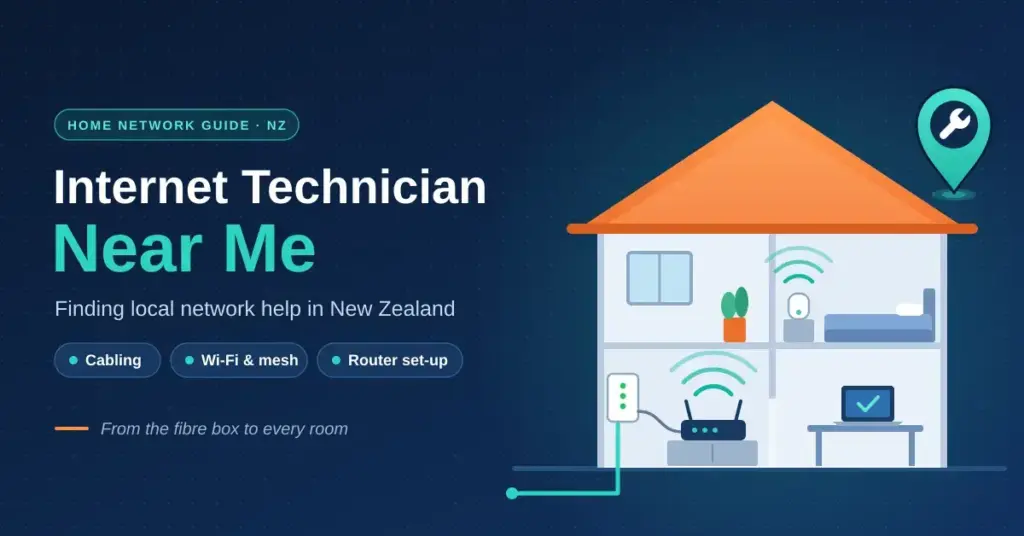
When your home internet keeps dropping, runs slow in one room, or simply will not reach the back bedroom, the fix often lies inside your own walls rather than out on the street. That is where a local internet technician comes in. In New Zealand, your fibre provider’s responsibility stops at the fibre box, so everything from the router onward — internal cabling, Wi-Fi placement, mesh nodes and device settings — is yours to sort out. This guide explains what a private technician actually does, what they typically charge in 2026, how they differ from remote ISP support, and how to choose one you can trust.
Key Points
- In New Zealand, your network operator’s responsibility ends at the fibre box (ONT); everything inside the home is the property owner’s to fix.
- A local technician handles cabling, Wi-Fi, mesh setup and router configuration that remote ISP support cannot reach.
- Indicative 2026 rates are roughly NZ$90-$150 per hour; always get a written quote including GST.
- A red “LOS” light on the ONT is a line fault only your provider can fix — not a technician job.
- Cat6a cabling and 6 GHz Wi-Fi (Wi-Fi 6E/7) are what let multi-gigabit Hyperfibre plans actually perform.
What a Local Internet Technician Actually Does
Most people call their internet provider first when the connection fails, and for line faults that is correct. But a lot of everyday problems sit “inside the boundary” of the home, beyond what a call-centre agent can fix over the phone. In New Zealand, the network operator (Chorus, Tuatahi First Fibre and other Local Fibre Companies) installs and owns the Optical Network Terminal — the small fibre box, or ONT, mounted on your wall. That box is the demarcation point: it marks where the operator’s network ends and your home network begins. Anything past it is the property owner’s responsibility.
A local technician specialises in that internal environment. They can trace why one room is slow, install Ethernet points, set up a mesh Wi-Fi system properly, and configure your router so the speed you pay for actually reaches your devices. Because they visit on-site, they can also spot physical issues a remote agent never sees — interference from building materials, a pinched patch lead, or a router baking inside a hot cupboard.
- Internal cabling: Installing Cat6 or Cat6a Ethernet points for home offices, TVs and gaming setups.
- Wi-Fi and mesh setup: Configuring multi-node systems so your devices roam smoothly across a multi-storey home.
- Hardware audits: Testing the link between the ONT and router and replacing degraded or cheap patch cables.
- Interference checks: Identifying common signal blockers such as foil-backed insulation, brick, mirrors and older appliances.
ISP Support vs a Private Technician
Remote ISP support and an on-site technician solve different problems, and the two are complementary rather than competing. Your provider handles the line, the account and any fault on the operator’s side of the ONT — usually at no charge. A private technician handles the wiring, hardware and configuration inside your home, for a fee. Knowing which is which saves both time and money.
Comparison
| Feature | ISP support (remote) | Private technician (on-site) |
|---|---|---|
| Response | Phone queue; may take a day or more | Often same-day or next-day local visit |
| Scope | The line and the ONT only | Full internal network and devices |
| Approach | Scripted, remote steps | Hands-on diagnosis and hardware placement |
| Cost | Usually free for operator-side faults | Hourly rate plus any parts |
Faults That Usually Need Hands-On Help
Not every drop-out needs a call-out. But persistent, hard-to-pin-down problems often point to a physical (“Layer 1”) fault rather than a software glitch. If speed test results swing wildly between rooms, or the connection stumbles only when a particular appliance switches on, you may be dealing with electromagnetic interference or ageing internal wiring. Technicians use tools such as cable testers and signal meters to find exactly where the signal degrades. In older suburbs, disused telephone extensions and low-quality internal sockets are a frequent culprit.
Common Signs of a Physical Network Problem
- Jitter spikes: Ping times that jump around during video calls or online gaming.
- Frequent re-syncing: The router’s internet light drops or turns red several times a day.
- Partial throughput: Paying for a gigabit plan but only seeing a fraction of it, even over a cable.
- Heat-related crashes: A router or ONT that freezes on warm afternoons when it is poorly ventilated.
Diagnosing the Root Cause of Slow Speeds
A good technician works from the physical layer up — cables and connectors first, then radio settings, then software. Before booking one, it is worth confirming the problem yourself: run a wired speed test next to the router and again in the slow room, so you can show exactly where performance falls away.
| Symptom | Likely cause | Typical fix |
|---|---|---|
| Packet loss | Damaged or kinked fibre/patch cable | Replace with a good-quality bend-insensitive lead |
| High latency | Poor DNS or routing settings | Set a faster resolver and check MTU settings |
| Wi-Fi drop-outs | 2.4 GHz channel congestion | Move devices to 5 GHz or 6 GHz and reset channels |
| Hardware crashes | Power surge or overheating | Add surge protection and improve ventilation |
Simple Fixes to Try Before You Book
Many call-outs turn out to be avoidable, so it is worth spending ten minutes on the basics first. These steps cost nothing and often resolve the most common complaints — or at least give the technician a clearer picture if the problem persists.
- Power-cycle properly: Switch off the router and the ONT at the wall, wait 30 seconds, then power the ONT up first and the router second.
- Move the router: Lift it off the floor, out of cupboards and away from other electronics; central and high is best for Wi-Fi.
- Test with a cable: Plug a laptop straight into the router with an Ethernet lead. If the wired speed is fine, the problem is your Wi-Fi, not the line.
- Check for updates: Log in to the router and apply any pending firmware update, then restart it.
- Split the bands: If devices cling to a weak 2.4 GHz signal, try giving the 5 GHz band its own name so newer devices use it.
If none of that helps, note down what you tried and what changed. A technician can move much faster when you can describe exactly when the problem appears and what you have already ruled out.
Cabling: Moving Beyond Wi-Fi
For a busy household, Wi-Fi is often the weakest link. Many technicians recommend “structured cabling” — running physical Ethernet lines through wall cavities to fixed devices. Hardwiring things that never move, such as a smart TV, a games console or a desktop PC, takes them off the airwaves and frees up wireless capacity for phones and tablets. That alone can ease the congestion that makes the internet feel slow in the evening. For the bigger picture on how cabling fits together, see our guide to internet cable in New Zealand.
Understanding Cable Categories
- Cat5e: Handles up to 1 Gbps. Fine for older plans, but with little headroom for the future.
- Cat6: Supports 10 Gbps over short runs (up to about 55 m). Good for most standard homes.
- Cat6a: Supports 10 Gbps up to 100 m. The common choice for new builds and larger properties.
- Shielded (STP): Useful when data cables must run alongside mains electrical wiring in ceilings.
Wired vs Wi-Fi at a Glance
A hardwired connection removes the airborne variables that affect Wi-Fi, which is why gamers and remote workers value it. It is not magic — a cable will not exceed your plan speed — but it delivers that speed far more consistently.
| Measure | Wi-Fi only | Hardwired (Cat6/6a) |
|---|---|---|
| Speed | Shared and variable | Dedicated and steady |
| Local latency | Higher, fluctuates | Consistently low |
| Stability | Affected by interference | Largely immune to interference |
| Longevity | Radio standards move fast | Good cabling lasts many years |
Regional Differences Across New Zealand
Local geography shapes the kind of work technicians do. In dense parts of Auckland, apartments and terraced housing mean dozens of routers competing for the same airspace, so the focus is often on reducing Wi-Fi overlap. In hilly Wellington, wiring is usually straightforward, but power stability and equipment mounting matter more. In rural areas, technicians are often called to align fixed-wireless antennas or to set up satellite internet such as Starlink.
- Central Auckland: Heavy Wi-Fi overlap in apartments; channel planning and wired backhaul help most.
- Wellington hillsides: Line-of-sight challenges for wireless links; mesh nodes and tidy mounting.
- Canterbury flatlands: Well suited to fibre, but often held back by old internal phone extensions.
- Growth areas (Hamilton, Tauranga): New-build materials such as foil insulation can weaken Wi-Fi.
What It Costs in 2026
Prices vary by technician, region and job, so treat the figures below as indicative rather than fixed — always ask for a written quote. As a rough guide, independent technicians in New Zealand commonly charge in the range of NZ$90 to NZ$150 per hour, with a call-out fee that often covers the first part of the visit. Some offer a flat-fee “home network audit” that includes a room-by-room signal map and a short report on recommended changes.
| Service | Indicative cost (NZD) | Typically includes |
|---|---|---|
| Standard call-out | $120 – $160 | Diagnosis and simple configuration fixes |
| Cat6a data point | $180 – $250 per port | Cable, wall plate and termination |
| Mesh system setup | $200 – $350 | Configuring and testing multiple nodes |
| Smart-home integration | ~$150 per hour | Connecting and securing IoT devices |
Avoiding Surprise Charges
Ask up front whether quotes include GST, and whether the call-out fee covers the first hour of labour. Many independent technicians are GST-registered, which can help home-business owners claim the expense.
- Parts margin: Technicians often add a mark-up on routers or cables they supply.
- Travel fee: Rural or island addresses may attract a distance-based charge.
- After-hours premium: Weekend or evening call-outs usually cost more.
Security Basics a Technician Will Set Up
A visit is a good chance to lock down your network. Many homes still run their router on out-of-the-box settings. A technician will typically enable WPA3 (the current Wi-Fi encryption standard, now mandatory on the 6 GHz band used by Wi-Fi 6E and Wi-Fi 7), turn off WPS — a convenience feature with a long-known weakness — and set up a separate guest network so that cheaper smart devices stay isolated from the computers you use for banking. If you want to understand the threats these steps guard against, our cyber security guide for New Zealand covers the wider picture.
| Setting | What it does | Good for |
|---|---|---|
| WPA3 encryption | Stronger protection for your Wi-Fi traffic | Every modern home |
| Guest / IoT network | Separates smart devices from your main devices | Homes with many smart gadgets |
| Router-level VPN | Encrypts traffic for the whole household | Privacy-conscious users |
| Automatic firmware updates | Keeps the router patched against known flaws | Everyone |
Why a Guest Network Helps
- Isolation: Guests and smart devices can reach the internet but not your shared files or printers.
- Bandwidth control: You can cap how much speed guest devices use.
- Scheduling: The guest Wi-Fi can be set to switch off overnight.
When to Call Your ISP Instead
Knowing who to call first avoids paying for a job that is not yours to fix. If a technician arrives and finds a red “LOS” (Loss of Signal) light on the ONT, they cannot repair it — that is the network operator’s line, and only Chorus or your Local Fibre Company can dispatch a crew. A technician can, however, document the fault so your provider skips the basic script. If you are unsure what your box is telling you, our guide on reading your ONT lights walks through it.
- Call your ISP/operator if: the ONT shows a red light, the fibre lead from the street is damaged, or there is a known area outage.
- Call a local technician if: the ONT is green but Wi-Fi is slow, you need new Ethernet points, or devices will not connect to each other.
- Call a local technician if: you want to install and configure a third-party router your ISP does not support.
Preparing for Hyperfibre and Wi-Fi 7
New Zealand’s fastest connections are moving well beyond a gigabit. Chorus Hyperfibre currently offers symmetric 2 Gbps and 4 Gbps plans, with an 8 Gbps tier available on a network platform (XGS-PON) built to reach up to 10 Gbps. To actually use those speeds, the equipment inside the home has to keep up: multi-gig switches, cabling rated for 10 Gbps, and access points that use the 6 GHz band. Without that, standard gear will bottleneck a multi-gig plan back down to around 1 Gbps. This is where a technician’s planning pays off — matching hardware to the plan so you are not paying for speed you cannot receive.
How to Choose a Reliable Technician
Because “internet technician” is not a regulated title in New Zealand, quality varies. A few simple checks help you pick someone competent and fairly priced. Note that work involving fixed mains wiring must be done by a licensed electrician; data cabling itself does not require an electrical licence, but the person should still be experienced and insured.
- Written quote: Ask for one that lists labour, parts and GST before any work starts.
- Reviews and references: Look for consistent local feedback, not just a five-star average.
- Scope clarity: They should explain what is your responsibility versus the network operator’s.
- Insurance: Public liability cover matters for any work inside your walls.
- No pressure: Be wary of anyone pushing expensive hardware you did not ask about.
Sources
Frequently Asked Questions
How much does a private internet technician cost in New Zealand?
As a rough guide, hourly rates commonly sit between NZ$90 and NZ$150, and a standard call-out often runs around NZ$120 to NZ$160 including the first part of the visit. Prices vary by region and job, so always ask for a written quote first.
Should I call my ISP or a technician first?
Check the fibre box first. If the ONT shows a red LOS light or there is a known area outage, call your provider — that fault is on their side. If the box is green but your Wi-Fi is slow or patchy, the problem is usually inside your home, where a technician can help.
Can a technician install Ethernet ports in my walls?
Yes. Data cabling and wall points (Cat6 or Cat6a) are a common technician job. Only work that touches fixed mains electrical wiring needs a licensed electrician, but many technicians either hold that licence or work alongside one.
Why is my Wi-Fi slow in one room?
This is usually signal loss through walls, floors or foil insulation. A technician can move or add an access point, run a cable to a mesh node, or change the wireless channel so the far room gets a stronger, more stable signal.
Do I need special hardware for Hyperfibre?
Yes, if you want the full speed. A multi-gigabit plan needs a router and switches with multi-gig ports and cabling rated to match. Standard single-gigabit equipment will cap the connection at about 1 Gbps regardless of the plan you buy.


