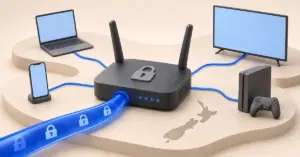
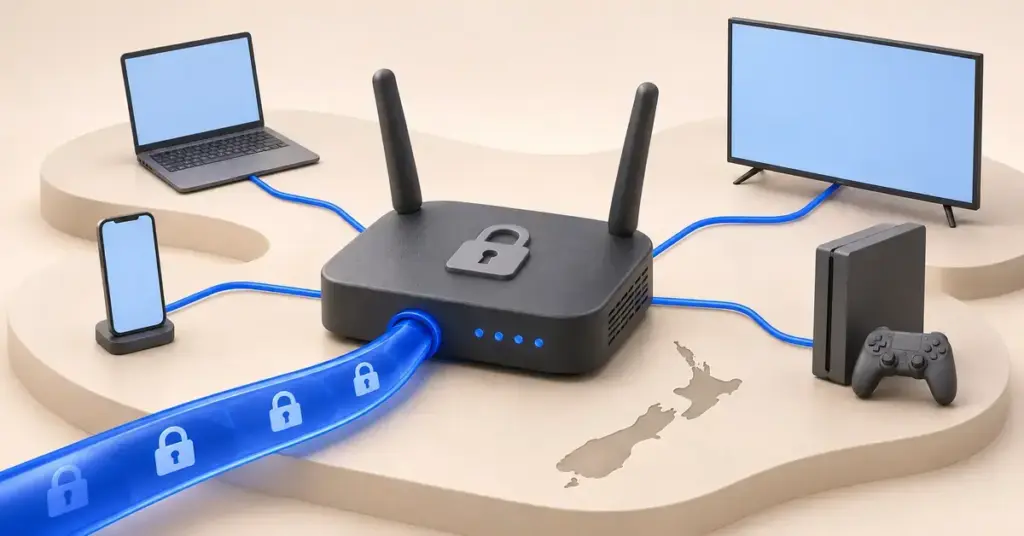
Putting a VPN on your router protects every device on your home Wi-Fi at once — your phone, laptop, smart TV, games console and anything else that connects — without installing an app on each one. This guide explains, in plain English, how to set up a VPN on your router here in New Zealand: which routers can actually do it, what you need, the step-by-step process, how to check it is really working, and the mistakes that trip people up. A VPN (virtual private network) routes your internet traffic through an encrypted tunnel to a server run by the VPN provider, hiding your real IP address so your internet provider or network can’t see which sites you visit.
Why put a VPN on your router instead of on each device
A router-level VPN covers your whole household from one place. That is the main appeal, but it is a trade-off, so it helps to know both sides before you start.
The advantages:
- Every connected device is protected automatically, including ones that can’t run a VPN app of their own — smart TVs, streaming sticks, consoles and smart-home gear.
- You only set it up once, and new devices are covered the moment they join the Wi-Fi.
- One router connection can count as a single device against your plan’s device limit, instead of using up several app slots.
The drawbacks:
- A router’s processor is far weaker than a phone or laptop, so encrypting all your traffic can noticeably slow your connection, especially on fast fibre.
- Changing server location, or switching the VPN off for one device, means going back into the router rather than tapping a button in an app.
- Set-up is more technical than installing an app, and a bad configuration can knock your whole home offline until you fix it.
A common middle ground is to run the VPN on the router for always-on devices and keep the provider’s app on your phone and laptop for when you want to change location quickly.
Which routers can run a VPN
This is the step most people skip, and it is the one that causes the most frustration. Not every router can act as a VPN client — the device that dials out to the VPN server. Here is how the main options compare.
ISP-supplied routers (Spark, One NZ, 2degrees)
Most routers that come free with a New Zealand broadband plan cannot run a VPN client. The firmware is locked down and simply has no VPN option in its menus. It is also worth knowing that on a fibre plan the box screwed to your wall is usually a Chorus Optical Network Terminal, not the router — if you are unsure which box does what, our guide to fibre broadband setup and your Chorus box explains it. If your ISP router has no VPN client, you will need to add your own router behind it (more on that below) or buy a VPN-capable model.
Consumer routers with a built-in VPN client
Some retail routers include VPN-client support out of the box, so you never have to modify them:
- ASUS models with the VPN Fusion feature can store several server profiles and even route some devices through the VPN while others go direct.
- GL.iNet travel and home routers have OpenVPN and WireGuard clients built into a simple web panel.
- Selected TP-Link models support a manual WireGuard or OpenVPN client, though support varies by model, so check the spec sheet before you buy.
If you are shopping for new hardware anyway, our guide to the best Wi-Fi router for your NZ fibre plan is a good place to start, and simply look for “VPN client” in the feature list.
Routers you flash with custom firmware
Many popular routers can be re-flashed with free community firmware that adds VPN support. The main options are DD-WRT, OpenWrt and AsusWRT-Merlin (for compatible ASUS models). This unlocks powerful VPN features, but flashing wipes the router’s software, can void the warranty, and a failed flash can “brick” the device. Only do it with a model that is officially listed as supported, and read the firmware’s own instructions carefully.
Pre-configured and dedicated VPN routers
If you would rather not tinker, you can buy a router that is ready to go. Some providers sell their own hardware — for example, ExpressVPN now ships a router called Fortify, built on GL.iNet’s Flint 2 platform, after it retired its app for ordinary third-party routers on 31 March 2026. Specialist retailers also sell routers pre-flashed for a given VPN. These cost more, but they remove the hard part.
Choose a VPN that supports router setup
Not every VPN plan is designed for routers, and the situation changed in 2026, so it pays to pick a provider whose router support matches the hardware you have. The table below compares how the main services handle router setup. For a wider rundown of New Zealand options, see our guide to whether VPNs are legal and worthwhile in New Zealand, and the provider reviews linked below for pricing detail.
VPN router support
| Provider | Dedicated router app? | Protocols for routers | Custom firmware | Notes |
|---|---|---|---|---|
| NordVPN | No | OpenVPN; WireGuard on some models | OpenWrt, DD-WRT, AsusWRT, Merlin, pfSense | Broad, brand-by-brand manual guides |
| Surfshark | No | WireGuard, OpenVPN | GL.iNet, OpenWrt, DD-WRT, Asus | One subscription covers unlimited devices |
| Proton VPN | No | WireGuard, OpenVPN | OpenWrt, Merlin, GL.iNet, pfSense, MikroTik, DD-WRT | Has a free plan; many step-by-step guides |
| ExpressVPN | Only on its own Aircove/Fortify routers | Lightway (its own) on its routers | Third-party router app retired 31 March 2026 | Buy its router, or use another provider for manual setup |
| Private Internet Access | No | OpenVPN, WireGuard | DD-WRT, OpenWrt, Asus, pfSense | Open-source apps with manual router guides |
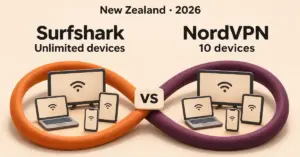
Two providers worth a closer look for router use are Proton VPN, which publishes separate WireGuard and OpenVPN guides for a long list of router models, and Surfshark, whose single subscription covers unlimited devices so a router connection costs you nothing extra against a device limit.
What you need before you start
Gather these first so you are not hunting for details halfway through. Being locked out of your own network mid-setup is the usual cause of panic, and a little preparation avoids it.
Before you start
- A VPN subscription from a provider that offers router or manual setup — not every plan includes it.
- A compatible router — a model with a built-in VPN client, one you can flash with custom firmware, or a ready-made VPN router.
- Your router’s admin login — the web address (often 192.168.1.1), username and password, usually printed on a sticker underneath.
- Your VPN’s manual-setup files — the configuration file for your chosen server plus the separate router username and password from your account dashboard.
- About 20–30 minutes and a stable connection, with your provider’s router guide open on another device in case you get locked out.
How to set up a VPN on your router, step by step
Exact menu names differ between routers, but the process is the same everywhere. Have your provider’s own router guide open on your phone as you go.
- Get your VPN’s router details. Log in to your VPN account on a computer, open the manual setup or router section, choose a server location, and download the configuration file (a .conf file for WireGuard or an .ovpn file for OpenVPN). Copy the separate router username and password shown there — these are usually different from your normal account login.
- Log in to your router. On a device connected to your home network, type your router’s address into a browser — commonly 192.168.1.1 or an address printed on the router’s sticker. Sign in with the router’s admin username and password.
- Find the VPN client section. Look under a tab called VPN, VPN Client, Advanced or Services. If there is no such option, your router can’t run a VPN client and you will need different hardware or firmware.
- Create a new client profile. Choose Add profile, give it a clear name (for example “Proton – Sydney”), and select the protocol. WireGuard is the modern choice and is usually faster on router hardware; OpenVPN is the older, widely supported fallback.
- Import the configuration. Upload the .conf or .ovpn file you downloaded, then paste in the router username and password if the router asks for them.
- Connect and save. Toggle the VPN client to On or press Activate, then save the settings. The router’s status page should show the connection as active after a few seconds.
- Decide which devices use it (optional). If your router supports split tunnelling or policy routing, you can send only chosen devices through the VPN and let others connect normally — handy if a device dislikes the VPN.
Test that it is actually working
Never assume the tunnel is up just because the router says “connected.” Check it from a device on your Wi-Fi:
- Check your IP address. Open an IP-lookup site and confirm it shows the VPN server’s location and country, not your real one in New Zealand.
- Test for DNS leaks. A leak test should show the VPN provider’s servers, not your ISP’s. If your real ISP shows up, your lookups are leaking; one fix is to also change the DNS on your router to match.
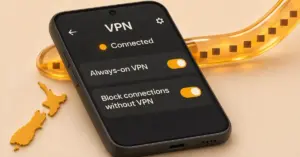
- Confirm the kill switch, if available. Some router firmware can block internet access if the VPN drops, so your traffic never falls back to an unprotected connection. Enable it if the option exists.
Common problems and how to fix them
- Everything is slower. Router encryption is CPU-heavy. Switch from OpenVPN to WireGuard, pick a server closer to New Zealand (Australia is often fastest), or run the VPN only on the router and keep heavy devices on a direct connection.
- You are locked out of the internet. If a bad profile takes the network down, power-cycle the router or hold its reset button to restore defaults, then start again from a saved copy of your config.
- “Double NAT” warnings. Running your own router behind an ISP router can cause issues. Set the ISP box to “bridge” or “modem” mode, or put your VPN router in its DMZ, so only one device is handing out addresses.
- Streaming still looks blocked. Services detect and block many VPN server addresses. Try a different server, and remember that catalogue access is a terms-of-service matter rather than a technical fault.
Legality and safety in New Zealand
Using a VPN is legal in New Zealand, and routing your home network through one is a legitimate way to improve privacy and security. There are two things worth keeping in mind, covered in the note below before the sources.
First, a VPN secures the tunnel, not your whole network: keep your router’s firmware updated, change the default admin password, and use WPA2 or WPA3 Wi-Fi encryption, as the NZ National Cyber Security Centre’s home-network guidance recommends. Second, using a VPN to watch overseas streaming catalogues generally breaches the streaming service’s terms of use — the realistic risk is a blocked stream or a suspended account rather than any legal action, but it is still a contractual matter you take on yourself. None of this is legal advice; if a specific service or situation matters to you, check that provider’s current terms.
Sources
Frequently asked questions
Can I put a VPN on my Spark, One NZ or 2degrees router?
Usually not. Most routers supplied free with a New Zealand broadband plan have locked firmware with no VPN-client option. Your choices are to add your own VPN-capable router behind the ISP one, or to replace the ISP router with a model that supports a VPN client.
Will a router VPN slow down my internet?
It can. A router’s processor is much weaker than a phone or laptop, so encrypting all your traffic may cut your speed, particularly on gigabit fibre. Using the WireGuard protocol and a nearby server (often Australia) keeps the loss as small as possible.
Do I need a special router, or can I use my existing one?
It depends on the model. Some consumer routers (certain ASUS, GL.iNet and TP-Link units) have a VPN client built in. Others can be re-flashed with DD-WRT or OpenWrt firmware, which adds the feature but can void the warranty. If yours supports neither, you will need different hardware.
Can I still watch overseas streaming with a VPN on my router?
Sometimes, but it is unreliable. Streaming services actively detect and block VPN server addresses, so a server that works today may be blocked tomorrow. It also breaches most services’ terms of use, so treat it as a grey area rather than a guaranteed feature.
What happens to devices I don’t want on the VPN?
If your router supports split tunnelling or policy-based routing, you can choose which devices use the VPN and which connect normally. Without that feature, every device on the router’s Wi-Fi goes through the VPN, so a second network or the provider’s app on individual devices may suit you better.