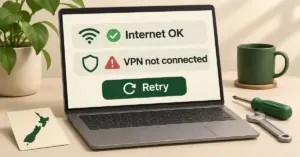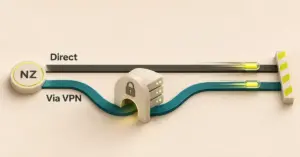
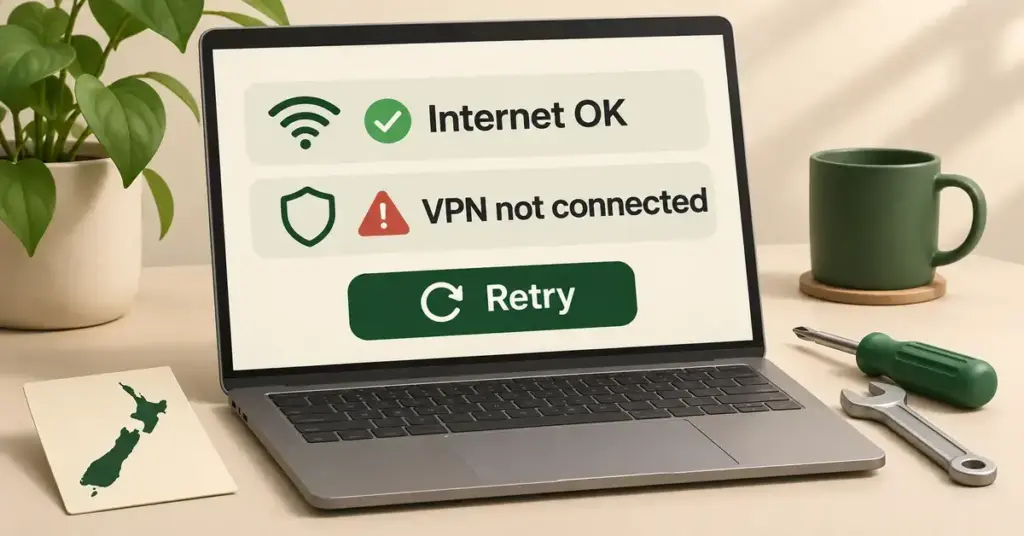
If your VPN won’t connect, it is almost always fixable in a few minutes. Most failures come down to a short list of causes: your underlying internet is down, the server you picked is busy or offline, a firewall or antivirus app is blocking the tunnel, or the app simply needs a restart or update. This guide works through the checks in the order that clears the most problems first, with notes for Kiwi connections and the apps people here actually use.
Start here: is it the VPN or your internet?
Before you touch any settings, find out whether the problem is the VPN or the connection underneath it. A VPN is software that routes your traffic through an encrypted tunnel to a remote server; if the base connection is down, the tunnel has nothing to run over. If you want a refresher on how that works, see our plain-English explainer on what a VPN is.
Turn the VPN off completely, then try to load a normal website or run a speed test:
- Websites load with the VPN off, but not on? The problem is the VPN app or server, so work through the fixes below.
- Nothing loads even with the VPN off? The fault is your broadband, not the VPN. Restart your router and check for a fault with your provider — our guide on why your internet keeps dropping out covers the usual Kiwi causes.
If the internet itself is fine, read on.
The quick fixes that clear most problems
Most “won’t connect” errors are solved by one of the first few steps. Run through this checklist before you dig into advanced settings.
Quick fixes
Try these first — in order:
- Fully close and reopen the VPN app.
- Restart your device and power-cycle your router.
- Connect to a different server or country.
- Switch the protocol (for example WireGuard to OpenVPN).
- Temporarily disable your firewall/antivirus to test, then add the app as an exception.
- Update the app, or uninstall and reinstall it.
- Check your subscription is active and your device clock is correct.
Step by step: how to fix a VPN that won’t connect
1. Restart the app, your device and your router
Fully close the VPN app (not just minimise it), then reopen it and try again. If that fails, restart your phone or computer, and power-cycle your router: switch it off at the wall, wait about 30 seconds, then switch it back on and let it fully come back online. A surprising share of connection failures are temporary glitches that a clean restart clears.
2. Try a different server or location
The server you are trying to reach may be overloaded, down for maintenance, or temporarily offline. In the app, pick a different server — ideally a nearby country such as Australia for lower latency — and connect again. If you normally use a one-tap “quick connect” button, choose a server manually instead. Trying two or three locations quickly rules out a single bad server.
3. Switch the VPN protocol
A protocol is the method your app uses to build the tunnel. Most apps offer a choice, usually WireGuard (fast and modern, sometimes branded under another name), OpenVPN, or IKEv2. If one protocol will not connect on your network, switching to another often gets straight through, because some networks interfere with specific ones. Our comparison of WireGuard and OpenVPN explains the trade-offs. If your app has an automatic or “stealth”/obfuscation option, try that too.
4. Switch between UDP and TCP
When you are using OpenVPN, the app usually lets you choose between UDP and TCP transport. UDP is faster and is the default; TCP is slower but more reliable on restrictive or congested networks, and it runs over port 443 — the same port normal secure websites use — so firewalls rarely block it. If a UDP connection stalls, switch to TCP in the advanced settings and try once more.
5. Check your firewall and antivirus
Security software is one of the most common reasons a VPN app cannot reach its server. A firewall or antivirus tool may wrongly treat the tunnel as suspicious and block it. To test this, temporarily disable your antivirus or firewall and try to connect. If that fixes it, do not leave the protection off — instead, add the VPN app as an exception or allowed program in the security software’s settings, then switch protection back on. On a work or school network, the administrator may block VPN traffic entirely, which no setting on your device will override.
6. Update or reinstall the app
An out-of-date client can fail to connect after the provider changes its servers. Check the app store or the provider’s website for an update and install the latest version. If it still will not connect, uninstall the app completely and reinstall it fresh — this clears corrupted settings and is often the quickest fix for an app stuck on “Connecting”.
7. Reset your network and flush DNS
If other steps fail, stale network settings on your device may be the cause. On Windows, open Command Prompt as an administrator and run ipconfig /flushdns to clear the DNS cache, then netsh int ip reset resetlog.txt (the command requires a log file name) to reset the TCP/IP stack, and restart the PC. Our step-by-step guide to flush your DNS walks through the commands. If DNS problems persist, it can also help to change the DNS on your router.
8. Check for a stuck kill switch
A VPN kill switch is a safety feature that cuts your internet if the tunnel drops, so your real IP address is never exposed. Occasionally it stays active after a failed connection and blocks all traffic, which looks like a dead internet connection. If you lost access right after the VPN disconnected, open the app and turn the kill switch off, confirm your internet returns, then reconnect and switch it back on.
9. Confirm your subscription and device clock
Two small things can silently stop a connection. First, an expired or unpaid subscription can stop the app connecting, or limit you to the provider’s free servers where it offers them — sign in on the provider’s website to check your account is active. Second, if your device’s date and time are wrong, the security certificates the VPN relies on will fail to validate; set the clock to update automatically and try again.
Why your VPN won’t connect on Wi-Fi
If the VPN connects fine on mobile data but fails on your home or public Wi-Fi, the network is the difference, not the app. Common causes on Wi-Fi include a router firewall blocking the VPN’s ports, another VPN or a proxy already running, or a captive-portal login (common on cafe and airport Wi-Fi) that you have not completed yet. Try these in order:
- Finish any “sign in to use this network” page before you start the VPN.
- Switch the protocol to OpenVPN over TCP (port 443), which most routers allow.
- Make sure no second VPN app or proxy is active at the same time.
- On your own router, check that VPN passthrough is enabled and restart the router.
VPN connects but there’s no internet
Sometimes the app shows “Connected” yet no websites load. This is a different fault from a connection that never starts. The usual culprits are a DNS problem, a stuck kill switch, or a conflict with other security software. Work through these:
- Disconnect and reconnect to a different server.
- Switch the protocol (for example, from WireGuard to OpenVPN).
- Flush your DNS, as described in step 7 above.
- Temporarily disable your firewall or antivirus to test for a conflict.
- Turn off the kill switch briefly to confirm it is not blocking traffic.
Is it a provider outage?
If you have tried several servers and protocols with no luck, the problem may be at the provider’s end rather than yours. Check the VPN company’s official status page or its social media accounts for reports of an outage or maintenance. It is also worth checking whether your own internet provider — Spark, One NZ, 2degrees or another — is having a wider fault, since that would stop the VPN too. When the provider confirms an outage, there is nothing to fix on your device: wait and try again later.
Notes for New Zealand users
A few local points are worth knowing:
- ISP-supplied routers: if you use a modem from Spark, One NZ or 2degrees, check that you have not changed a firewall or parental-control setting that could block the connection.
- Connecting from overseas back to NZ: if you are travelling and connecting to a New Zealand server to reach local banking or TVNZ+, a distant or busy server is more likely to time out — pick a different NZ city or try again at a quieter time.
- Mobile and fixed-wireless: on 4G/5G connections, a weak signal can cause the tunnel to keep dropping; move to better coverage before blaming the app.
Sources
Frequently asked questions (FAQ)
How do I reset my VPN?
The most thorough reset is to uninstall the app completely, restart your device, then reinstall the latest version from the app store or the provider’s website and sign in again. This clears corrupted settings and cached data that a simple restart leaves behind. Resetting your device’s network settings can also help if the problem is wider than one app.
Why won’t my VPN connect on my phone?
Mobile apps add a few extra things to check. On Android, battery optimisation can shut the VPN app down in the background, so open Settings, find the app and set its battery use to unrestricted. On iPhone, an old VPN configuration profile can block a new connection, so remove any unused VPN profiles in Settings. If an “always-on VPN” option is turned on for a different app, it can stop another VPN connecting. If it still fails on mobile data, switch server and protocol as you would on a computer.
Why is my VPN stuck on “Connecting”?
An app that sits on “Connecting” is usually hitting a busy or offline server, a blocked protocol, or a firewall. Choose a different server, switch the protocol (for example from WireGuard to OpenVPN over TCP), and if it persists, uninstall and reinstall the app to clear corrupted settings.
Why did my VPN suddenly stop connecting when it worked before?
Start with the quick fixes: restart the app and router and try another server. A recent app or system update, an expired subscription, or an outage at the provider are the common causes, so check the provider’s status page and that your plan is still active.
Can my internet provider block a VPN?
An ISP block is an unlikely cause on a home connection. Restrictive networks — some workplaces, schools and public hotspots — can block VPN traffic, and switching to OpenVPN over TCP sometimes gets around it.