
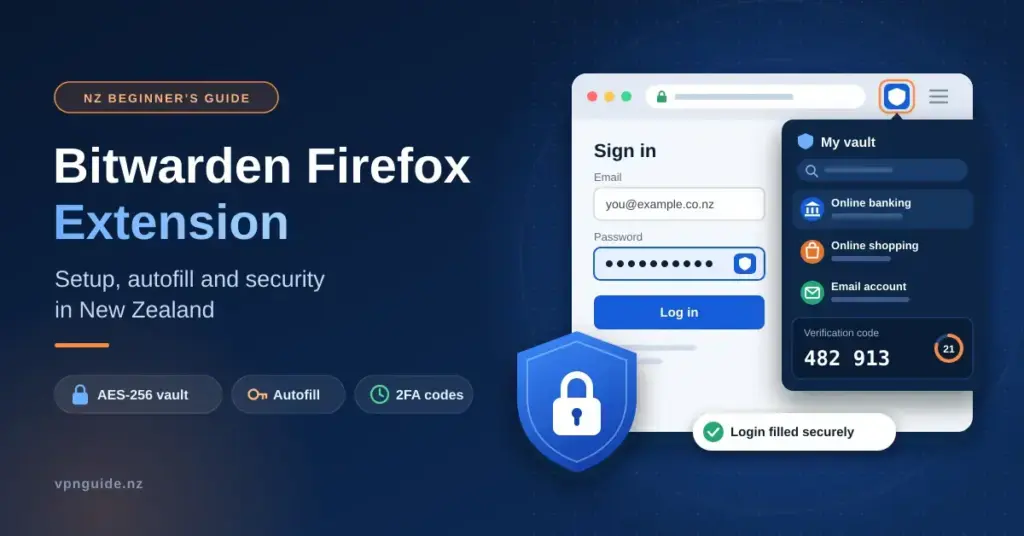
A password manager that lives inside your browser removes one of the most common weak points in everyday online security: reused or guessable passwords typed by hand. For people in Aotearoa New Zealand who bank, shop and log in to government services through Mozilla Firefox, the Bitwarden Firefox extension adds an encrypted vault directly to the toolbar, so credentials are generated, stored and filled without leaving the browser window.
This guide explains what the extension actually does, how to install and configure it, how autofill and two-factor codes work, and how to strengthen the encryption that protects your vault. It is written for beginners, with each technical term explained on first use, and it focuses on how the tool behaves for common Kiwi services rather than on marketing claims.
Key Points
- What it is: an open-source, zero-knowledge password vault that runs as a Firefox add-on and syncs across your devices.
- Encryption: AES-256, with a key derived from your master password using Argon2id or PBKDF2 (Bitwarden cannot read your vault).
- Autofill: Ctrl + Shift + L on Windows/Linux, Cmd + Shift + L on macOS.
- Free plan: unlimited passwords and devices, passkeys, biometric unlock and a two-user sharing organisation.
- Premium (about NZ$33/year): adds built-in 2FA codes, vault health reports, 5 GB encrypted storage and emergency access.
- NZ use: works across major banks, RealMe, IRD myIR, Sharesies and Trade Me, on any local internet provider.
What the Bitwarden Firefox extension is
The Bitwarden Firefox extension is a browser add-on that stores your logins, passkeys, cards, identities and secure notes in an encrypted vault. It is built on a zero-knowledge model, meaning your data is encrypted on your own device before it is uploaded, using a key derived from your master password. Because Bitwarden’s servers never hold that key, the company cannot read your vault — and neither can an attacker who somehow reaches the stored data.
Encryption uses AES-256, a widely trusted symmetric cipher (the same standard used across the security industry). The project is open source, so its code is published publicly and can be inspected by independent researchers. You can read a neutral overview of the project on Wikipedia, and our wider Bitwarden password manager guide covers the full ecosystem of apps that the extension syncs with.
Why open source matters for a browser extension
Browser extensions sit close to everything you type, so trust is central. An open-source codebase lets security teams verify that the extension does what it claims and does not quietly leak data. It also fits Firefox’s own privacy-focused approach. Open source is not a guarantee of safety on its own, but combined with regular independent audits and a public code repository it gives you something to check rather than a promise to take on faith. If you want to compare the extension against the rest of the market, our overview of password managers for New Zealand is a good starting point.
Quick Facts
| Developer | Bitwarden Inc. |
| Official download | Mozilla Add-ons listing |
| File size | About 20 MB (varies by version) |
| Licence | Free; open source (GNU GPL v3.0) |
| Platforms | Firefox on Windows, macOS, Linux and Android |
| Encryption | AES-256 with Argon2id or PBKDF2 (600,000 iterations) |
| Premium price | US$19.80/year (about NZ$33) |
The table below shows where a dedicated vault differs from Firefox’s built-in password storage. Firefox’s saved-logins feature is convenient, but it is designed as a browser convenience rather than a full credential manager.
| Capability | Firefox built-in storage | Bitwarden extension |
|---|---|---|
| Encryption | Local encryption; a Primary Password is optional | AES-256 with a mandatory master password and Argon2id or PBKDF2 key derivation |
| Cross-device sync | Tied to a Mozilla account and Firefox only | Syncs across browsers, desktop apps and mobile, unlimited devices |
| Built-in 2FA (TOTP) codes | Not available | Available on Premium |
| Data types | Website logins | Logins, passkeys, cards, identities and secure notes |
| Self-hosting | Not supported | Optional; you can run your own server |
How to install the extension in Firefox
Installing from the official Mozilla Add-ons store takes a couple of minutes. Only install from the official listing — add-ons copied to other download sites can be tampered with. To get the most from the extension, many people also install the Bitwarden desktop app, because the two can link so the browser can unlock using your computer’s biometric hardware.
- Open the official listing. In Firefox, go to addons.mozilla.org and search for “Bitwarden Password Manager”, or open the Bitwarden listing directly. Check that the publisher shows as Bitwarden Inc. and that the “Recommended” badge is present.
- Add it to Firefox. Select “Add to Firefox”, then confirm the permissions prompt. The Bitwarden shield icon appears in the toolbar.
- Pin the icon. Click the Firefox extensions puzzle piece and pin Bitwarden so it stays visible.
- Create or log in to your account. Click the shield, then log in with an existing account or create one. Choose a long, unique master password you can remember — it is the one credential Bitwarden cannot recover for you.
- Write down your recovery information. Store your master password hint and, if you enable it, your two-step recovery code somewhere safe and offline.
- Optional: install the desktop app. Download the desktop app for Windows, macOS or Linux, then enable browser integration so the extension can unlock with Windows Hello, Touch ID or Face ID.
Using autofill day to day
Once you are logged in, the extension detects login fields on the active tab. You can fill credentials in three ways: click the shield icon and choose the matching entry, use the small inline menu that appears in a login box, or use the keyboard shortcut, which is the fastest option.
The default autofill shortcut is Ctrl + Shift + L on Windows and Linux, and Cmd + Shift + L on macOS. It pulls the matching username and password from your unlocked vault and fills the fields. If you have several logins saved for the same site, pressing the shortcut again cycles through them, so you can pick the right account without reaching for the mouse. You can change or disable the shortcut in Firefox’s “Manage Extension Shortcuts” settings if it clashes with another add-on.
Built-in two-factor codes (Premium)
Two-factor authentication (2FA) adds a second step to a login, usually a six-digit code that changes every 30 seconds — a time-based one-time password, or TOTP. On the Premium plan, Bitwarden can store the secret key behind those codes and generate them for you inside the vault, so you do not need a separate authenticator app.
- Codes are generated locally from the stored key on your own device.
- The current code can be copied automatically to your clipboard when the extension fills a login, ready to paste on the next screen.
- The clipboard is cleared after a short delay to reduce the risk of another app reading the code.
Storing your password and your 2FA code in the same vault is more convenient but slightly reduces the independence of the two factors; some people prefer to keep authenticator codes in a separate app. Both are reasonable choices depending on your threat model.
Strengthening your vault encryption with Argon2id
Your master password is never stored. Instead it is run through a key derivation function (KDF) — a deliberately slow calculation that turns your password into the encryption key. A slower calculation makes it far more expensive for an attacker to guess passwords against a stolen vault backup.
Bitwarden supports two KDFs. PBKDF2 is the long-standing default; Bitwarden now runs it at 600,000 iterations, in line with current OWASP guidance. Argon2id is a newer, award-winning design that also forces the attacker’s hardware to use a set amount of memory, which blunts the advantage of specialised password-cracking machines. Both are strong; Argon2id is generally considered more future-proof for a determined offline attack.
How to switch your vault to Argon2id
You change the KDF from the web vault, not from the extension. The change re-encrypts your vault, so all your devices will re-sync afterwards.
- Log in to the web vault at vault.bitwarden.com in a browser.
- Open your account menu, choose Account settings, then the Security tab, then Keys.
- Find the KDF algorithm setting and change it from PBKDF2 to Argon2id.
- Leave the current recommended values in place (32 MiB memory, 6 iterations, 4 parallelism) unless you have a specific reason to raise them and a device powerful enough to handle it.
- Enter your master password to confirm. Your apps and the Firefox extension update their encryption on the next sync.
Setting the memory value too high can make unlocking slow or fail on low-powered phones, so raise it gradually and test on every device you use.
Free versus Premium: what you actually get
Bitwarden’s free plan is unusually complete, which is why it suits most individual users. Premium adds convenience and monitoring features rather than lifting a cap on how many passwords or devices you can use. For a fuller cost breakdown, see our dedicated Bitwarden pricing and plans guide.
| Feature | Free | Premium (individual) |
|---|---|---|
| Annual price | Free | US$19.80 (US$1.65/month), roughly NZ$33 depending on the exchange rate |
| Password and passkey storage | Unlimited | Unlimited |
| Device sync | Unlimited devices | Unlimited devices |
| Two-user free organisation | Yes — share up to 2 collections with one other person | Yes |
| Built-in TOTP authenticator | No | Yes |
| Vault health / password reports | No | Yes |
| Encrypted file storage | No | 5 GB |
| Biometric unlock | Yes (Face ID / Touch ID / Windows Hello) | Yes |
| Emergency access | No | Yes |
Bitwarden raised the Premium price in January 2026 (previously US$10 a year), so older reviews may quote a lower figure. Because you are billed in US dollars, the New Zealand cost moves with the exchange rate. The extension also supports passkeys on both plans, and advanced users can self-host the server on their own hardware.
Locking down the extension on a shared computer
Strong encryption protects your vault at rest, but it does nothing if you walk away from an unlocked browser. On a shared or office machine, an unlocked extension exposes every saved login. The settings that matter live under the settings cog, in the Account security section.
- Set a short vault timeout. Choose “15 minutes”, “On browser restart” or “System lock” so the vault locks itself when you step away.
- Set the timeout action to “Lock”, not “Log out.” Locking lets you re-open quickly with biometrics or a PIN; logging out clears the vault and requires your full master password.
- Turn off Firefox’s own password prompts. Disabling the browser’s built-in “save password” offers prevents duplicate, less-protected copies of your logins.
- Add a PIN as a fallback. A local PIN unlocks the vault quickly on devices without a fingerprint or face sensor.
Using Bitwarden with New Zealand banks and services
The extension works the same way regardless of who provides your connection, so it behaves consistently across the major New Zealand internet providers and fibre networks. Its real value locally is letting you give every account a long, unique, randomly generated password, so that a breach of one service does not put the others at risk — a core habit in good cyber security.
Autofill maps reliably to the sign-in pages of the services most Kiwi households use:
- Online banking: ANZ, ASB, BNZ, Westpac NZ and Kiwibank.
- Government and identity: RealMe, IRD’s myIR and ACC services.
- Investing: local platforms such as Sharesies, Hatch and Kernel.
- Everyday accounts: Trade Me, retail sites and power or utility portals, where saved cards and addresses can also be filled.
A few bank pages deliberately block automated filling on security screens; where that happens you can copy the password from the vault and paste it manually.
Moving your existing passwords into Bitwarden
If your logins currently live in Firefox, Chrome or another password manager, you do not have to re-enter them by hand. Most tools can export your saved credentials to a file that Bitwarden then imports in one step, so you can switch without losing anything.
- Export from your old tool. In your current browser or manager, find the export option and save the file. Firefox exports saved logins to a CSV file from its Passwords screen; other managers offer their own CSV or JSON export.
- Import into the web vault. Log in at vault.bitwarden.com, open Tools, then Import data, choose the matching source format and upload the file.
- Check for duplicates. Review the imported entries and merge or delete any repeats before you rely on them.
- Delete the export file securely. The exported file is unencrypted plain text, so remove it from your Downloads folder and empty the trash once the import is confirmed.
After importing, it is worth running Premium’s vault health report, or simply skimming the list yourself, to find weak or reused passwords and replace them with freshly generated ones. Turning off the old browser’s built-in password saving at the same time stops it quietly rebuilding a second, less-protected copy of your logins.
Limitations to be aware of
No tool is flawless, and it is fair to weigh the trade-offs. The interface is functional and plain rather than polished, which some people find less inviting than paid rivals such as 1Password or Dashlane. Autofill is also intentionally conservative: on unusual or older page layouts it may not pop up automatically, and you may need to trigger it with the keyboard shortcut or the right-click menu.
- Buy Premium through the web vault, not an app store, to avoid mobile-store surcharges and billing mix-ups.
- If an autofill overlay hides a button on a specific site, you can turn off the inline menu for that domain in settings.
- Keep your recovery details offline. Because of the zero-knowledge design, no one at Bitwarden can reset your master password for you.
Who the extension suits
The Bitwarden Firefox extension is a strong fit for individuals and households in New Zealand who want a transparent, low-cost way to manage passwords inside the browser. The free plan covers unlimited passwords and devices, passkeys and biometric unlock, which is enough for most people; Premium mainly adds built-in 2FA codes, vault health reports, encrypted storage and emergency access for a modest annual fee. If you configure a short auto-lock, switch your vault to Argon2id and store your recovery details safely, you get a practical, verifiable layer of protection across the sites you use every day.
Reference sources
Frequently asked questions
Is the Bitwarden Firefox extension free to use?
Yes. The core extension and the mobile and desktop apps are free, with unlimited password and passkey storage across unlimited devices. Premium is optional and mainly adds built-in two-factor codes, vault health reports, 5 GB of encrypted storage and emergency access.
What is the fastest way to autofill a login?
Use the default keyboard shortcut: Ctrl + Shift + L on Windows and Linux, or Cmd + Shift + L on macOS. It fills the matching username and password on the active page, and pressing it again cycles through multiple saved logins for the same site.
Should I switch my vault to Argon2id, and what settings should I use?
Argon2id is generally more resistant to offline password-cracking than PBKDF2. You can switch it in the web vault under Account settings, Security, Keys. The current recommended values are 32 MiB memory, 6 iterations and 4 parallelism; raise them only if your devices can handle the extra work.
Can I unlock the extension with Face ID, Touch ID or Windows Hello?
Yes. Install the Bitwarden desktop app and enable browser integration; the extension then links to the app and can unlock using your computer’s biometric sensor instead of typing your master password each time.
What happens if I forget my master password?
Because Bitwarden uses zero-knowledge encryption, staff cannot reset it or read your vault. You would need your saved recovery details or a configured recovery method; without them the encrypted data cannot be unlocked, so store that information safely offline.


