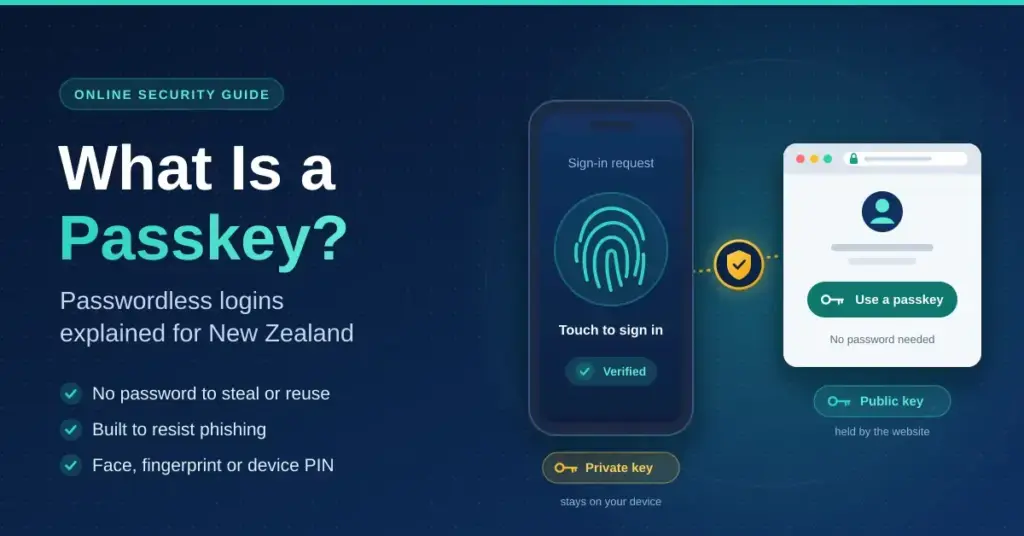
A passkey replaces the password you type with a pair of cryptographic keys — one kept on your phone, laptop or security key, and the other held by the website. You sign in with the same fingerprint, face scan or device PIN you already use to unlock your device, and nothing that could be copied and reused ever travels across the internet.
That is a bigger shift than it first sounds. There is no secret word to guess, nothing to reuse across dozens of sites, and nothing for a fake login page to capture. Passkeys are the first mainstream sign-in method in decades that makes phishing structurally impossible rather than merely harder — and with the FIDO Alliance reporting an estimated five billion passkeys in use worldwide in 2026, they are moving from novelty to default. This guide explains what a passkey is, how it works, where New Zealanders can already use one, and what it still does not solve.
Key points
- What it is: a login credential made of two cryptographic keys — a private key locked on your device and a public key held by the website.
- How you use it: unlock it with your fingerprint, face or device PIN; there is no password to type or remember.
- Why it is safer: nothing reusable is ever sent to the site, and a passkey only works on the genuine domain, so phishing pages cannot trigger it.
- Where it lives: synced through Apple iCloud Keychain, Google Password Manager or a password manager such as Bitwarden, 1Password, NordPass or Proton Pass — or kept device-bound on a hardware security key.
- In New Zealand: already accepted by Inland Revenue’s myIR, Trade Me and Air New Zealand, plus Google, Microsoft and Apple accounts; NZ banks still use app approval and codes for web login as of 2026.
What a passkey is, in plain terms
A passkey is a login credential built on public-key cryptography — a well-established method that uses two mathematically linked keys instead of one shared secret. When you create a passkey for a website, your device generates a matching pair: a private key that never leaves the secure hardware inside your phone or computer, and a public key that the website stores against your account.
The public key is not a secret. On its own it cannot log anyone in, so a website that gets breached leaks nothing an attacker can use. The private key does the real work, and because it stays locked in your device, there is no password sitting in a database, no reused login to spread from one hacked site to the next, and nothing to type into a lookalike page.
A rough analogy helps. A password is like a spare key hidden under the doormat: anyone who finds it, or tricks you into handing it over, can walk in. A passkey is more like a signet ring that only you wear — the website can recognise the imprint it leaves, but the ring never leaves your finger, so there is nothing to copy, steal or hand to an impostor.
Passkeys are not a single company’s product. They are built on open standards — FIDO2 and WebAuthn — agreed by Apple, Google, Microsoft, browser makers and the FIDO Alliance, which is why a passkey created on an iPhone can work with a website opened on a Windows laptop. The word “passkey” is simply the consumer-friendly name for a FIDO credential you unlock with a biometric or PIN.
How a passkey actually works
Behind the tap of a fingerprint, four things happen in a fraction of a second:
- When you create a passkey, your device generates a key pair for that specific site and stores the private key in its secure hardware — the Secure Enclave on Apple devices, or an equivalent chip on Android and Windows.
- The website keeps only the public key. A breach of that site exposes nothing worth stealing, because the public key cannot sign anything.
- To sign in, the site sends your device a random one-time “challenge”. Your device asks for your fingerprint, face or PIN, then uses the private key to sign that challenge.
- Your device sends back the signature. The site checks it against your public key. A valid signature proves you hold the private key — without the key itself ever leaving your device.
You can see this laid out step by step in the technical explainer at Passkey Central, but the practical takeaway is simple: no reusable secret is ever transmitted, so there is nothing on the wire for anyone to intercept.
Why the domain lock matters
The single most important detail is that a passkey is tied to the exact web domain it was created for. A convincing copy of your bank’s login page hosted at a slightly different address cannot ask your device for that passkey, because the domain does not match — your browser and operating system simply will not offer it. That is what makes passkeys phishing-resistant by design: even a perfect replica of a real site cannot trick the passkey into signing in.
Your biometric data is equally protected. Your fingerprint or face scan never leaves your device and is never sent to any website. It only unlocks the private key locally, in the same way it unlocks your phone.
Signing in on someone else’s device
You do not need your passkey stored on every machine you touch. If you sit down at a shared or public computer, the site can show a QR code that you scan with your phone. Your phone confirms the sign-in over an encrypted local connection, the two devices verify they are physically close, and you are logged in — without the passkey ever copying to that computer. It is a neat way to use a passkey on a borrowed laptop while keeping the private key on your own phone where it belongs.
Synced or device-bound passkeys
Most passkeys today are synced, meaning a copy is securely mirrored across your devices so losing one phone does not lock you out. Apple’s passkeys sync through iCloud Keychain, which is end-to-end encrypted so that even Apple cannot read the keys — you can read Apple’s own explanation of passkey and iCloud Keychain security. Google’s sync through Google Password Manager across Android, Windows, macOS and iOS, as long as you are signed in to Chrome, and are likewise end-to-end encrypted.
Dedicated password managers store and sync passkeys too, which is often the most flexible choice because they work the same way across Apple, Android, Windows and Linux rather than locking you into one company’s ecosystem. Bitwarden, 1Password, NordPass and Proton Pass all act as passkey providers. The table below compares the main options.
Passkey managers compared
| Where passkeys are stored | Works on | Syncs across | Good to know |
|---|---|---|---|
| Apple iCloud Keychain | Apple devices, Safari | iPhone, iPad, Mac | End-to-end encrypted; needs an Apple ID with iCloud Keychain switched on |
| Google Password Manager | Android, Chrome | Android, Windows, macOS, iOS via Chrome | End-to-end encrypted; you sign in to Chrome with your Google account |
| Microsoft account | Windows, browsers | Devices signed in to your Microsoft account | Uses Windows Hello; handy for Microsoft 365 and Xbox logins |
| Bitwarden | Windows, macOS, Linux, Android, iOS, browsers | Every device with your vault | Free plan stores passkeys; open-source |
| 1Password | Windows, macOS, Linux, Android, iOS, browsers | Every device with your account | Paid; can also unlock the app itself with a passkey |
| NordPass | Windows, macOS, Linux, Android, iOS, browsers | Every device with your account | Free and paid tiers both store passkeys |
| Proton Pass | Windows, macOS, Linux, Android, iOS, browsers | Every device with your account | Passkey storage included on the free plan |
Device-bound passkeys are the alternative. These live on a physical hardware security key — such as a YubiKey — and never leave it. They are the stronger option for high-value accounts because there is no cloud copy to attack, but the trade-off is that if you lose the key, the passkey is gone. Anyone relying on a hardware key should register a second one as a backup and keep it somewhere safe.
Why passkeys beat passwords
The case for passkeys is not just theoretical. On World Passkey Day 2026 the FIDO Alliance reported that passkeys reach a roughly 93% sign-in success rate, compared with about 63% for passwords — people simply get in more often, with fewer forgotten-password resets and lockouts. Microsoft has reported that signing in with a passkey is around three times faster than typing a password, and far faster again than a password plus a one-time code.
The security gains stack up in three ways:
- Nothing to steal in a breach. Sites hold only public keys, so a leaked database gives attackers nothing to reuse.
- Nothing to phish. The domain lock means a fake page cannot trigger your passkey, defeating the most common way accounts are hijacked.
- Nothing to reuse. Every passkey is unique to one site, so a problem at one service cannot cascade to your other accounts the way a reused password does.
Passwords, by contrast, can be guessed, reused, leaked, intercepted or handed over to a convincing scam. If you want to see how exposed your existing logins are, you can check whether your details have appeared in a data breach before you start switching to passkeys.
Where you can use passkeys in New Zealand
Adoption in New Zealand trails the big global platforms but is growing, and the services most people deal with regularly are already on board. Here is where passkeys stand locally in 2026:
| Service | Passkey support (2026) |
|---|---|
| Inland Revenue (myIR) | Yes — set up under Manage my profile then Security |
| Trade Me | Yes — offered as a sign-in and multi-factor option |
| Air New Zealand | Yes — set up under Manage your MFA options |
| Google, Microsoft and Apple accounts | Yes — on all three platforms |
| NZ banks (ASB, ANZ, BNZ, Westpac, Kiwibank) | Not for web login — they use app approval, in-app biometrics or SMS codes |
Inland Revenue (myIR)
The government’s myIR is the passkey most New Zealanders will meet first. To add one, log in as usual, go to Manage my profile, choose Security, and select Create a passkey, then follow the prompts on your device. Once it is set up, you can choose Log in with a passkey next time, and if you also use two-step verification you will not have to enter a separate code. Inland Revenue’s own walkthrough covers the steps for phones, tablets and computers — see Inland Revenue’s guide to logging in to myIR with a passkey.
Banks, Trade Me and everyday services
Trade Me lets you turn on a passkey from your account’s security settings as one of several multi-factor options, and Air New Zealand added passkeys as part of its multi-factor rollout, letting members sign in with Face ID or a fingerprint. New Zealand banks are the notable holdout: as of 2026 none offer a passkey for web banking, relying instead on their mobile apps to approve logins, on in-app biometrics, or on SMS codes. If you want the background on how those systems work, our guide to internet banking in New Zealand explains the current security model. Beyond local services, your Google, Microsoft and Apple accounts all support passkeys today, and each is an easy, low-risk place to try one out.
How to set up your first passkey
The safest way to start is to practise on an account you use often but could recover easily if something went wrong — a Google or Microsoft account is ideal. A sensible order looks like this:
- Pick a low-stakes account and open its security settings. Look for an option called “Passkeys” or “Sign in without a password”.
- Choose to create a passkey and follow the prompt to confirm with your fingerprint, face or PIN. Decide where to store it — your device’s built-in keychain or a password manager.
- Sign out and sign back in with the passkey a few times until you trust it.
- Keep a second sign-in method registered — an authenticator app or backup code — until you are confident, so you are never relying on a single route in.
- Only then add passkeys to more important accounts.
If you use a password manager, it usually makes sense to create passkeys inside it rather than in a single device’s keychain, so they follow you across every platform you use. A free, open-source option is Bitwarden, and we have a dedicated walkthrough for setting up and using passkeys in Bitwarden. Whichever tool you choose, treat the account that holds your passkeys as your most important login of all and protect it accordingly. For a broader security checklist, New Zealand’s national cyber agency publishes five quick steps to online security.
What passkeys do not fix
Passkeys are a genuine leap forward, but they are not a finished job, and a few honest limitations are worth knowing before you switch everything over.
You will keep passwords for years. Most websites still do not offer passkeys, and many that do treat them as an extra option rather than a replacement — which means the old password stays on the account as a fallback an attacker can still target. Wherever that fallback exists, a long, unique password and a second factor still matter. A password manager keeps those passwords strong and now stores your passkeys alongside them, and a strong password generator takes the guesswork out of the ones you still need.
Account recovery is the weak point. A passkey is only as strong as the way you can recover an account without it. If a service lets you reset access with an email link or an SMS code, that route is only as secure as your email inbox or phone number — which is exactly why your email account deserves your strongest protection, ideally its own passkey or hardware key.
Moving between ecosystems is still maturing. Passkeys created in Apple’s keychain and those in Google’s or a password manager have historically been hard to move between one another. A new industry standard, the Credential Exchange Format, is designed to let you export and import passkeys between providers, and it is rolling out gradually — but for now, storing passkeys in a cross-platform password manager is the simplest way to avoid being locked to one company.
Passkeys, passwords and 2FA: who they suit
It helps to see the three approaches side by side. A password is a shared secret you type; it is universally supported but easy to phish, reuse or leak. Two-factor authentication adds a second step — a code or app approval — on top of a password, which is a real improvement but can still be phished by a fake page that captures both the password and the code. A passkey folds identity and second factor into one phishing-resistant step and removes the shared secret entirely.
For most New Zealanders, the practical answer is to use passkeys wherever a service offers them, keep two-factor authentication switched on everywhere else, and let a password manager hold the mix. Passkeys suit anyone who wants faster, safer everyday logins; hardware-bound passkeys suit high-risk accounts such as email, banking portals and work systems where the extra care is worth it.
Disclaimer: This article is general information only, not security or financial advice. If you lose access to an account, use the provider’s own recovery process. If you suspect fraud in New Zealand, contact your bank immediately and report it to the National Cyber Security Centre on 0800 114 115.
Sources
- FIDO Alliance — Passkeys explained
- FIDO Alliance — World Passkey Day 2026: five billion passkeys in use
- Passkey Central — How passkeys work
- Inland Revenue — Log in to myIR using a passkey
- Apple — About the security of passkeys
- Google — Safer with Google: authentication and passkeys
- Microsoft Security — World Passkey Day: advancing passwordless authentication
- Trade Me — Manage multi-factor authentication
- Air New Zealand — Manage multi-factor authentication
- Own Your Online (NCSC) — Five quick steps to online security
Frequently asked questions (FAQ)
What is a passkey in simple terms?
It is a login that uses a key stored on your device and unlocked by your fingerprint, face or PIN, instead of a password you type. The private key never leaves your device, and the website only ever receives a signature that proves who you are — never anything an attacker could reuse.
Are passkeys safer than passwords?
Yes, for two structural reasons. There is no shared secret stored on the website, so a breach exposes nothing usable, and a passkey only works on the genuine site’s domain, so phishing pages cannot trigger it. Industry data also shows people sign in successfully far more often with passkeys than with passwords.
What happens if I lose my phone?
Synced passkeys are restored automatically when you sign in to your Apple, Google or password manager account on a new device, because an end-to-end encrypted copy is kept in the cloud. Device-bound passkeys stored only on a hardware security key are lost with that key, which is why you register a backup key in advance.
Does a passkey store my fingerprint?
No. Your fingerprint or face scan stays on your device and is never sent to any website. It only unlocks the private key locally, in the same way it unlocks your phone. Websites receive a cryptographic signature, not your biometric data.
Can I use passkeys with my New Zealand bank?
Not for web login as of 2026. New Zealand banks currently rely on their mobile apps to approve sign-ins, on in-app biometrics, or on SMS codes rather than passkeys. Inland Revenue’s myIR, Trade Me and Air New Zealand do support passkeys, so you can start there.
Do I still need a password manager?
Yes. Most sites still use passwords, so you need somewhere to keep them strong and unique, and a modern password manager now stores passkeys alongside them. Keeping both in one cross-platform vault means your logins work the same way across every device you own.